App Reviews
Preview vs Adobe Acrobat Reader for Reviewing PDFs on iPhone
Choose a PDF markup workflow by the feedback you need to leave and the object your recipient should receive. Check account and plan boundaries before switching.
Published , 5 min read, by Copied Editorial team
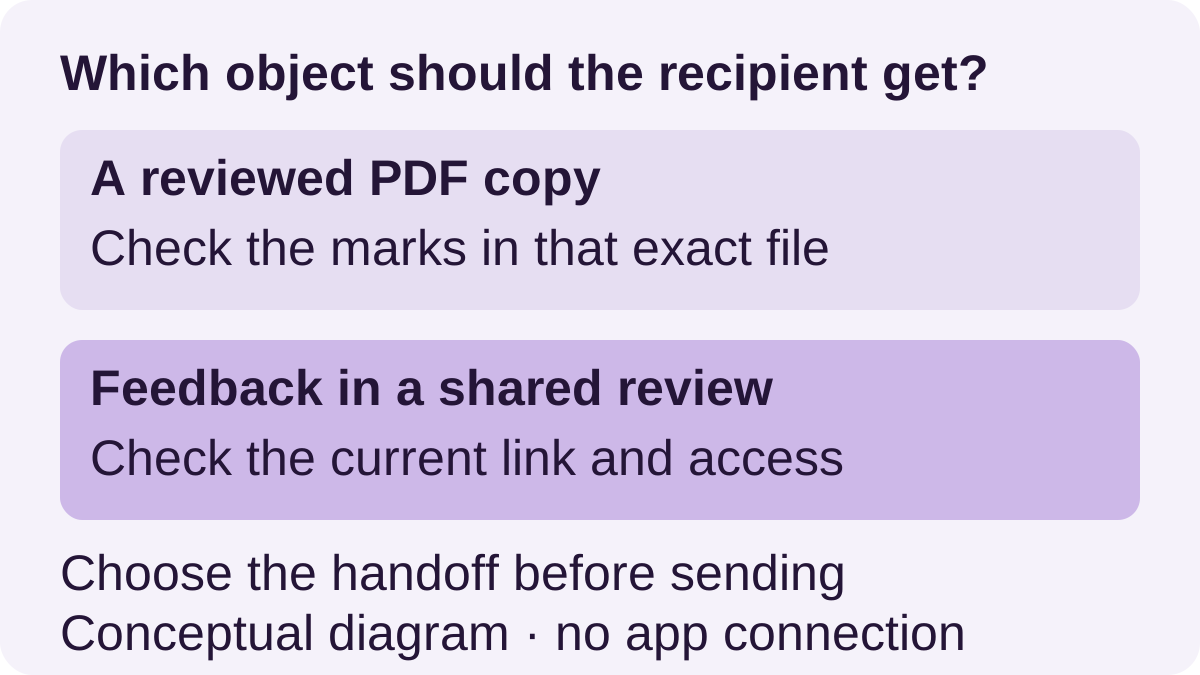
For reviewing a business PDF on iPhone, consider Preview when it is available on your device and its markup tools cover the comments you need. Consider Adobe Acrobat Reader when its annotation tools or an existing Adobe shared-review workflow fit the job. Choose the intended handoff first: a marked file copy and feedback on a shared review are different objects. Keep your current app when it already handles that job.
This documentation-based comparison is for independent service providers reviewing an existing PDF. Sources were reviewed on October 25, 2026. We did not install the apps, mark up a PDF or test account and sharing behavior for this article. Check the current help for your app and system; the Apple pages reviewed here show the iPhone guide with iOS 27 selected. That does not establish support on every iPhone or older system.
Decide whether you are commenting or changing the source
A highlight points at a passage. A note can ask a question about it. Decide separately whether you need to rewrite the underlying document. If the author should revise an editable source, return clear feedback instead of treating a note as the final replacement text. Docs versus Word covers that authoring choice.
The PDF text-copying guide covers retaining a passage, while scanner selection covers capturing paper. Neither is the same decision as annotating a PDF you already have. This comparison does not assess signature validity, redaction or regulated document handling.
| Decision | Preview on iPhone | Acrobat Reader on iPhone |
|---|---|---|
| Common markup | Documented highlights, underlines, shapes and text annotations. | Comments and annotations are included in the documented free mobile offer. |
| Return feedback | Choose file collaboration or a copy through the documented sharing route. | A non-shared copy and an existing Adobe review have different routes; shared-review comments require an Adobe ID. |
| Change the source | Check the specific operation; a text annotation is not proof of underlying PDF text editing. | Advanced editing and conversion have paid-plan requirements. |
| Availability | Check that Preview and the documented workflow are available on your iPhone and system. | Use current iOS help and verify the account and offer for the needed tool. |
Preview: evaluate the markup already available on your iPhone
Apple’s annotation guide documents highlighting, underlining and striking through selected PDF text, plus adding shapes or text with Markup. Start there if those are the marks you need. The presence of a text annotation does not establish that you can rewrite every underlying PDF element.
Keep the original distinguishable from a working review. Apple’s file-management guide documents duplicating and renaming a PDF. A meaningful working name helps you identify the object you are editing, but the name alone does not show that its contents are correct.
Apple’s sharing guide distinguishes collaboration, sending a copy and copying a file to the Clipboard. Select the route matching what the recipient should do. Do not assume that choosing Copy creates an ongoing collaborative review. Account, location and receiving-app conditions still need checking in the actual workflow.
Acrobat Reader: separate free annotation from paid editing
Adobe’s mobile FAQ lists comments and annotations in the free mobile app. Its subscription guide also lists free highlights and separates advanced editing and conversion tools into paid offerings, with plan and regional differences. Basic annotation does not require treating a trial as permanent access to every PDF tool. Check the specific offer before purchasing.
A shared review adds an account decision. Adobe’s review guide says a recipient can view a shared review without signing in, but adding, editing or deleting comments and annotations requires an Adobe ID. Consider this route when your reviewer is already working in that review; confirm access before relying on it for a deadline.
Adobe’s iOS file guide distinguishes sending a copy of a non-shared PDF from shared-file contexts. It also warns that interfaces differ. Use the help matching your current app for menu locations. The useful decision is whether you are sending an attachment or contributing feedback to the existing shared object.
A fictional review card for an instruction PDF
Imagine an independent plant-care provider checking a draft visit-instructions PDF before it becomes a reusable customer handout. This is an invented planning example, not a customer result or a tested app session. The provider wants to flag a confusing preparation sentence and ask the author to clarify it.
| Review field | Fictional entry |
|---|---|
| Object | A working copy named visit-instructions-review; original kept separately. |
| Location | The preparation paragraph, identified with an appropriate mark. |
| Feedback | Please clarify which items the customer should move before the visit. |
| Next step | Author revises the source; reviewer checks the intended handoff. |
Use harmless sample material to evaluate your route. Reopen the resulting copy, check that the intended marks are visible, and confirm that you selected the right file or review link. If a recipient needs to reply inside an existing review, verify that access separately. These are proposed checks, not results we obtained from either app.
Reuse a reviewed handout only after it is approved
If the final instruction PDF is something you repeatedly send from iPhone or iPad, Copied’s product description supports an optional Files workflow for organizing, previewing and sharing supported files. Keep the original in normal storage. Copied is not the annotation app, a shared review service or an automatic importer from Preview or Acrobat.
A Key can hold a starting introduction such as “Here is the reviewed instruction sheet for [visit]. Please check [preparation detail] before we arrive.” Replace those bracketed prompts yourself. Review the recipient and the actual attachment before sending. The file-reuse guide explains the distinction between app sharing and keyboard Copy/Paste, which depends on the receiving app accepting that file.
If you need only a one-off markup, keep the process in the PDF app you already use. Add reusable text or a personal file library only when the approved handoff repeats. The business app-stack guide applies that same one-job-at-a-time selection approach.
References
- Apple, Annotate a PDF or image in Preview on iPhone PDF highlighting and annotation tools in Preview on iPhone. Reviewed October 25, 2026.
- Apple, Save, rename, or move PDFs and images in Preview on iPhone Saving, duplicating and naming a PDF working copy. Reviewed October 25, 2026.
- Apple, Share PDFs or images in Preview on iPhone Sharing a copy differs from choosing file collaboration. Reviewed October 25, 2026.
- Adobe, Acrobat on mobile FAQ The free mobile app includes PDF comments and annotations. Reviewed October 25, 2026.
- Adobe, Acrobat mobile subscriptions Free annotation and advanced paid tools have different plan requirements. Reviewed October 25, 2026.
- Adobe, Review documents Commenting on a shared review requires sign-in, unlike simply viewing it. Reviewed October 25, 2026.
- Adobe, Work with PDFs — Acrobat for iOS Help File context affects available tools and the route for sending a copy. Reviewed October 25, 2026.
- Copied, Copied product overview Supported file reuse and saved text on iPhone and iPad. Reviewed October 25, 2026.