Files
How to Reuse Files from Your iPhone Keyboard
Some messages need a file, not just words. Here is how to keep the files you resend organized, and when to share from the app versus copy and paste from the keyboard.
Updated , published , 3 min read, by Copied Editorial team
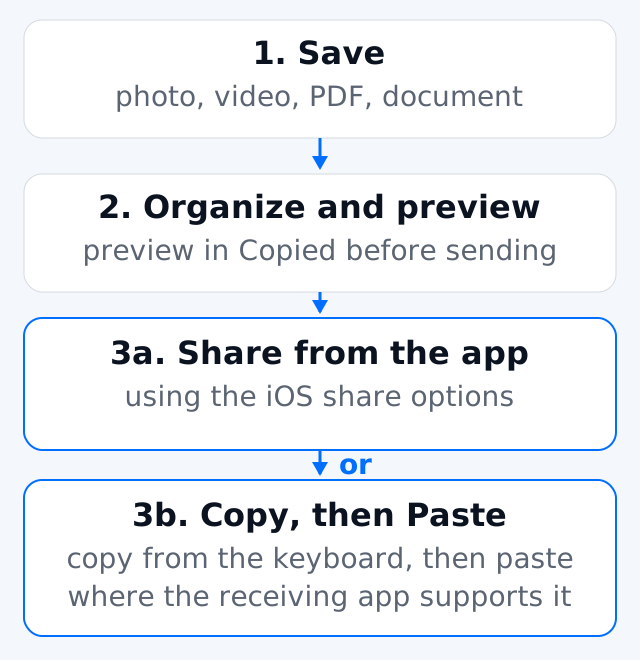
Short answer: keep the files you resend, such as a proposal PDF, a price sheet or product photos, in one organized place. Then either share the file from the app, or copy it from the keyboard and paste it into the conversation. Pasting works only where the receiving app supports that kind of content. In Copied, Files keeps photos, videos, PDFs and documents together so you can organize, preview and share them in the app. From the keyboard you can Copy a file, then Paste it into a receiving app, but only where that app supports pasting that kind of content.
Use cases
A proposal you send every week
Keep the current proposal PDF in a folder named Proposals. Before sending, preview it to confirm it is the latest version. Send a short intro message, then share or paste the file.
Product or venue photos
A small set of reviewed photos, such as a menu, a room or a product range, saves searching your camera roll during a conversation.
Instructions or forms
Parking directions as an image, or an onboarding checklist PDF, are easier to resend as files than to retype.
Share from the app or copy and paste?
| Share from the Copied app | Copy from keyboard, then paste | |
|---|---|---|
| How | Preview the file and use the share options iOS shows | Copy the file on the Copied keyboard, then paste in the chat |
| Works when | The destination appears in the share options | The receiving app accepts pasting that content type |
| Good for | PDFs and documents, or when paste is not accepted | Quick reuse of photos inside a conversation |
| You stay in the chat? | No, you open Copied | Yes |
Sharing from the app uses the same iOS share options you see elsewhere; Apple’s guide shows how sharing files works on iPhone. Copying puts the file on the system pasteboard, and the receiving app decides whether it can accept it.
Simple troubleshooting
- Paste does nothing or pastes text only: the app may not accept that file type by paste. Share from the Copied app or use the app’s own attachment button.
- The Copied keyboard is not showing: you may be in a field where iOS shows its own keyboard, such as a password or phone field, or the app does not allow custom keyboards.
- Wrong file sent: rename files with a date or version and preview before sending. Apple’s archived guide explains why custom keyboards are unavailable in some fields.
What this does not do
- It does not attach files automatically or send messages for you.
- It does not create public links or host files online.
- It is a personal library, not a shared team folder.
- It is not a backup. Optional iCloud backup in Copied covers Keys and folders; keep your original files in your usual storage.
Related guides
Frequently Asked Questions
Can I paste a PDF into WhatsApp from the Copied keyboard?
Only if WhatsApp accepts pasting that file in the field you are using. If not, share it from the Copied app or use WhatsApp’s attachment button.
Which files can I keep in Copied?
Photos, videos, PDFs and documents. You can organize, preview and share them in the app.
Does Copied back up my files?
Do not rely on it as a backup. Optional iCloud backup is documented for Keys and folders. Keep original files elsewhere too.
References
- Apple Support, Send files from the Files app on iPhone Apple’s guide to sharing files from the Files app through the share options iOS offers.
- Apple Developer, UIPasteboard Apple’s reference for the system pasteboard that apps read from and write to.
- Apple Developer archive, App Extension Programming Guide: Custom Keyboard Archived Apple guide (no longer updated) describing secure-field and phone-pad limits for custom keyboards.