Files
Create a ZIP Client Packet on iPhone: Files, Names and a Handoff Check
Prepare one identifiable archive from selected client files, and check its contents before choosing how to deliver it.
Published , 3 min read, by Copied Editorial team
Choose the approved files that belong in the client packet, then create one named ZIP archive. Before preparing one, establish whether the recipient wants an archive, individual attachments or access to working documents. Choose the object they can use, then choose how to deliver it.
This guide reviews Apple’s current Files documentation on November 1, 2026. The example below is fictional. We have not compressed customer files, sent a packet or tested a recipient’s software. Treat the worksheet as a small evaluation you can perform with harmless sample files.
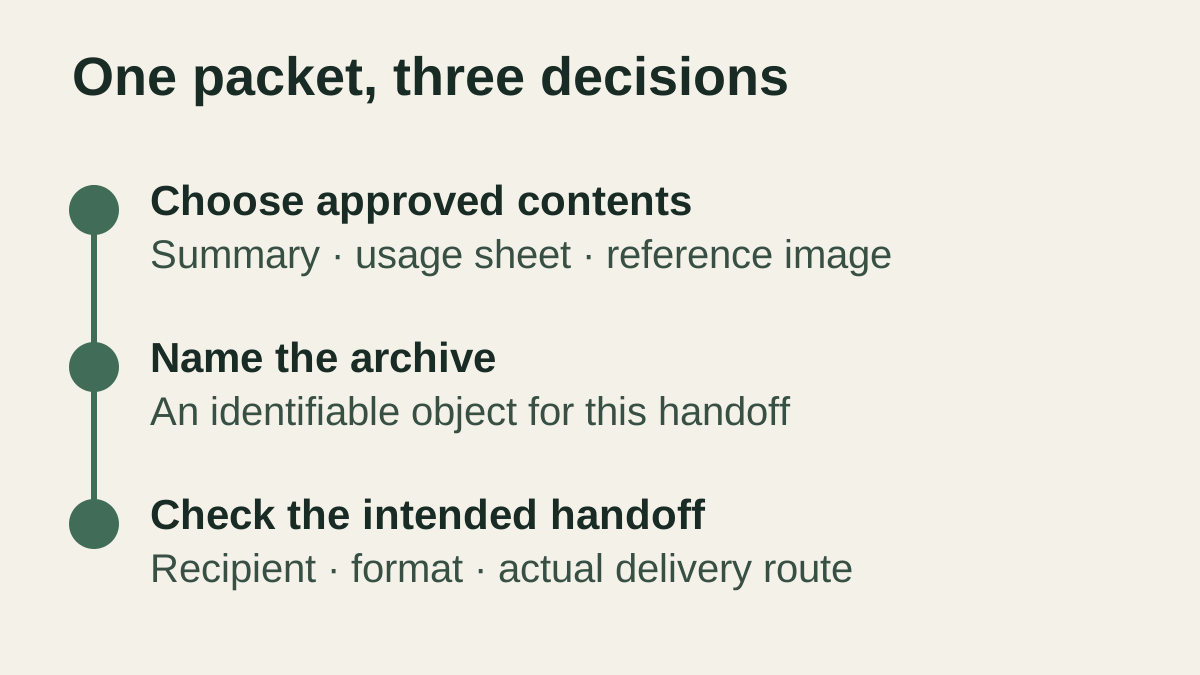
Choose what belongs in the packet
Imagine a freelancer handing over three approved items: a project summary, a usage sheet and a reference image. For this example, the proposed packet records the selected files for that handoff. Write down those three names before creating an archive, and leave unrelated drafts out of the selection.
Ask the client whether a ZIP is suitable for this delivery. If they need to review one PDF immediately, an individual file may be enough. If they need to keep editing shared source documents, review the Google Drive and Dropbox guide. A packet does not answer who should manage the working source.
Create and name the archive in Files
Apple’s ZIP instructions describe this iPhone route: open Files at the intended location, use More and Select, choose the items, then use the lower-right More menu and Compress. Multiple selected files produce Archive.zip in that folder. Touch and hold the archive and choose Rename to give it an identifiable name.
For the fictional handoff, a name such as Oak-workshop-approved-packet.zip describes the intended object better than an unexplained default name. Use only the information the recipient needs in the name. Check the selected contents before calling a packet approved; the label itself proves nothing.
Check the contents separately from the filename
Apple also documents tapping an archive in Files to expand it into a folder. Open that folder to inspect the items. Use this as a proposed check with your sample packet before relying on an archive in a real handoff. These are documented steps, not results from our own device testing.
For the three-file example, make a short card:
- Expected: project summary, usage sheet and reference image.
- Selected: the current approved version of each item.
- Archive name: identifies the intended packet without unnecessary client details.
- Review: names and contents match the card; no unrelated draft was selected.
- Recipient: has agreed that an archive suits this handoff.
Keep a separate note of any correction the client still needs. If you revise a source item later, inspect the proposed delivery again rather than assuming the earlier review covers the new selection.
Choose delivery after packaging
This guide does not measure file-size savings, establish an attachment limit or promise that every receiving app can open the archive. Check the requirements of the actual delivery channel and the recipient. The WeTransfer and Dropbox Transfer comparison compares options for delivering the packet.
The three-file card also helps write the cover message. State what you intend to provide and what response you need. Do not say the packet was received or opened merely because you prepared it. Keep any receipt claim tied to evidence from the actual handoff.
Reuse the cover note only when that task repeats
A neutral introduction might say, “Here is the packet we discussed. Please check the contents and let me know if you need another format.” Review the actual recipient, filename and requested next step each time.
If retrieving that introduction is a repeated iPhone or iPad task, Copied can be evaluated for manually inserting reviewed wording in compatible draft fields. This guide makes no claim that Copied creates, stores or inserts ZIP archives, sends the packet or checks delivery. For the separate job of reusing supported individual files, see the file reuse guide.
A useful first evaluation ends with a clearly named sample packet and a contents card that agree. Decide the delivery route and inspect the real handoff separately.
References
- Apple, Apple: Create or open ZIP files on your iPhone, iPad, or Apple Vision Pro Files creates an archive from selected items and supports renaming and opening it into a folder. Current official documentation reviewed in Chrome November 1, 2026; no hands-on device, compression-ratio or receiving-app result is claimed. Reviewed November 1, 2026.
- Copied, Copied product homepage Reviewed text can be inserted manually into compatible iPhone and iPad draft fields. No archive creation, ZIP storage or insertion, automated sending or delivery verification is claimed. Reviewed November 1, 2026.