Guides
Copy Text from a PDF on iPhone: Keep the Passage or Share the File
A PDF passage and the PDF itself do different jobs. Use native selection where available, review the context and keep the right object for your next message.
Published , 6 min read, by Copied Editorial team
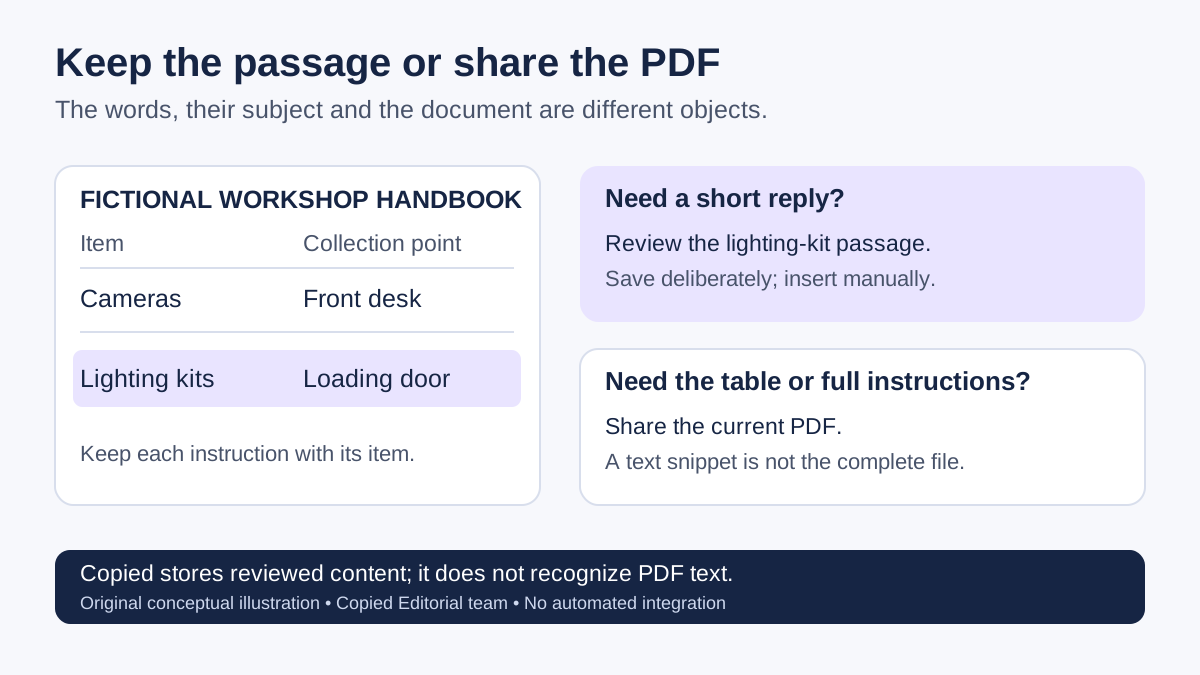
To copy text from a PDF on iPhone, open it in a viewer that lets you select the words. Apple's current Preview instructions describe holding the first word, adjusting the selection and choosing Copy. Paste into a draft and compare the passage with the PDF. Keep the whole file when a table, diagram, form or surrounding qualification matters more than a short text excerpt.
This guide separates three jobs: selecting an existing text passage, recognizing words in a scanned page, and sending the PDF itself. Saving the resulting text in Copied is a later, deliberate step. Copied is not being presented as a PDF text extractor, OCR tool or PDF converter.
Select a passage in the current Preview workflow
Apple's current Preview guide explains that you can browse and open PDFs directly in Preview. Its selection instructions supply the following workflow. These are documented steps, not a device test by Copied Editorial team.
- Open Preview on your iPhone. Use Browse or Recents to locate your PDF, then open it.
- Find the passage you need. Press and hold its first word, then adjust the selection handles to include the relevant words.
- Choose Copy from the selection options.
- Paste into a draft you control. Read the pasted result alongside the source before saving or sending it.
Select one short passage first rather than assuming a long selection preserves the entire document. These steps describe the current Apple guide. If your iPhone uses a different PDF viewer or an older workflow, check that viewer's own selection instructions; a clipboard library cannot add a missing selection control.
If the PDF text cannot be selected
A page can look like written text without offering the selection you expect. Do not diagnose every selection failure as the same problem. Start with what you can actually establish:
| What you observe | What it establishes | Useful next step |
|---|---|---|
| Words can be selected and Copy is offered | The viewer supplies a text selection. | Copy a short passage and inspect the pasted result. |
| Nothing selects when you hold the page | Selection is unavailable in that situation; the cause is not yet established. | Check the viewer's instructions and whether the document owner can supply selectable text. |
| You know the PDF is a scanned page | Recognition may be a separate step. | Use a documented recognition feature available to your account and device, or request the original text. |
| A password or copying restriction prevents access | An access or document-permission boundary. | Ask the document owner for an authorized text version; do not expect Copied to remove restrictions. |
| The pasted lines lose their original associations | The extracted passage is not yet a reliable draft. | Choose a smaller passage, rewrite your own verified wording, or send the PDF instead. |
For an example of a separate recognition tool, Microsoft documents OCR in OneDrive for searching and copying text from scanned PDFs. The article says the feature is rolling out to its Android and iOS apps and lists OneDrive for Business under applicability. Availability and account eligibility must be checked; this is not a claim that every account has it or that it is free.
Recognition does not establish that a passage is accurate or complete. Inspect it against the page. Copied does not make an unselectable PDF selectable, and saving an OCR result does not verify its meaning. If the source is a photo rather than a PDF, follow the photo-text guide instead.
Keep a table row and its heading together
A PDF can communicate through position as well as words. Before turning an excerpt into a message, check whether the heading, row labels, neighboring columns or a note on another page determine its meaning. This is an editorial review method, not a measured claim about any viewer's extraction accuracy.
Suppose your own workshop handbook has two rows: cameras are collected at the front desk; lighting kits are collected at the loading door. This is a fictional example. The phrase “collect at the loading door” only works as a reply when it remains associated with lighting kits. Copying both columns into one stream, or dropping the item label, would not be a useful general collection instruction.
A reviewed working draft could say “For your lighting kit, collect at the loading door.” Check that this still matches the current handbook and the recipient's item. Do not apply the same text to a camera collection simply because the wording is already saved.
- Identify the subject: which item, service or situation does this row describe?
- Keep the association: confirm each instruction still belongs to the correct row or heading after pasting.
- Keep the qualification: check nearby notes and relevant pages before treating the passage as a complete instruction.
- Keep a way to review the source: record the document version and page in a separate reference note, so later changes can be checked.
Choose the passage, a reusable Key or the original PDF
| What the recipient needs | Better object to use | What to check |
|---|---|---|
| A short answer you will use once | A reviewed text draft. | The excerpt answers the question without losing necessary context. |
| Your stable wording that you repeat | A deliberately saved, reviewed Key. | Its meaning still matches the current source and this recipient. |
| A schedule, full table, illustration or form | The original PDF. | The current file is the right version and the recipient can open it. |
| A document for reference rather than a message | The source file and your reference note. | Keep the source available; a snippet is not a document archive. |
Apple's Files sharing guide describes holding the file, choosing Share and selecting a sending option. Sending a file is a different object from pasting extracted words. A passage does not carry the full PDF, its layout or every neighboring note with it.
For repeated file delivery, our Copied Files guide distinguishes sharing from the app and copying from the keyboard where the receiving app accepts that content. Keep your original PDF in your usual storage and verify the actual attachment before sending.
Save reviewed wording deliberately
The Copied product description describes saving received clipboard items while a Copied process is active, or receiving text through its Share Extension. It does not claim uninterrupted background capture. While your intended passage is still copied, open Copied and inspect what was received; do not assume a PDF-sharing action supplied its extracted text.
For wording you intend to reuse, create a Key from your reviewed draft using the controls in your installed version. Copied's current App Store description describes reusable Keys and organization in folders and pages. Give the item a name that expresses its limited purpose, such as lighting-kit collection. The saved-replies guide covers building the library.
Keep the PDF as the reference, and update the working copy when its instructions change. Retrieve the Key into a draft field you actually use and compare the important details again. Copied text insertion is manual in compatible fields; it does not choose the right customer, send the message or update the PDF for you.
If the words came from a webpage instead, the web-text guide covers retaining the page context. You do not need to turn a webpage into a PDF simply to save a short passage.
Make the next step match your job
If a one-time answer is enough, native selection and a reviewed draft may finish the job. If the layout is essential, share the PDF. Use a personal text library when repeatedly finding and inserting your own stable wording is the recurring problem.
For that iPhone or iPad reuse workflow, explore Copied. Start with one harmless passage you own or may reuse, compare it with the PDF and evaluate saving and manual insertion in a disposable draft. Check the current App Store offer and keep the final sending decision under your control.
References
- Apple, Annotate a PDF or image in Preview on iPhone Current primary public publisher documentation checked by Copied Editorial team on 2026-10-12; not an independent device test. Current viewer, account and offer must match the installed environment.
- Apple, Open and view PDFs and images in Preview on iPhone Current primary public publisher documentation checked by Copied Editorial team on 2026-10-12; not an independent device test. Current viewer, account and offer must match the installed environment.
- Microsoft, How to use optical character recognition to read PDFs in OneDrive Current primary public publisher documentation checked by Copied Editorial team on 2026-10-12; not an independent device test. Current viewer, account and offer must match the installed environment.
- Apple, Send files from the Files app on iPhone Current primary public publisher documentation checked by Copied Editorial team on 2026-10-12; not an independent device test. Current viewer, account and offer must match the installed environment.
- Copied, Keys, Clipboard and Files Current primary public publisher documentation checked by Copied Editorial team on 2026-10-12; not an independent device test. Current viewer, account and offer must match the installed environment.
- Copied: Workspace Keyboard, Apple App Store Current primary public publisher documentation checked by Copied Editorial team on 2026-10-12; not an independent device test. Current viewer, account and offer must match the installed environment.