Guides
Save Web Text on iPhone for Reuse in Messages
Saving a page to read later and saving text to reuse are different jobs. Capture the right object and keep enough context to avoid sending stale information.
Updated , published , 5 min read, by Copied Editorial team
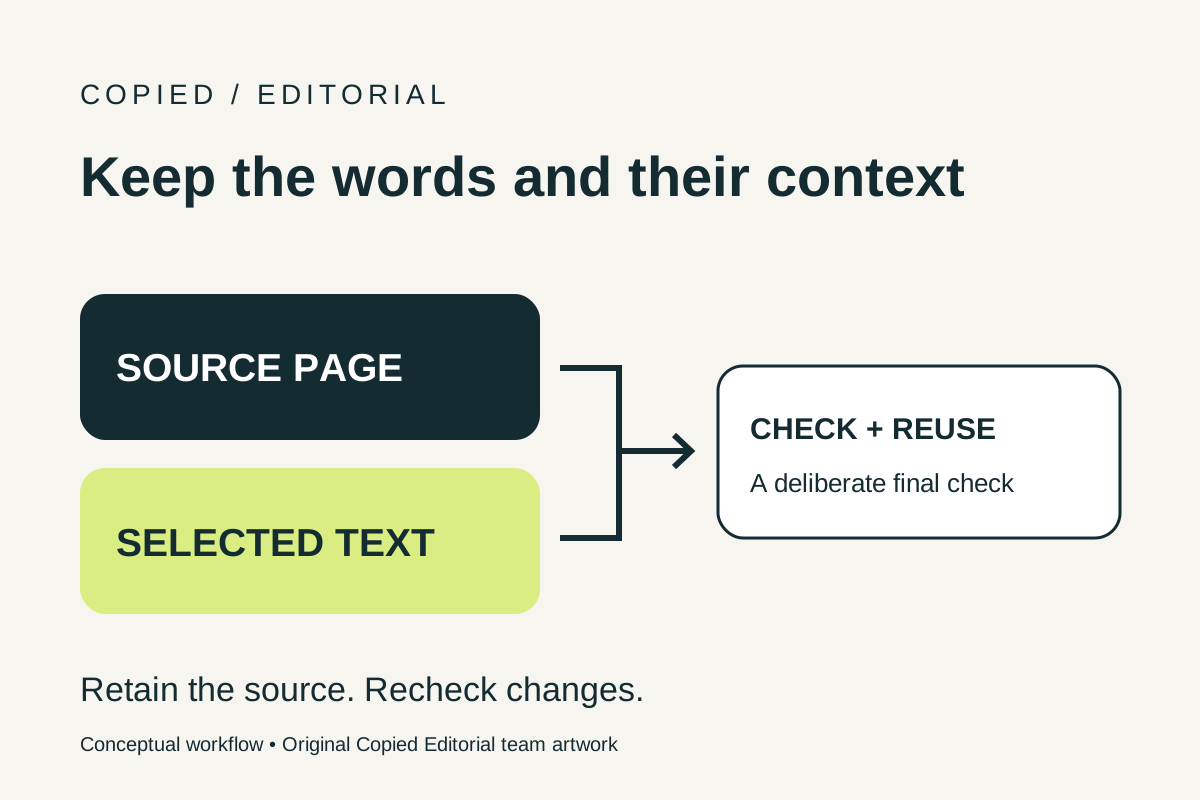
To reuse words from a webpage on iPhone, select the relevant text, copy it and save the excerpt deliberately in the place you will retrieve it. Copied's product description distinguishes clipboard items captured while a Copied process is active or text sent through its Share Extension from reusable text saved as Keys. It does not claim to archive entire webpages or watch every copy in the background.
First decide whether you need the words, the current page link or simply a page to read later. Those choices lead to different workflows.
Save the object that matches the job
| Your next task | What to keep | Why it fits |
|---|---|---|
| Read an article later | The page in Safari Reading List | You want to return to the reading experience, not insert an excerpt into a reply. |
| Point someone to changing information | The page's URL | A copied sentence can become stale when the source changes. |
| Repeat your own stable instructions | Reviewed text and its source context | You need wording available while composing a message. |
| Send a brochure or other document | The actual file through a supported sharing path | A plain-text excerpt does not preserve a document's layout or attachments. |
Apple describes Reading List as a way to revisit webpages, including an offline-reading option. Prefer it when reading later is your goal. Copied is relevant to the different job of retrieving text while composing a message. For document and media workflows, see reusing files from an iPhone keyboard.
Capture selected text, then verify what was saved
- Open the source page in Safari and find the exact passage you need. Select a small, meaningful block rather than an entire page of navigation, footnotes and unrelated content.
- Adjust the selection and use Copy when available. Apple explains text selection and copying on iPhone. Menu availability depends on the page and context; if text cannot be selected normally, do not assume Copied can extract it.
- Save the copied text deliberately. Open Copied while the intended text is still current and inspect the captured content, or paste it into a Key using the app's available controls. Where the source app offers selected-text sharing to Copied, the Share Extension is another declared route; inspect what arrives rather than assuming a page-level Share action supplied the excerpt.
- Retain a source reference and enough context to understand the words later. Keep the page address and a short reminder of the relevant section. Do this yourself; this guide does not claim Copied extracts source URLs or review dates automatically.
- Retrieve the saved item and inspect a draft in the destination you intend to use. Check wording, line breaks and the source's conditions before sending.
The verification step matters because a URL and selected text are different objects. If the saved item is only a link, treat it as a link. If it includes extra text, trim it deliberately. Do not assume formatting, images or the full webpage traveled with a text excerpt.
For the broader capture and retrieval distinction, see choosing an iPhone copy-and-paste workflow. If an excerpt was never saved while an appropriate Copied process was active or deliberately shared, do not expect to recover it later from an unrecorded copy operation; our clipboard-history explanation covers that limit.
Keep source, meaning and review together
Consider this fictional example. An independent studio owner has a preparation page on their own website. A passage explains what to bring to an introductory session, followed by a different section about advanced sessions. The owner wants to reuse only the introductory instructions in customer messages.
Saving the first passage is not enough if the recipient cannot tell which session it applies to. A practical personal reference could contain:
- Purpose: introductory-session preparation, not advanced-session preparation.
- Source: the actual address of the studio's preparation page and the relevant section name.
- Text: the studio's own reviewed wording, with the conditions that make it accurate.
- Review reminder: check the source when session requirements change, and before relying on a detail you have not reviewed recently.
These are suggested fields for your working text, not built-in Copied metadata. Keep private source notes separate from a message intended for a customer. If you turn the excerpt into a reusable Key, save only the wording and link you actually want to insert, then inspect the result.
For third-party material, a link or a short attributed excerpt may serve the reader better than reproducing a whole page. Do not turn someone else's article into your own reusable message without considering its source and permitted use.
Avoid losing the condition that makes a sentence true
| Risk in the saved excerpt | What to look for at the source | Better reuse decision |
|---|---|---|
| A deadline, price or availability statement | The effective date and current page wording | Recheck it before use, or send the current page link. |
| Instructions for one situation only | The heading and nearby qualifications | Keep that context in the reply instead of presenting a universal instruction. |
| An unexplained pronoun or missing step | The sentence or section before the selection | Rewrite your own wording for clarity, or include a useful source reference. |
| A private account or customer page | Who is allowed to see the information | Avoid putting private details into a broadly reused Key. |
Use a simple maintenance rule: when your source changes, review the saved wording that depends on it. This is a manual practice, not automatic webpage synchronization. Sending a live link is often the better decision for information that changes frequently.
Turn one stable excerpt into a useful first Key
If you only want to bookmark a page, use Safari. If you repeatedly retrieve your own stable instructions while replying, a personal text library may fit. Begin with one short excerpt, preserve the context you need, and follow the saved-replies organization guide when you have more than one reusable item.
Apple's custom keyboard documentation describes keyboard use where third-party keyboards are supported. Copied inserts text manually in compatible fields; it does not send a message or make an unsupported field compatible.
Explore Copied for iPhone and iPad if recurring text reuse is your job. Evaluate one saved excerpt in a draft, check that the words and source still match your intent, and keep the final sending decision under your control.
References
- Copied, Saved Replies, Clipboard & Files for iPhone Publisher-declared personal Keys, Clipboard and Files workflows and capture limits. Not a device test. Checked 2026-10-09.
- Apple Support, Save webpages to read later on iPhone Current Apple primary source checked by Copied Editorial team on 2026-10-10; not a device test.
- Apple Support, Select, cut, copy, and paste text on iPhone Current Apple primary source checked by Copied Editorial team on 2026-10-10; not a device test.
- Apple Developer, Creating a custom keyboard Apple’s current documentation for custom keyboard extensions.