Guides
Save and Reuse Links on iPhone: Bookmarks, Reading List and Keys
A link you revisit, an article you read later and a booking URL you repeatedly send need different saving workflows. Choose by the next task.
Published , 5 min read, by Copied Editorial team
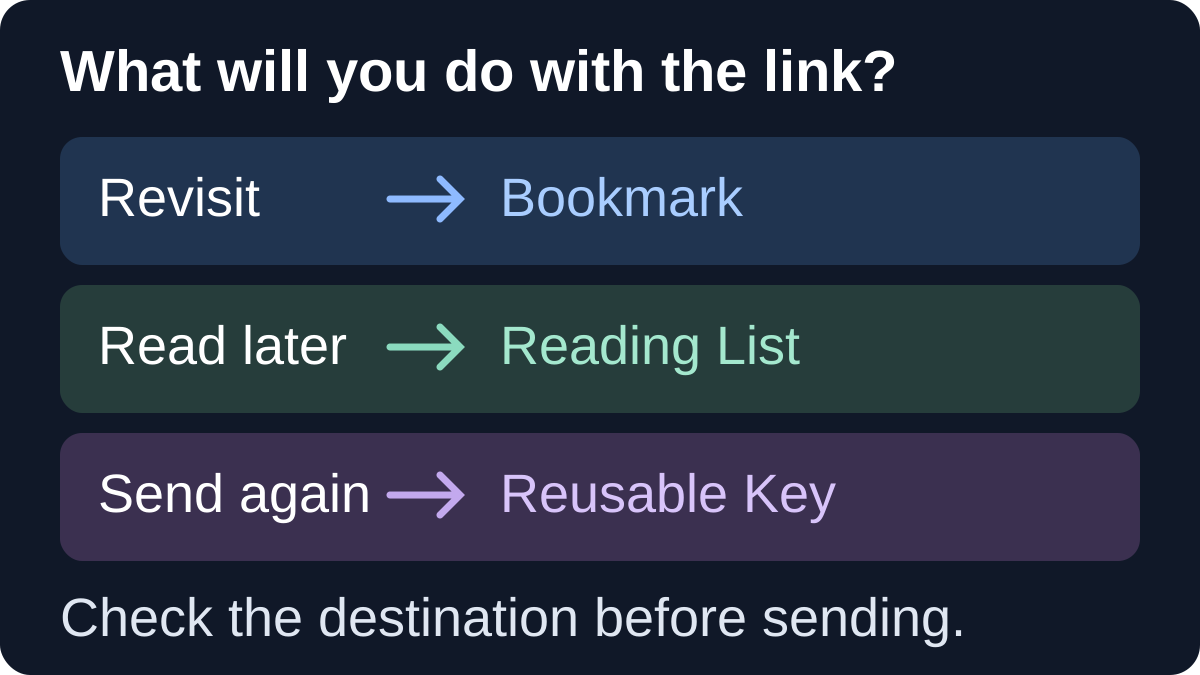
To save links on iPhone, choose by what you will do next. Use a Safari bookmark to return to a website, Reading List for an article you intend to read later, or a reusable text Key for a stable URL you repeatedly insert into messages. Copied is relevant to that last job; it is not presented here as a bookmark manager or offline webpage archive.
For a small business, the useful distinction is often between a service page you consult and a booking link you send. Saving either address does not establish that it is current or appropriate for the next recipient. This guide uses official documentation and published product descriptions, rather than a hands-on comparison.
Choose the next task before the storage method
| Next task | Suitable starting point | What to check |
|---|---|---|
| Return to a website you use | Safari bookmark, with a useful name and folder | Can you recognize and find the destination? |
| Read an article later | Safari Reading List | Is reading the page the job, rather than sending its address? |
| Send a stable business URL repeatedly | Reviewed text containing the link; optionally a Copied Key | Is it the public destination and does it fit this recipient? |
| Send a one-person or one-appointment link | A message prepared for that recipient | Does this specific link belong to this person and situation? |
A bookmark can still be enough if you only occasionally share the page. A reusable Key becomes worth evaluating when retrieving the same approved link is a recurring part of composing replies. For a broader native-shortcut comparison, see iOS Text Replacement versus keyboard apps.
Save a website you want to revisit
Apple's Safari bookmark guide describes opening the page, using the Page Menu and Add Bookmark to, choosing a location, then saving. For Bottom or Top Tabs layouts, it describes holding the Show Bookmarks control and choosing Add Bookmark. The controls depend on the Safari layout; follow the version shown on your phone.
Give the bookmark a name that explains its job, such as your business's public service page, rather than keeping an ambiguous page title. Apple also documents bookmark folders and editing names. These help you retrieve a destination; they do not turn it into message wording.
If you want to share the current page, Apple's Safari browsing guide describes Page Menu followed by Share, or the Share button in Bottom or Top Tabs layouts. Use the available page-link sharing option and inspect the draft. Selecting words on the page is a separate action: our guide to saving web text for reuse covers that different object.
Save an article you want to read later
For reading, Apple's Reading List instructions explain adding the current page through Share and Add to Reading List. You can also hold a link and add it without opening it. This is a reading workflow, not a reason to duplicate every article address in a reply library.
Keep research articles in your reading collection and recipient-facing business links in a place you can identify while replying. If you need both uses, be deliberate about both copies: one helps you read; the other helps you compose. A saved URL is not the article's text, a PDF attachment or proof that the destination remains available.
Keep the address you actually mean to send
Start with the destination, not with whatever happens to be in the browser. Open your intended public booking, service or preparation page and confirm its purpose. A customer-facing page and your signed-in administration dashboard may be different addresses. Use the service's intended sharing route for recipient-specific material, and check its access rules before reusing it.
Here is a fictional example. A studio owner has a public booking page for new enquiries and a separate appointment link intended for one customer. The public booking address may be useful in a general enquiry reply. The appointment link should stay attached to that particular conversation. Treating both as a generic 'booking link' removes the distinction the next recipient needs.
Keep a small private maintenance record for reusable public links:
- Purpose: what the recipient can do at the destination.
- Address: the complete URL you have reviewed.
- Audience: who should receive it and when it does not apply.
- Review trigger: a service change, new booking provider or changed destination.
These are suggested notes you maintain yourself, not automatic Copied fields. Do not include private account details or internal maintenance notes in the text you insert for a customer. Avoid editing an unfamiliar address just to make it shorter; obtain the appropriate share link from the source service instead.
Turn one approved public link into reusable text
Copied's product description and official App Store listing describe Keys for reusable text, including links. This supports evaluating a Key containing your reviewed public URL. It does not establish automatic link checking, webpage synchronization or a connection to your booking service.
- Choose one stable public link you already send repeatedly. Confirm its purpose at the source.
- Write a short recipient-facing sentence and include the actual address. For the fictional studio, the wording could be: 'You can view available introductory sessions here:' followed by its reviewed public booking URL. This is an illustration, not a customer result.
- Save that wording deliberately as a Key and give it a meaningful label using the app's available organization controls. Keep the private review record separate.
- Insert it manually into a draft in a compatible field, or use the destination's supported paste workflow. Check the full address and surrounding sentence before sending.
- Keep appointment-specific links and personal details in the individual reply. A general Key should not silently carry one customer's information into another conversation.
For organizing more than one reusable item, use the saved-replies organization guide. A saved Key is reusable text, not a sent message. The destination decides how a pasted URL is displayed; a preview card is not evidence that the entire address or intended access is correct.
Review the destination when the business changes
| Change or warning | Review before reuse |
|---|---|
| Booking provider or service page changes | Open the intended new destination and update each reusable text item that contains the old address. |
| The page opens only while you are signed in | Check the service's recipient access requirements; do not assume your own session proves customer access. |
| Several similarly named links are saved | Check the label, purpose and actual URL instead of choosing by position alone. |
| A link belongs to a specific appointment | Prepare it for that recipient rather than making it a general reusable Key. |
This is a manual maintenance practice. Copied is not claimed to monitor destination changes, validate customer access or send the reply. Choose Safari when returning to a page is enough; choose Reading List when reading later is the goal.
Explore Copied for iPhone and iPad if inserting your own approved links is a recurring task. Start with one public URL, inspect one draft in the field you normally use, and decide whether the retrieval workflow fits. Keep the final message review and sending decision with you.
References
- Bookmark a website in Safari on iPhone Apple's instructions for saving, organizing and revisiting Safari bookmarks; controls depend on the Tabs layout.
- Save webpages to read later in Safari on iPhone Apple's Reading List guide for saving webpages to read later.
- Browse the web using Safari on iPhone Apple's Safari guide explains page sharing and layout-dependent Share controls.
- Copied — Saved Replies, Clipboard & Files for iPhone Copied's public product description of reusable Keys and manual insertion in compatible fields.
- Copied: Workspace Keyboard The official listing includes links among the text that can be saved as Keys.