Guides
Copy Text from a Photo on iPhone and Save It for Reuse
A photo can supply reusable words, but recognition is only the start. Check characters, reading order and conditions before keeping the text or sending it.
Updated , published , 5 min read, by Copied Editorial team
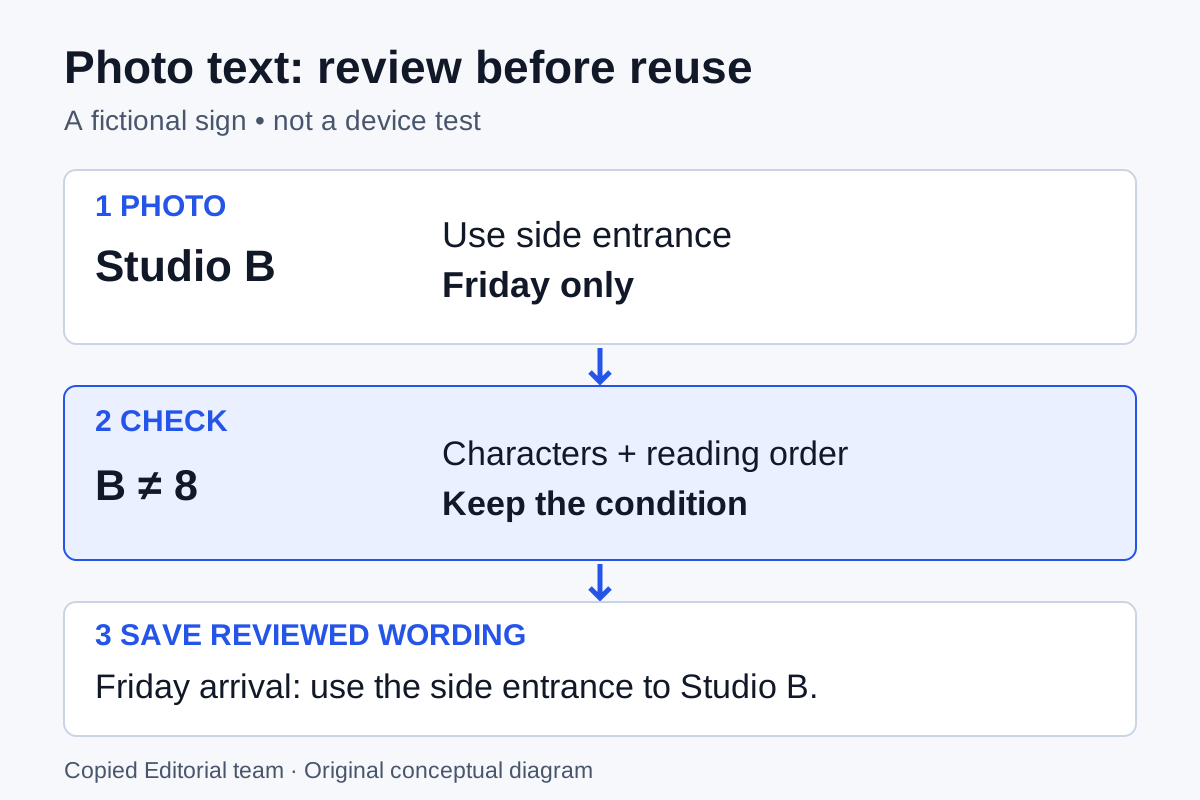
To copy text from a photo on iPhone, use Apple's Live Text where your device, language and image support it: open the photo, select the words and copy them. Paste into a draft and compare the result with the image. If you will need those words again, save the reviewed text deliberately; copying once is not the same as keeping a reusable item.
Live Text supplies the photo-to-text step. Copied's published product description covers saving received clipboard content and reusable text Keys. This guide does not claim that Copied recognizes text in photos, scans documents or automatically imports your photo library.
Copy the words you need in Photos
Apple's Live Text instructions describe this native workflow. These steps come from Apple's documentation, not an independent device test by Copied Editorial team.
- Open Photos and choose the image containing the words you need.
- Touch and hold a recognized word, then adjust the selection handles to include the relevant passage. The Live Text button can highlight recognized text.
- Choose Copy. Selecting a short passage makes it easier to inspect than copying all the text in a busy image.
- Paste into a draft you control, and compare it with the original image before saving or sending. Keep the image available while you review.
If you only need to paste that text once, you may be finished after the check. You do not need a clipboard app simply to use Apple's photo-text feature.
If text selection is unavailable
Apple's support article lists iPhone XS, iPhone XR or later with iOS 15 or later for Live Text. That is an Apple feature requirement, not Copied's App Store compatibility requirement. Check your actual device against Apple's current requirements.
The current iPhone User Guide says Live Text is not available in every region or language. Its enablement path is Settings → General → Language & Region → Live Text. Check that before looking for a different text-storage app; a storage app cannot make unsupported native recognition available.
| What you see | What to check | Next decision |
|---|---|---|
| No text can be selected | Device support, Live Text setting and supported language | Use Apple's current guidance; do not assume Copied can extract the words instead. |
| Only some words are selected | Your selection and whether the source is legible | Select a smaller passage, use a clearer source if available, or transcribe the missing words yourself. |
| Letters, digits or lines differ | The pasted draft beside the original | Correct verified text manually. If you cannot establish the intended words, do not reuse them as certain. |
| You need the diagram or visual layout | Whether plain words can convey the meaning | Share the original image through a suitable path rather than pretending the text preserves the picture. |
Check three things before keeping the text
A usable selection is not proof that the result says what you intend. Use this review framework on a short draft:
- Characters: compare names, unit letters, numbers and punctuation with the image. Pay attention to details that would change the destination or instruction if misread.
- Reading order: check whether the selected lines form a sensible sentence. A sign with columns or separate notices may need a smaller selection and your own connecting words.
- Conditions: retain the nearby qualification that makes the instruction true, such as which entrance, session or day it applies to. Do not turn a limited instruction into a general rule.
This is an editorial checking method, not a claim about Live Text's error rate. It also does not establish the original notice is current. If you own the wording, verify it against your current instructions. If it belongs to someone else, keep appropriate attribution and consider whether a source link or image is more useful than reproducing the passage.
A fictional arrival-sign example
Imagine an independent studio owner photographing their own arrival sign. It says “Studio B,” “Use side entrance” and “Friday only.” This is a fictional illustration, not a customer outcome or an observed recognition result.
Before saving a reply, the owner should verify that the unit letter is B, not the digit 8; that the side entrance is still the intended entrance; and that the Friday condition belongs in the message. A neatly written draft that drops “Friday only” could give an instruction for the wrong day even if every copied character is correct.
The owner could save their own reviewed wording as a Friday-arrival Key, with a name that signals its limited use. A general arrival reply should be a separate deliberate decision based on the actual instructions. The source photograph remains a reference; storing text does not make it an up-to-date record of the premises.
Choose a one-time paste, saved text or the image
| Your next job | Keep | Why |
|---|---|---|
| Use the words once | A checked draft | Native copying may be sufficient; no permanent library is needed. |
| Repeat stable instructions while replying | Reviewed text with a clear purpose | A reusable Key can hold wording you intend to insert again. |
| Keep material for reference rather than a reply | The source image and a useful personal note | You may need context that does not belong in a recipient's message. |
| Show a map, signature, layout or complete notice | The image or actual document | Text extraction is a different object; it does not preserve all visual information. |
For images and documents you intend to share, see the Files sharing and supported-paste guide. For selectable words on a webpage, use the web-text capture guide instead of photographing the page just to create a text source.
Save deliberately, then check a retrieved draft
Copied's homepage describes clipboard capture while a Copied process is active and text supplied through its Share Extension. It also describes Keys for reusable wording. While the intended text is still copied, open Copied and inspect what was saved, or paste your reviewed wording into a Key using the controls in your installed version. Where selected-text sharing to Copied is offered, inspect what arrives rather than assuming a photo-sharing action supplied text.
Save only the wording you intend to reuse. Keep private reference notes out of a general reply and use a descriptive name. Our saved-replies organization guide covers building that library. If you never saved the text, do not assume it can be recovered from an earlier copy: iPhone clipboard history has important retention limits. Copied does not claim uninterrupted background capture.
Retrieve the saved wording in a disposable draft before relying on it. Compare the important details again and confirm they fit this recipient and situation. Apple's custom keyboard documentation defines text insertion where third-party keyboards are supported. Copied inserts text manually in compatible fields; it does not send the message or override the receiving app's restrictions.
If you repeatedly turn your own stable instructions into messages, explore Copied for iPhone and iPad. Start with one harmless, reviewed passage and evaluate saving, finding and inserting it in the fields you actually use. Keep the final sending decision under your control.
References
- Copied, Saved Replies, Clipboard & Files for iPhone Publisher-declared personal Keys, Clipboard and Files workflows and capture limits. Not a device test. Checked 2026-10-09.
- Apple Support, Copy and translate text from photos on your iPhone or iPad Current Apple primary source, published May 1, 2026; checked by Copied Editorial team on 2026-10-11. Not an independent device test.
- Apple Support, Interact with content in a photo or video on iPhone Current iPhone User Guide checked by Copied Editorial team on 2026-10-11; region/language and enablement limits. Not a device test.
- Apple Developer, Creating a custom keyboard Apple’s current documentation for custom keyboard extensions.