App Reviews
iPhone Document Scanner Apps: Notes, Files, Preview or Adobe Scan?
Choose a scanning route by where the document belongs and whether you need recognized text. Then check every paper side made it into the saved file.
Published , 7 min read, by Copied Editorial team
For ordinary business paperwork on iPhone, start with the destination: Notes when the scan belongs in a note, Files when you want to choose its save location, or Preview when you want its PDF scanning workflow on a supported system. Consider Adobe Scan when its recognition and Adobe cloud workflow fit your needs, after checking account requirements and free limits. Choosing a scanner is only half the job: reopen the saved result and check its pages before sharing.
This comparison is for small-business owners and independent service providers digitizing their own ordinary supporting documents. We reviewed official documentation on October 17, 2026. Camera quality, OCR accuracy, account behavior and upload speed were not measured. Copied publishes this guide; its optional role begins with a completed file you intend to reuse.
Which iPhone scanning route fits the document?
| Route | Consider it when | Important boundary |
|---|---|---|
| Apple Notes | The scan should stay alongside a working note. | Scan Documents creates a PDF in the note; Scan Text is a different action. |
| Apple Files | Selecting the storage location is central to the job. | Finish the capture and choose the intended destination before saving. |
| Apple Preview | Your installed system offers Preview and you want its PDF scan workflow. | Check availability and inspect the resulting file; do not assume every older iPhone has the same app. |
| Adobe Scan | You want its scan recognition and Adobe cloud workflow. | Online access, storage, OCR length and advanced paid features need separate checks. |
These are alternatives for capture, not four apps you need to install. If you already have a digital PDF and need its words, use the PDF text-selection guide. If the source is a photograph and you only want a passage, use the photo-to-text guide. Neither job requires rescanning the page simply to create another file.
Notes and Files: put the scan in the right place
Apple's Notes guide distinguishes Scan Text, which inserts recognized words, from Scan Documents, which captures pages and saves a PDF inside the note. Choose the latter when the complete page and its layout are the object you need. A paragraph of extracted text is a different result.
The Apple Notes and Files scanning instructions describe automatic or manual capture, corner adjustments and adding further pages. In Files, finish scanning, choose a location and save. That makes the Files route worth evaluating when finding the saved document again matters more than keeping it inside a note.
Use Apple's instructions for your installed system; controls can differ between versions. After saving, locate the actual scan rather than relying on the fact that the camera closed. If you need a separate deliverable, inspect what the sharing action provides instead of assuming that sending a note and sending its attached scan are identical.
Preview: include the native PDF option in your shortlist
Apple's current Preview scanning guide describes Scan Documents, automatic capture with a manual alternative, additional pages and thumbnail controls for cropping, rotating or adjusting color before finishing. It creates a PDF. Check that Preview is available on the iPhone and system you intend to use.
Evaluate it with the same small sample you would use for another scanner. Open the result, identify where it was saved and give it a name you can recognize later. A PDF visible in an app is not, by itself, proof that you have filed the intended copy in your usual document location.
Apple's documented routes let you assess the apps already available on your device before adding a separate scanner. This does not establish unlimited cloud storage or account-independent access to every Apple service. This guide does not compare vendor security or certify a record-retention arrangement.
Adobe Scan: separate free scanning, OCR and paid PDF work
Adobe's product page describes free scan creation and PDF sharing while separately offering an Acrobat trial for advanced work. Basic scanning is therefore a different proposition from assuming every export or editing tool is permanently free.
The Adobe Scan iOS sign-in guide explains accounts for online features and cloud access. Its FAQ, updated July 30, 2026, lists 5 GB of free Adobe cloud storage and tells users to choose Save PDF and wait for the file to finish syncing before closing the app. Verify the account and completed save, particularly when a scan does not appear where expected.
Adobe's current iOS settings guide says OCR does not run on scans longer than 25 pages for general users; a paid subscription raises the limit to 100 pages. That is a recognition limit, not a claim that the camera cannot capture a longer document. Do not present an image-only result as searched and verified text.
The iOS subscription guide places capabilities such as export to Word and other formats, combining files, compression and editing scanned text among subscription features. Check the feature and current regional offer you need. A trial is temporary, and this article does not quote paid prices or recommend starting one merely to scan a short sheet.
When delivering the scan, Adobe's iOS sharing instructions distinguish a link from a copy shared through another app. Decide what the recipient needs and inspect the outgoing object. A cloud link and an attached PDF have different access and delivery implications; neither is proof the recipient opened it.
One paper sheet can require two PDF pages
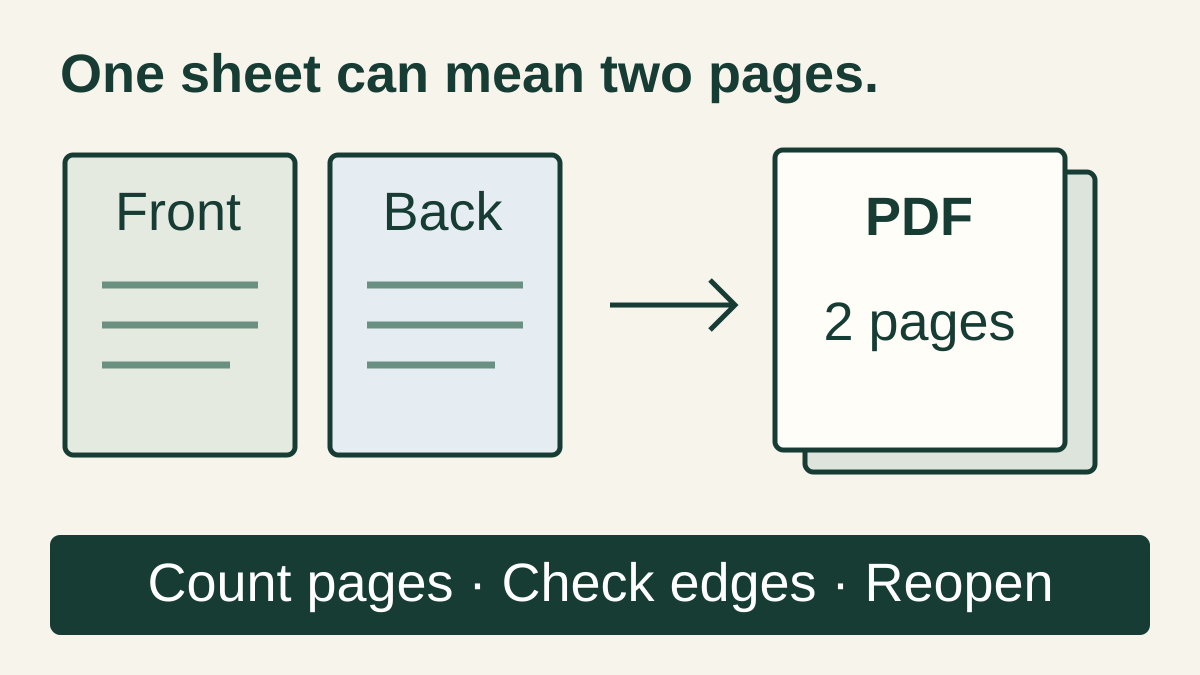
Suppose a workshop owner has a two-sided preparation sheet: materials on the front and room instructions on the back. This is a fictional editorial example. A neat scan of the front alone is an incomplete deliverable even if its thumbnail looks excellent.
| Acceptance check | What to inspect |
|---|---|
| Completeness | Both intended sides are captured, in the right order, with no unrelated page. |
| Page content | Edges, headings, small print and any diagrams remain visible; important content was not cropped away. |
| Actual destination | The named file is in the location and account you intended, and any required upload has completed. |
| Reopened result | Open the saved or exported object again and check its page count and legibility. |
| Text when needed | If your job needs search or copying, check that function on the actual saved result and compare recognized words with the page. |
For this sample, the owner's acceptance target is two PDF pages. Another document may need a different count. Record what you expect before capture; automatic boundary detection does not tell you whether an unscanned reverse side existed.
- Use a harmless sheet you own for evaluation. Decide whether the job needs complete pages, selectable text or both.
- Capture each intended side and inspect its corners. If a page is unclear, retake that page while the original is still available.
- Finish the scan, identify the destination and wait for any required save or upload. Reopen the actual result rather than inspecting only the capture screen.
- Prepare a disposable sharing draft. Check whether it contains a file or a link, and whether it includes only the material intended for that recipient.
This is an evaluation method, not a reported device test or a promise that recognition will be accurate. Keep source paper and original files according to your own needs; the comparison does not advise disposing of records. If capture and one-time delivery solve the job, you may need nothing else.
Where Copied fits after the scan is complete
Copied's published Files description covers organizing, previewing and sharing photos, videos, PDFs and documents. For a current instruction PDF you repeatedly send from iPhone or iPad, a personal file library may be useful after capture and review. Copied is not presented here as the scanner, OCR engine or an automatic importer from any of these apps.
Keep the original in your usual storage. If you choose to keep a working copy in Copied, preview it and update it deliberately when the source changes. Share from the app using the available options, or copy from the keyboard and paste only where the receiving app accepts that content. Do not treat a file name pasted as text as a successful attachment.
The Files reuse guide owns that delivery workflow. The Drive and Dropbox comparison covers maintained file sources and recipient access. Copied does not automatically synchronize a working copy with either source.
If repeatedly finding and sharing the same reviewed PDF is your remaining problem, explore Copied for iPhone and iPad. Evaluate one harmless file and its outgoing draft in the receiving app you actually use. Confirm the object, recipient and current version before sending it yourself.
References
- How to scan documents on your iPhone or iPad Apple documents scanning in Notes and Files, including choosing a save location in Files. Reviewed October 17, 2026.
- Scan text and documents in Notes using the iPhone camera Apple distinguishes inserted scanned text from a scanned PDF saved in a note. Reviewed October 17, 2026.
- Scan text and documents in Preview on iPhone Apple's current Preview guide describes multipage capture and scan adjustments. Check your installed system. Reviewed October 17, 2026.
- Adobe Scan mobile app Adobe describes basic scan creation and PDF sharing separately from advanced trial features. Reviewed October 17, 2026.
- Adobe Scan FAQ Adobe explains the free cloud-storage allowance and why saving and completed upload must be checked. Reviewed October 17, 2026.
- Top questions and sign in — Adobe Scan for iOS Adobe's iOS guide explains sign-in for online features and cloud access. Reviewed October 17, 2026.
- Change settings — Adobe Scan for iOS The iOS settings guide states the 25-page general OCR limit and higher paid limit. Reviewed October 17, 2026.
- Upload and Export Scans — Adobe Scan for iOS Adobe distinguishes sharing a cloud link from sharing a copy through another app. Reviewed October 17, 2026.
- Manage subscriptions — Adobe Scan for iOS Advanced export, combining and compression are subscription features in Adobe's iOS guide. Reviewed October 17, 2026.
- Copied product overview Copied describes personal Files organization, preview and sharing, with receiving-app paste limits. Reviewed October 17, 2026.