Guides
Save a Safari Webpage as a PDF for a Client on iPhone
A link points to the current page. A reviewed PDF gives your client a dated copy. Choose the right handoff before saving or sending from iPhone.
Published , 5 min read, by Copied Editorial team
If a client needs a stable copy of a webpage, open it in Safari on iPhone, choose Share and Markup, then Done and Save File To. Name the PDF, reopen it in Files, and inspect what actually saved before sharing it. Send a live link instead when the client needs the page's latest information or interactive controls. A PDF records a captured version; it does not update when the website changes.
This is a source-based guide for a freelancer or small-business owner handling one client reference. We checked Apple's Safari and Files instructions and Copied's published file workflow on November 5, 2026. We did not test a device, a signed-in webpage, a receiving app, or a client delivery. Your tab layout and the page's content can change the result, so inspect the file on your own phone.
Decide what the client should receive
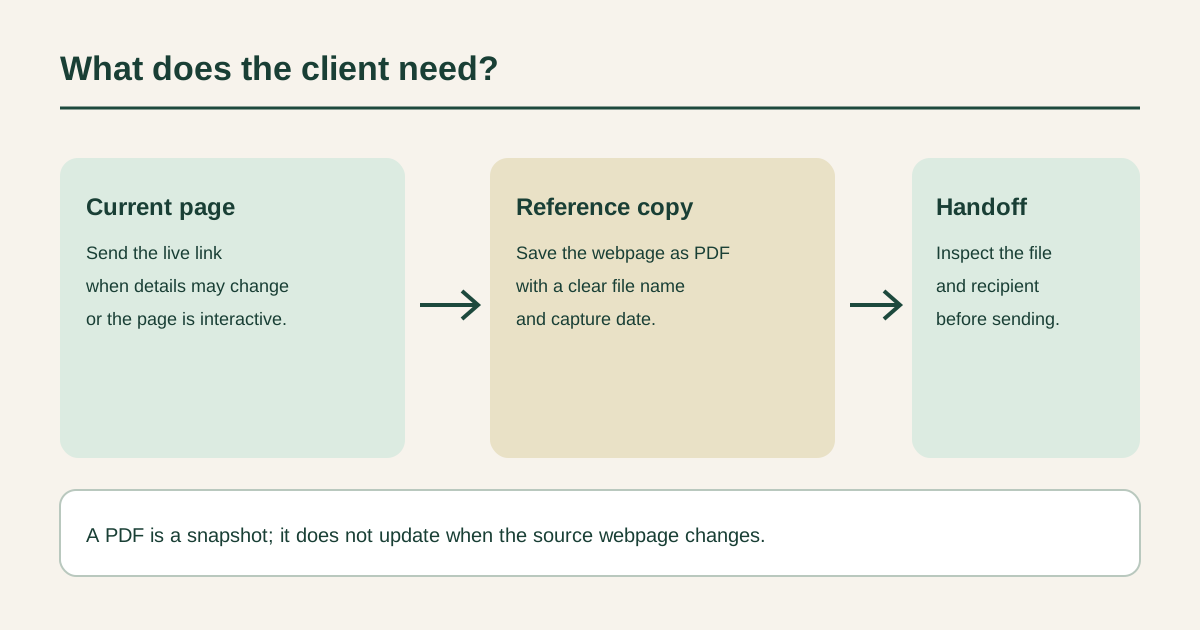
| Client need | Choose | Check before sending |
|---|---|---|
| Latest availability, price, form or interactive page | Live webpage link | The URL opens the intended public page and the client can access it |
| A reference copy with a visible note or highlight | Dated PDF captured from Safari | The saved pages, annotation and date reflect what you intend to share |
| Only a short quotation | Reviewed excerpt in the message | The words, source and context are accurate |
The format is part of the message. A live URL can change between your review and the client's visit. A PDF can help you identify what you saw when you prepared the handoff, but it is not proof that the live site still says the same thing. If the client must complete a form, use a link; a captured document is not a working substitute. Our guide to saving and reusing links on iPhone covers the URL route. If you need selected words rather than a complete file, see saving webpage text for reuse.
Make the webpage PDF in Safari
Apple's current Safari webpage PDF guide gives a Markup-to-Files route. Open the intended webpage in Safari. Use the Page Menu's Share control, or the Share button if your tab layout puts it directly on screen. Choose Markup, add only the notes the client should see, tap Done, then Save File To. Enter a meaningful file name and save. Apple's labels and control positions can differ with layout or software version; follow the route shown on your device.
- Open the exact public page you plan to reference. Check the title, location or account context before capturing it.
- Choose Share, then Markup. Highlight only the material you want the client to notice; remove accidental marks before saving.
- Tap Done and Save File To. Use a name such as Service-checklist-2026-11-05.pdf, with your actual review date rather than a misleading future date.
- Open the saved PDF in Files. Look through the beginning, the relevant section and the end. Check that text and annotations are legible and that private account details are absent.
The file name is a reminder of when you reviewed the capture, not an official issue date for the source page. A fictional example: a service business wants to send a public venue checklist that explains access conditions. It highlights the entry requirement and names the PDF with the review date. If the venue later changes its rules, the owner sends a new link or a new reviewed PDF rather than quietly reusing the old capture. This example is illustrative, not a customer outcome or a claim about a particular venue.
Send the reviewed file from Files
Apple's Files sharing instructions say to touch and hold the file, tap Share, choose a sending option, then send it. Open the draft first. Check the recipient, the attached filename, any message text and whether your chosen app actually includes the PDF. If the PDF is too large or the receiving service does not accept it, use that service's documented attachment or link route rather than assuming a paste will carry the file.
Before sharing a capture from a signed-in or private page, check whether you have permission to pass it on and whether the saved PDF exposes names, account details or other information the client should not receive. The safest useful check is the actual file, not just the Safari tab. If the page is public but frequently updated, tell the client the date you captured it and include the original public link when that context helps. Do not call the PDF an official archive or a legally reliable record without separate evidence for that use.
Keep a repeat copy only when the same reviewed PDF is reused
Copied's product description names Files as one of its iPhone and iPad reuse tools. Its file-reuse guide describes organizing and previewing PDFs, then sharing from the app or copying from the keyboard where a receiving app accepts that content type. This is an optional library for a document you genuinely resend, such as a stable client instruction sheet. First create and review the PDF with Safari and Files; Copied does not capture or annotate the webpage for you.
Do not save one dated capture as if it were a live feed. Review the underlying page and replace the stored file when the information changes. If you need the current page each time, store or send the link instead. If you need the words inside an existing PDF, the separate PDF text-selection guide covers that job. Copied does not automatically update, host or send the PDF, and whether pasting works depends on the receiving app.
A short handoff check
- The page or document is the one your client needs, and you are allowed to share its contents.
- The PDF shows the intended section and notes, without private information or missing pages.
- The filename and message distinguish a captured copy from today's live webpage.
- The receiving draft contains the intended attachment or complete link and the correct recipient.
If the wrong page saved, return to Safari and capture the right one rather than editing the filename alone. If the annotation is misplaced, make a new reviewed copy. If your recipient cannot open the attachment, ask which supported file or link route works for them; do not assume that a keyboard paste, message app or email service handles PDFs in the same way.
For a repeatedly shared, reviewed PDF, explore Copied for iPhone and iPad as an optional place to organize the file. Test the share route in your receiving app, and keep the decision to review and send each client copy with you.
References
- Apple Support, Annotate and save a webpage as a PDF in Safari on iPhone Safari Share, Markup, Done, Save File To. Publisher Apple; individual author/update date unstated. Checked November 5, 2026; no device test.
- Apple Support, Send files from the Files app on iPhone Touch-hold file, Share, choose a sending option. Publisher Apple; individual author/update date unstated. Checked November 5, 2026; no send test.
- Copied, product homepage Publisher-declared Files on iPhone/iPad. Publisher Sharply Labs; individual author/update date unstated. Checked November 5, 2026; no installed app test.
- Copied, How to Reuse Files from Your iPhone Keyboard Publisher-declared PDF organization, app sharing and receiving-app paste limit. Checked November 5, 2026; no receiving-app test.