App Reviews
Google Slides vs PowerPoint for Small Business Presentations
Choose the editor, audience display and released handout deliberately. Compare presenter features, account limits and the file your client actually needs.
Published , 6 min read, by Copied Editorial team
Choose Google Slides or PowerPoint for a small-business presentation by separating the deck people edit, the display your audience sees and the handout you send afterward. Consider Slides when its collaboration and computer presentation workflow fit the job. Consider the appropriate PowerPoint version when a required presentation feature calls for it. Both offer web routes; neither product name proves that your actual device, account and final output meet the requirement.
This guide is for independent providers and small-business owners preparing a short client orientation or similar talk. We reviewed official documentation on October 23, 2026. We have not tested an account, connected a display, run a slide show or exported a deck. The proposed rehearsal below uses fictional content and is not a customer result or a software benchmark.
Define the three things you need to produce
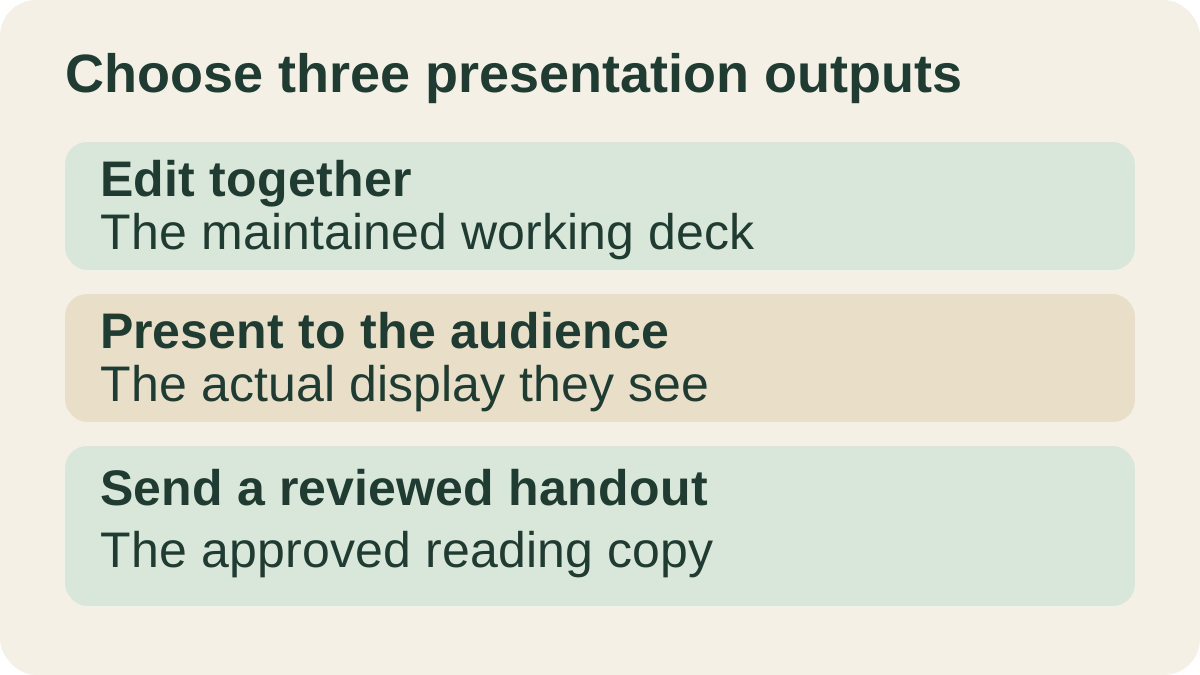
An editable presentation is a working record. A live slide show is what people see during the talk. A reading handout is the version you release for later reference. Agree which of these the client needs before comparing templates or buying a subscription. A shared editing link and a reviewed PDF solve different parts of that agreement.
| Output | Decision to make before choosing an app |
|---|---|
| Editable deck | Who will maintain it, in which account and format? |
| Audience display | Which slides and supporting material should the audience actually see? |
| Released handout | Which approved version should a recipient retain afterward? |
The Docs and Word comparison covers a prose document. The Canva and Adobe Express comparison covers a finished flyer. A talk has a sequence, presenter controls and an audience that may need a different take-away from the working file.
Google Slides: check the presentation route you intend to use
Google’s Slides overview says anyone with a Google Account can create in Slides. Some additional features require Workspace plans. It also distinguishes converting a PowerPoint presentation to Slides from editing a PowerPoint file directly. The existence of either route does not establish that a complex supplied deck will look or behave identically after a round trip. Evaluate the actual required file with harmless material before moving real work.
Google’s computer presentation guide documents a full-screen slide show and a separate Presenter view with speaker notes. Those are useful distinctions when the speaker needs prompts while the audience follows the slides. Rehearse the intended display arrangement and inspect what an observer can see. Documentation of a control is not evidence that your screen-sharing or connected-display arrangement has been checked.
For a simple talk, list the actual requirements first: readable slides, the presenter’s prompts and the intended reading copy. If the existing Slides arrangement meets those requirements, changing tools solely for a richer feature list adds another output to assess. These are conditional editorial recommendations, not measured usability scores.
PowerPoint: speaker notes are different from Presenter View
Microsoft’s platform comparison lists speaker notes across its PowerPoint platforms, while its Presenter View row distinguishes desktop PowerPoint on PC and Mac from PowerPoint for the web and iOS. Check the exact feature, app and platform together. A version that can contain notes is not automatically the version that provides the presenter arrangement you need.
If Presenter View is essential, review an appropriately licensed desktop route against the current matrix. If a browser slide show is sufficient, evaluate that requirement. Check the actual app rather than assuming browser and desktop controls are identical.
| Requirement | Slides consideration | PowerPoint consideration |
|---|---|---|
| Shared editing | Choose the intended Google account, participants and working-file route | Choose the intended Microsoft account, shared file and actual app |
| Prompts during a talk | Review the documented computer Presenter view and the audience display | Distinguish the platform matrix’s notes row from its Presenter View row |
| Client needs an editable PowerPoint file | Evaluate the actual format handoff rather than assuming conversion is lossless | Use the version that supports the required deck features |
| Client needs a reading copy | Review the downloaded handout separately from the working deck | Review the actual PDF output from the chosen platform |
Separate free web offers from the licence you need
Microsoft’s ongoing free web offer includes PowerPoint for the web with a Microsoft account and 5 GB of OneDrive storage. Collaboration requires the file to be saved in and shared from OneDrive. That web offer is different from access to desktop features or native business mobile editing. Microsoft’s mobile guide makes available features depend on the account, file, plan and device; its basic editing provision for non-qualifying plans is scoped to non-business accounts and files. Check the actual business requirement before relying on a free download.
Google’s account-storage documentation describes up to 15 GB shared across Gmail, Drive and Photos. It is not storage dedicated to presentations; an organizational plan may differ. These are account and offer boundaries, not a reason to choose by a storage number alone.
Review the audience’s file separately from its editing view
Google’s sharing guide distinguishes Viewer, Commenter and Editor for My Drive files and explains inherited parent-folder access. Choose the audience deliberately. Do not treat a presentation’s clean slide-show appearance as evidence that the shared working file contains only the material you intend to release.
Google’s computer download instructions describe obtaining a copy by choosing a file type. Its presentation guide also lists PDF and PPTX download actions. Microsoft’s PDF guidance describes PDF output and platform-dependent options. Review the exported object itself: the expected pages, text, links and any additional material selected for output. A PDF is a reading handoff here, not a promise that no software could later edit it.
If the client needs an editable deck, a reading copy alone will not meet that request. If the client only needs the approved handout, decide why they would need access to the live draft. Keep a clear release label and retain the current working source while evaluating another route. The client file-delivery comparison addresses sending a finished file once that choice is settled.
A fictional three-slide orientation rehearsal
Imagine an independent workshop provider preparing a short orientation. The invented deck introduces the session, explains what participants should bring and ends with a question. It contains no real client details or operational promises. The presenter also has a private reminder to ask about an example; that reminder is not intended as audience-facing handout text.
| Surface | Proposed check | Evidence to record |
|---|---|---|
| Working deck | An authorized reviewer opens the intended file and identifies what they may change | The actual account, app and current version |
| Live audience display | A willing observer checks the slides and whether any unintended material is visible | What the observer actually saw in the proposed arrangement |
| Presenter prompts | The speaker can reach the required prompts using the chosen app’s supported controls | The feature and platform used; unresolved setup questions |
| Reading handout | The released copy contains the intended pages and wording | The reviewed release label and the actual file |
Use the same harmless sample to compare the requirements that matter. A successful editor view does not complete the audience or handout checks. If the presenter needs a feature missing from the chosen client, resolve that requirement before committing to the route. This is a rehearsal plan, not a claim that a particular display setup or export has passed.
Keep the released handout current when you reuse it
When the source deck changes, review whether the retained handout still represents the approved release. Label the file clearly enough that someone can identify it before sending. The iPhone file-reuse guide covers that separate recurring delivery job.
Copied’s product description includes personal Files for PDFs on iPhone and iPad. For repeated handouts, optionally evaluate one reviewed PDF in a supported destination. Keyboard Copy and Paste depend on the receiving app. Review the version and recipient, then send manually; this does not edit or present the deck.
Choose the editor and presentation environment that satisfy the agreed outputs. If retrieving an approved handout remains a separate recurring phone task, evaluate Copied for iPhone and iPad with one harmless file. Keep your existing arrangement when it already covers the job.
References
- Google, Google Slides: Presentation Slideshow Maker Creating in Slides with a Google Account, plan-dependent features and PowerPoint editing or conversion options. Reviewed October 23, 2026.
- Google, Present slides — Computer Computer slide shows, Presenter view, speaker notes and PDF or PPTX download actions. Reviewed October 23, 2026.
- Microsoft, Compare PowerPoint features on different platforms The platform matrix distinguishes speaker notes from Presenter View; availability depends on the PowerPoint platform. Reviewed October 23, 2026.
- Microsoft, Save PowerPoint presentations as PDF files PDF output and the available options differ by platform. Reviewed October 23, 2026.
- Google, Create, view, or download a file — Computer The computer download workflow obtains a copy in a selected format. Reviewed October 23, 2026.
- Microsoft, Free Microsoft 365 Online The ongoing free web offer includes PowerPoint, 5 GB of OneDrive storage and OneDrive-based collaboration. Reviewed October 23, 2026.
- Microsoft, Mobile apps with a Microsoft 365 subscription Mobile editing capabilities depend on the account, file, subscription and device. Reviewed October 23, 2026.
- Google, Share files from Google Drive My Drive roles distinguish viewing, commenting and editing; parent-folder access is inherited. Reviewed October 23, 2026.
- Copied, Copied product overview Personal Files supports retained PDFs on iPhone and iPad, with manual sharing or copying where the receiving app supports it. Reviewed October 23, 2026.
- Google, How your Google storage works Google Account storage is shared across Gmail, Drive and Photos. Reviewed October 23, 2026.