App Reviews
Toggl vs Clockify for Small Business Time Tracking
Choose a time tracker by the records you need to keep and the report you need to share. Check current product names, free-plan limits and export formats.
Published , 5 min read, by Copied Editorial team
For small-business time tracking, consider current Toggl when you want individual time records alongside simple task planning; check the paid-plan requirements for team reports. Consider Clockify when its time-entry options and ongoing report limits fit your working group. Compare the report you need to deliver, the people recording work and the actual account offer before switching. Keep an existing tracker if it already meets those requirements.
This is a documentation-based comparison for independent service providers, reviewed on October 24, 2026. We did not run timers, create vendor accounts or export reports for this article. Platform availability is a vendor declaration, not a claim that every web feature works identically on a phone. The broader small-business app stack guide covers choosing one tool per job.
First, check which Toggl product you are comparing
Toggl says its new flagship product, previously called Toggl 2.0 and Toggl Focus, became its main product in September 2026. Its comparison with traditional Toggl Track treats them as distinct products. This article compares the current Toggl offer and its docs.toggl.com documentation with Clockify. If you already use Track, check the documentation and plan for that account instead of applying the figures below to it.
Compare the ongoing plan, not only the trial
Current Toggl pricing lists Free for up to three users, manual and real-time timers, simple tasks and boards, and personal-level reports. Team reports and billable rates appear in Starter. Its paid-plan trial lasts 30 days and is separate from the ongoing free offer.
Clockify pricing lists Free for up to five users. Its free-plan update counts the owner within five active users, limits each report to a date range of up to 31 days, and makes free-plan projects visible to all workspace members. That visibility is within the workspace, not a statement that projects are published on the internet. New workspaces begin with a paid-feature trial, then move to Free unless upgraded. Older accounts that have not migrated can differ; inspect your actual account before committing a team workflow.
| Decision | Current Toggl | Clockify |
|---|---|---|
| Where to record work | Web, mobile and desktop apps listed; check your required feature on the chosen device. | Web, mobile and desktop apps listed; check your required feature on the chosen device. |
| Completed work | Documented Manual Mode in web and desktop. | Documented manual entry as well as timer entry. |
| Recipient-facing PDF | Free exports retain Toggl branding; custom branding needs a paid plan. | PDF is available on Free, subject to its report limits. |
| Spreadsheet analysis | Verify the required export and plan before choosing. | CSV and Excel report exports require Basic or higher. |
| Who should pause | A team needing reporting beyond the personal free offer. | A team needing restricted projects or a report outside the free limits. |
A timer and a completed-work entry answer different questions
A running timer records a period as you work. Manual entry records work you have already completed. Toggl Manual Mode accepts a duration or start and stop times and is documented for all plans in the web and desktop apps. Clockify time entry also supports timer and manual methods, alongside timesheet and calendar views.
Before choosing, write down what makes an entry useful to you: the date, project, a description another person can understand, and the period or duration. Use the same naming convention consistently. A task board can show what needs doing; it does not by itself explain how a completed time record will appear in a report.
Check the exported report before choosing a plan
Toggl’s PDF branding documentation says Free exports retain the Toggl mark and footer note. Paid plans allow custom branding. Decide whether the existing branding is acceptable before treating that as an upgrade requirement.
Clockify’s export guide distinguishes PDF on Free from CSV and Excel on Basic or higher. The exported contents follow the report filters. Summary exports omit timestamps; use the documented Detailed report when those are required. Do not treat a filtered report as a complete record of all work.
Read the file as its intended recipient would. Confirm the date range, project, descriptions and included people. If you need to analyze rows in a spreadsheet, confirm the export format first; Sheets versus Excel is a separate choice from the time tracker that supplies the data.
A fictional photographer’s record-to-report worksheet
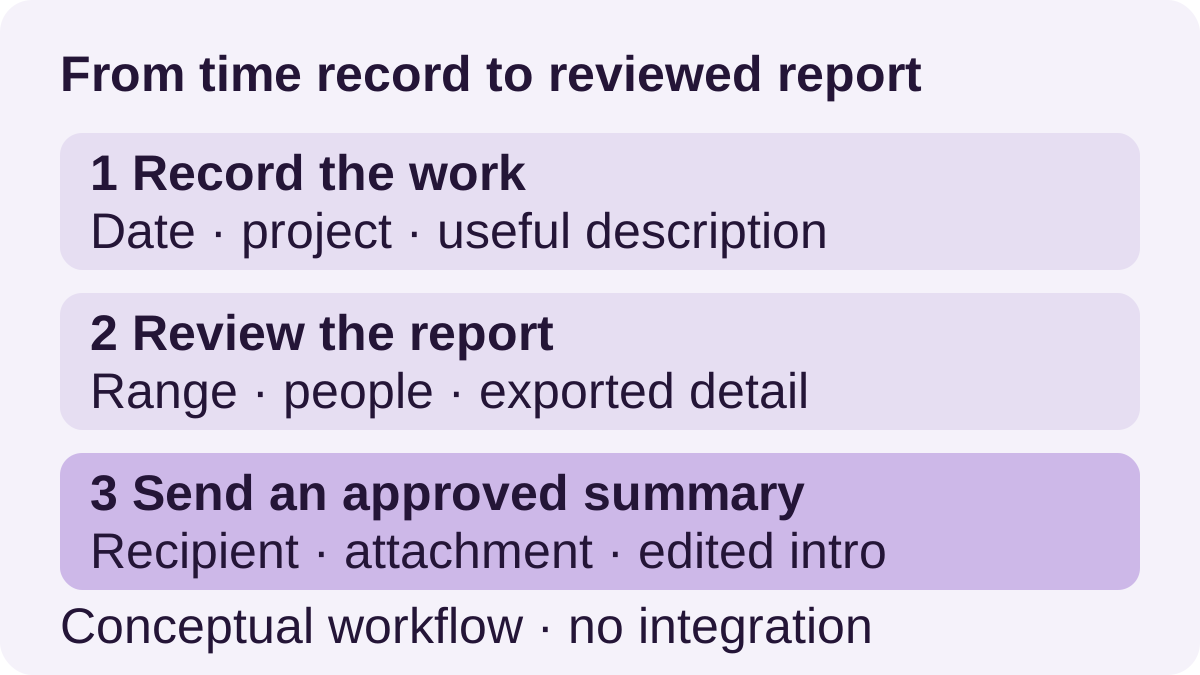
The following is an invented planning example, not a customer result or a tested app session. An independent photographer wants to describe completed preparation and proof-selection work. The worksheet keeps the underlying record separate from the message accompanying an approved report.
| Stage | What to check |
|---|---|
| Record | Date, project and a useful description, such as preparing a shot list or selecting proof files. |
| Review | Correct scope, people and date range; the exported file contains the intended detail. |
| Handoff | Correct recipient, approved attachment and a message edited for that specific job. |
Try this worksheet with a small set of non-sensitive sample entries in the product you are evaluating. Observe whether the exported report answers your actual question before building a larger process around it. This article does not claim that either vendor produced a particular result.
Reuse the introduction after reviewing the report
If you repeatedly write the same introduction on iPhone or iPad, an optional Copied Key can hold a short starting point: “Here is the reviewed work summary for [date range] and [project]. Please let me know if you would like clarification on an entry.” Replace those bracketed prompts yourself, check the recipient and read the final message before sending.
Copied supports saved text in compatible fields and supported file reuse; it does not connect to either timer, calculate hours, update exports or send the message. Keep the current report in the time-tracking workflow. If retaining an approved PDF is useful, follow the file reuse guide and confirm the receiving app accepts that file. For the surrounding project conversation, see freelancer client messages.
Choose the tracker whose maintained records and ongoing plan fit the report you actually need. Add reusable wording only when the introduction repeats; if it does not, write it directly in your existing messaging app.
References
- Toggl, Toggl vs Toggl Track: What’s Changed? The current Toggl product and the traditional Track product have separate documentation. Reviewed October 24, 2026.
- Toggl, Pricing plans Current free and paid plan allowances and available app platforms. Reviewed October 24, 2026.
- Toggl, Manual Mode Logging finished work differs from starting a running timer. Reviewed October 24, 2026.
- Toggl, Custom Logo and PDF Watermark on Report Exports PDF report branding differs between free and paid plans. Reviewed October 24, 2026.
- Clockify, Plans & Pricing Current free and paid offers and available app platforms. Reviewed October 24, 2026.
- Clockify, Updates to Clockify Free Plan Current free-plan limits, trial transition and project visibility within a workspace. Reviewed October 24, 2026.
- Clockify, Export reports Report format, filters and the distinction between summary and detailed exports. Reviewed October 24, 2026.
- Clockify, Track time Time can be recorded with a timer or entered manually. Reviewed October 24, 2026.
- Copied, Copied product overview Saved text and supported file reuse in compatible iPhone and iPad destinations. Reviewed October 24, 2026.