WhatsApp Business
Organize WhatsApp Business Client Chats on iPhone with Lists or Labels
WhatsApp Business Lists or Labels can help a solo owner find the next client chat to handle. Use a small set of action states, and check the conversation before moving it.
Published , 5 min read, by Copied Editorial team
If client conversations are buried among other chats, start by finding out which organization control your WhatsApp Business account actually shows. WhatsApp says Labels are becoming Lists, and that Lists are rolling out gradually. Either control may be missing while that change reaches accounts. The steps below follow WhatsApp's current English iOS Help pages; they are not a promise that every iPhone account has the same screen. WhatsApp's Labels guidance and Lists guidance.
We read those two official iOS pages and Copied's public product description on November 9, 2026. We did not use a WhatsApp Business account or test this on an iPhone. Check the controls in your installed app before making a client process depend on them. A list helps you find a conversation; it does not show that anyone replied, assign work, or send a follow-up.
Start with the next human action
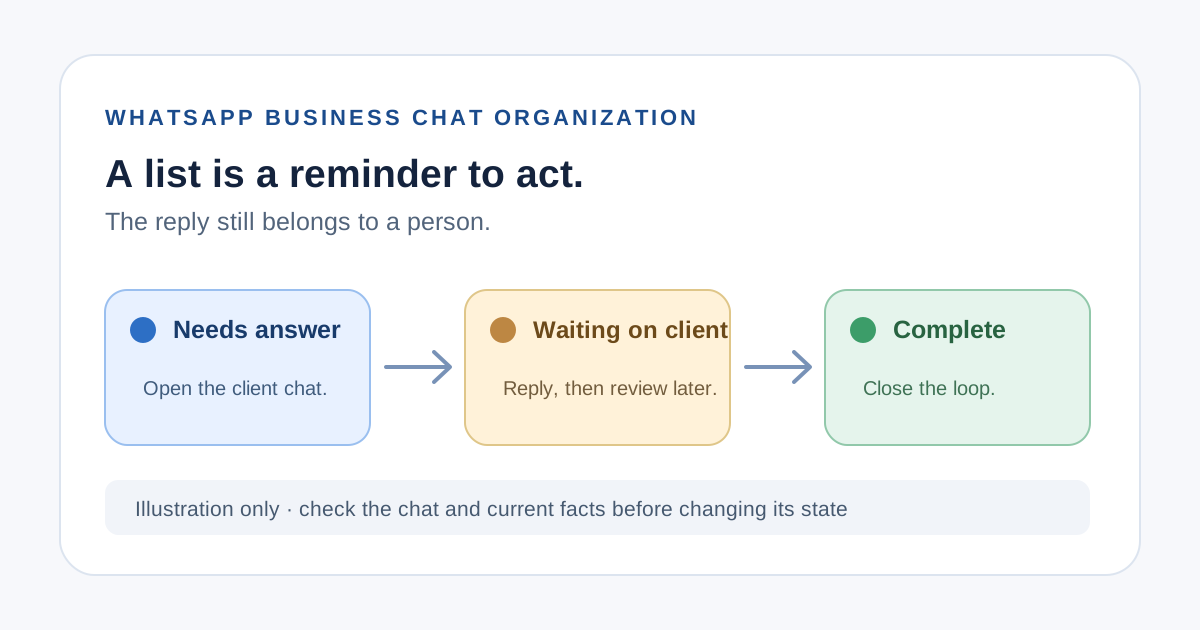
For a solo owner, three states can be enough: Needs answer, Waiting on client, and Complete. Those are suggested list names, not WhatsApp default statuses. Give each state a specific action. When a new enquiry arrives, Needs answer means open the chat and decide what to say. After you send a useful answer that asks for information, Waiting on client means you will review that conversation again. Complete means the current request has been handled; a new question can reopen it.
| Suggested state | What the owner does | What the state cannot prove |
|---|---|---|
| Needs answer | Open the chat, read the latest message and check current facts before replying | The label alone does not prove the enquiry is new or unread |
| Waiting on client | Look for the requested detail or an appropriate time to follow up personally | It does not start a timer or send a reminder |
| Complete | Confirm the promised answer or next step was actually delivered | It does not establish that a sale, appointment or payment occurred |
Avoid a long list of categories such as every service, product and month. A chat may concern several topics, but one next action is easier to review. WhatsApp documents a limit of up to 20 Lists on its iOS page; that is a platform ceiling, not a reason to create 20 workflow states. WhatsApp's List instructions.
Create or find a List on iPhone
- Open the standalone WhatsApp Business app and look under Tools for Lists. If the control is absent, check your current app and account state; WhatsApp says rollout is gradual.
- If Lists is present, tap Tools, Lists, then New list. Give it a name tied to an action, such as Needs answer. Add people or groups if you already know which chats belong there, then tap Done.
- To add an existing chat later, tap and hold that chat, choose Add to list, select the intended List and tap Done.
- Return to Tools, Lists to find and manage the groups. Open a specific List and use Edit when the people, groups, name or color need changing.
These controls and the 20-List limit come from WhatsApp's selected iOS tab. WhatsApp's Labels page describes the transition with the same Tools → Lists route and an Add to list action for chats. If your account still calls the feature Labels, use the names your own app shows and verify the resulting chat group. Do not assume the two Help pages describe identical availability in every account.
Move a chat only after checking what happened
Consider a fictional repair studio. A customer asks whether a device can be inspected this week. The owner puts the chat in Needs answer, checks actual availability, and replies with the available options. If the customer needs to choose a time, the owner moves it to Waiting on client. After the choice is confirmed and the next step communicated, the owner moves it to Complete. This is an editorial example, not a tested WhatsApp workflow or a real client case.
- Read the newest customer message before changing a state; a fresh question may have arrived since the last review.
- Check your own booking, stock or service record before sending a promise. A chat group does not validate those facts.
- Remove a stale state when the next action changes. Review the grouped chats regularly by a schedule you can actually keep.
- Keep sensitive client details in the appropriate business record; a short List name should describe the action, not expose private information.
The documentation allows a chat to be selected for Lists, but it does not turn those lists into a task system with ownership, due dates or verified completion. If several people need to coordinate responsibility, define that process separately and confirm what your account supports before relying on a shared status.
Keep chat organization separate from message tools
A List is for finding conversations. A greeting message is an automatic first-contact or eligible return acknowledgement. An away message addresses availability. Quick Replies let a person choose saved text inside a chat. None of those tools replaces reading the client's question and deciding the next step. Lists are also distinct from marketing broadcasts, even though WhatsApp mentions broadcasts on its Lists page; this guide does not cover sending one-to-many messages. WhatsApp's Lists page.
For a one-channel solo workflow, WhatsApp Business may be enough to group chats and send individual replies. If you repeatedly type a reviewed follow-up across WhatsApp and other compatible iPhone or iPad fields, Copied's product description explains Keys for manual text reuse. You still open the right chat, check the client's details, edit the inserted text and choose to send it yourself. Copied does not read chats, set Lists, detect unanswered enquiries or automate WhatsApp follow-up.
If manual cross-app text reuse is a recurring part of your work, explore Copied for iPhone and iPad. If you first need to decide where clients should contact you, read the store-chat channel comparison.
References
- WhatsApp Help Center, How to use lists on iOS Gradual rollout, iOS Tools > Lists > New list, people/groups, tap-and-hold chat > Add to list, edit and 20-list limit. WhatsApp/Meta; individual author/update date unstated. Checked November 9, 2026; no account/device test.
- WhatsApp Help Center, How to use labels on iOS Labels becoming Lists, gradual rollout, possible unavailability, and current iOS Tools > Lists / Add to list controls. WhatsApp/Meta; individual author/update date unstated. Checked November 9, 2026; no account/device test.
- Copied, product homepage Publisher-declared Keys for manual reuse in compatible iPhone/iPad text fields; no WhatsApp List integration. Sharply Labs; checked November 9, 2026; no native app test.