WhatsApp Business
Set a WhatsApp Business Away Message on iPhone for Client Enquiries
WhatsApp Business can send an automatic away acknowledgement. Choose when and to whom it goes, then make sure a person handles the actual enquiry.
Published , 5 min read, by Copied Editorial team
WhatsApp Business on iPhone can send an automatic away message when someone writes to you. It can acknowledge a new enquiry while nobody is available, but it does not assign the request or write a considered answer. Before turning it on, choose a real coverage window and the people who should receive it. WhatsApp's iOS help describes the schedule and recipient controls: WhatsApp Business away-message instructions.
This guide uses WhatsApp's current iOS Help and Copied's product description, checked November 7, 2026. We did not enable an away message on a device or test what a customer receives. Labels, availability and delivery can vary by app version, account and connection. Verify your own setting before relying on it for client communications.
Write an acknowledgement that matches your coverage
A fictional repair studio answers client chats during staffed hours but closes on Sunday. A useful Sunday reply can say when a person expects to read the chat again and give an alternate route only if someone truly monitors it. If there is no urgent cover, say so plainly. This is an illustration, not a claim that any particular customer read or acted on a message.
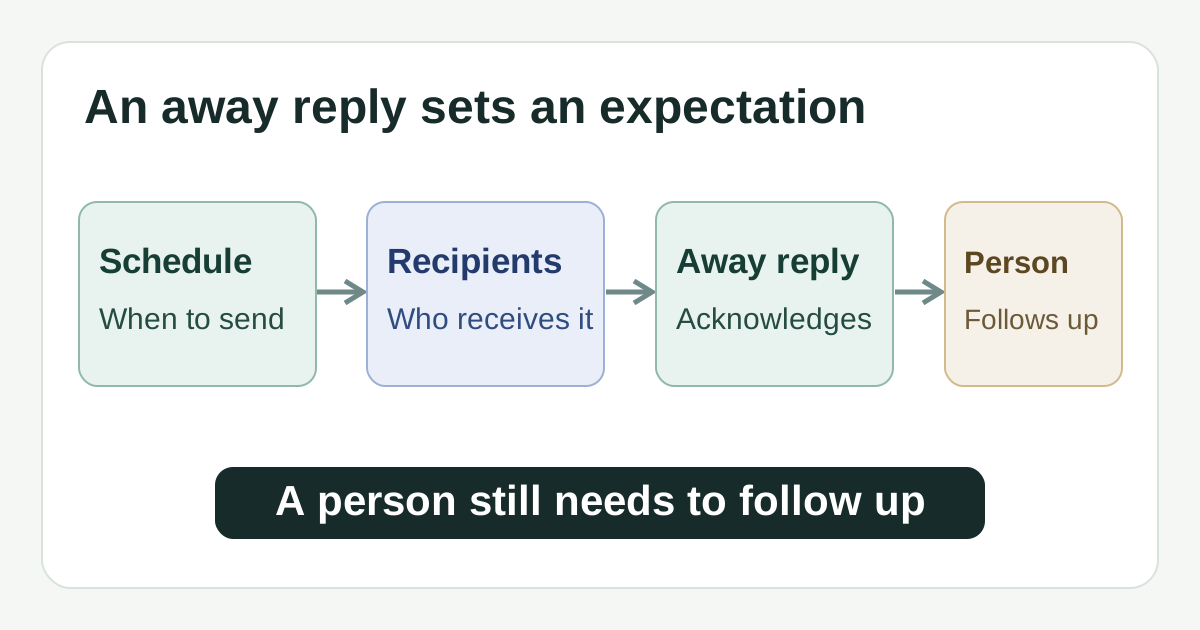
For example: ‘Thanks for contacting us. The studio is closed today. We expect to review new messages on Monday during our posted hours and will reply then.’ Replace the day, hours and business name with current facts. Avoid an invented emergency contact, an exact response promise you cannot meet or a request for sensitive information in the automatic text. The away reply sets an expectation; it is not the eventual service response.
Choose the schedule that matches the absence
| WhatsApp schedule | When it fits | Check before using it |
|---|---|---|
| Always send | You want an acknowledgement whenever an eligible person writes while the feature is on. | This can also reply during staffed hours; turn it off when that is no longer the intention. |
| Custom schedule | You have a defined temporary period outside normal coverage. | Match the start and end to the actual closure or absence, then check the displayed period. |
| Outside of business hours | Your regular business-profile hours reflect when nobody handles chats. | WhatsApp says this option is available only after business hours have been set in the business profile. |
These are the choices in WhatsApp's iOS schedule guidance. The schedule is a sending rule, not a staffing calendar. A shop may have public hours but still answer messages later; choose the rule that describes its real practice. If hours or coverage change, revisit the setting rather than assuming the old rule remains accurate.
Choose recipients with first-time enquiries in mind
WhatsApp lists four recipient choices for away messages: Everyone, Everyone not in address book, Everyone except…, and Only send to…. ‘Everyone not in address book’ can reach new numbers but exclude saved clients. ‘Only send to…’ is narrower and can omit a new prospect. ‘Everyone except…’ requires careful review of the exclusions. Choose based on who actually needs an acknowledgement, not on the option's name alone: WhatsApp's recipient choices.
- If both existing clients and new prospects need an absence notice, check whether Everyone matches your audience.
- If a specific client has a separate agreed coverage plan, consider the exclusion options and verify the resulting recipient selection.
- If you use a narrow list, check it before and after a staffing or contact-list change.
- Do not use an automatic acknowledgement as evidence that a person has read or resolved the incoming chat.
Set the away message on iPhone and inspect it
- In WhatsApp Business, open the Tools tab and tap Away message. Turn on Send away message.
- Under Message, edit the text and tap Save. Read it as a new client would, including any stated hours or contact route.
- Tap Schedule and choose Always send, Custom schedule or Outside of business hours. The last choice needs business hours in the business profile.
- Tap Recipients and choose the audience. Reopen the settings to inspect the saved text, schedule, recipient choice and whether the switch is still on.
The control names above follow WhatsApp's official iOS steps. Its help also says the device must have an active internet connection for away messages to send. A configured switch does not prove a particular message was delivered. If the exact behavior matters to your business, arrange a harmless test with a consenting colleague in your own account and check the resulting chat; we did not perform one.
Return to the chat with a human reply
When staffing resumes, inspect new and unanswered chats, prioritize time-sensitive client issues and respond with the actual next step. Turn off or revise a temporary away rule when the closure ends. The automatic acknowledgement should not stay active after its wording becomes false. A greeting message, an away message and a Quick Reply have different jobs: this guide covers the away rule; the WhatsApp Business Quick Replies guide covers text a person selects and can edit before sending. WhatsApp's own Quick Replies help shows that manual chat step.
If clients also email you during an absence, the Gmail vacation responder guide covers that separate channel. Check each channel's own audience, timing and follow-up instead of treating one app's away setting as coverage everywhere.
Use a text library only for recurring human follow-up
WhatsApp Business alone handles its away message. If the same reviewed follow-up wording also appears in email, forms or other compatible fields, Copied's published product description says you can save it as a Key and insert it manually on iPhone or iPad. Personalize the client's issue, date and promise, then choose whether to send. Copied does not control WhatsApp's away-message switch, send automatic chats, detect incoming enquiries or provide a shared team inbox. For one-channel automatic coverage, skip the extra app.
If cross-app manual follow-ups recur, explore Copied for iPhone and iPad and assess whether one reviewed Key helps in your compatible text fields. The client message wording guide covers the separate task of writing reusable human replies.
References
- WhatsApp Help Center, How to use away messages on iOS Tools, away message, schedule and recipient choices, business-hours prerequisite and active-internet requirement. Publisher WhatsApp/Meta; individual author/update date unstated. Checked November 7, 2026; no account or delivery test.
- WhatsApp Help Center, How to use quick replies on iOS Human-selected chat shortcut appears in input field for editing or sending. Publisher WhatsApp/Meta; individual author/update date unstated. Checked November 7, 2026; no device test.
- Copied, product homepage Publisher-declared Keys and manual reuse in compatible iPhone/iPad fields. No WhatsApp automatic-sending or inbox integration. Checked November 7, 2026; no app test.