WhatsApp Business
Set a WhatsApp Business Greeting Message on iPhone for New Client Enquiries
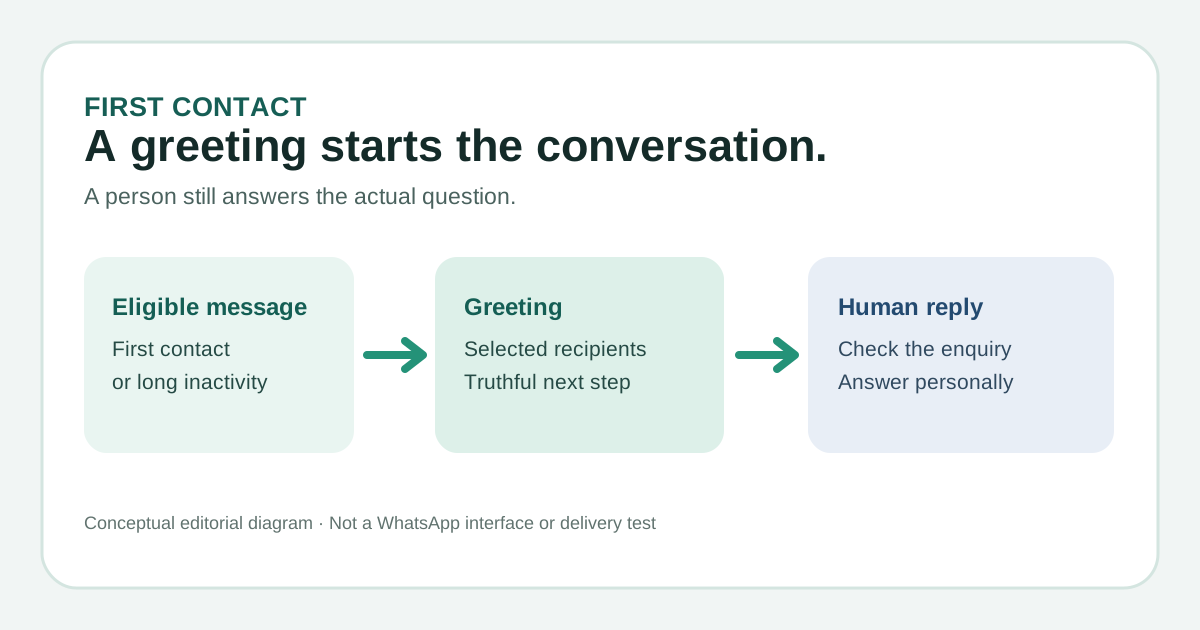
A WhatsApp Business greeting can welcome a first-time client or someone returning after 14 inactive days. Set the audience and keep a person responsible for the answer.
Published , 5 min read, by Copied Editorial team
In the standalone WhatsApp Business app on iPhone, a greeting message can automatically welcome a customer who messages you for the first time. WhatsApp also sends it when that customer writes after 14 days of inactivity in your chat. It is an opening acknowledgement, not an answer to the enquiry or a reply to every new message. Choose who receives it and who will read the resulting chats before you enable it. WhatsApp's iOS greeting-message help.
We checked WhatsApp's English iOS Help page and Copied's public product description on November 9, 2026. We did not use an account, enable a greeting or test delivery on an iPhone. App labels and account conditions can change; confirm your saved setting and actual delivery with your own eligible, consenting test contact before relying on it for client communication.
Choose greeting, away message or a reply you send yourself
| Job | Use | What it does not establish |
|---|---|---|
| Welcome a first-time or 14-day-return contact | WhatsApp Business greeting message | It does not send on every chat message or prove an owner has read the enquiry. |
| Acknowledge messages while you are unavailable | WhatsApp Business away message, with its own schedule and audience | A greeting has no absence schedule; an away rule needs a truthful coverage window. |
| Answer a specific client question | A human reply, possibly using a WhatsApp Quick Reply | A saved shortcut is selected and sent by a person; it is not the automatic greeting. |
WhatsApp documents the greeting trigger in its greeting guide. Its separate away-message guidance describes absence coverage, while Quick Replies help describes reusable text selected in a chat. If your actual job is an absence notice, read the away-message guide instead. If you need a considered answer, use the Quick Replies guide.
Write a welcome that a human can fulfil
A useful greeting can acknowledge contact, ask for one or two details that help route the enquiry, and say what happens next. Avoid an exact reply-time promise unless your business can reliably keep it. Do not ask for payment details or sensitive personal information in an automatic welcome. The message must still make sense when an old contact returns after two weeks, because WhatsApp uses the same greeting for that trigger.
For a fictional repair studio: ‘Thanks for contacting the studio. Please tell us which item you need help with and the question you have. A person will read your message during our posted business hours and reply with the next step.’ This is an editorial example, not a message sent or tested by a business. Replace the business, request and hours with current facts. If nobody checks messages during posted hours, change that final sentence before saving it.
- Keep the greeting short enough that the client's question remains the main event.
- Ask only for details you will actually use to answer or route the enquiry.
- Assign one person to review new chats; the automatic greeting does not assign them.
- Revisit the wording whenever your hours, service or coverage changes.
Set the greeting and recipients on iPhone
- In WhatsApp Business, open the Tools tab and tap Greeting message.
- Turn on Send greeting message. Under Message, tap the text, edit it and tap Save.
- Tap Recipients. Choose Everyone, Exclude my contacts, Everyone except…, or Only send to… according to the clients you intend to welcome.
- Reopen the setting and review the saved wording, recipient rule and enabled switch before telling anyone the greeting is active.
Those control names and recipient choices come from WhatsApp's current iOS instructions. Everyone is the broadest audience. Exclude my contacts omits saved contacts; Everyone except… omits people you select; Only send to… reaches only selected contacts. A narrow rule can omit a genuinely new client. Select the audience deliberately and check it after contact-list changes. WhatsApp says the device needs an active internet connection to send greetings.
Check the trigger before relying on delivery
A contact who wrote within the last 14 days is not an eligible greeting test simply because you changed the text. WhatsApp says a greeting is sent for the first message or after 14 days of inactivity, and its troubleshooting guidance says recipient exclusions can also stop it. If a connected Meta Business Agent is enabled, WhatsApp says greeting messages are automatically disabled. Review what that agent does for your account before changing or deleting it merely to restore a greeting. WhatsApp's delivery and troubleshooting notes.
For a real check, arrange a harmless first-contact or eligible return message with a consenting colleague, confirm the chosen recipient rule and connection, then inspect what appears in the business and contact chats. We did not run that test. A switch shown as on, this article, and a network connection alone do not establish delivery to a particular customer. If a message does not send, follow WhatsApp's current troubleshooting steps and verify your own app version and account state.
Hand the enquiry to a person
After the greeting, someone still needs to read the question, verify current facts and answer. A greeting that asks for an item or appointment detail creates an expectation that the detail will be used. Check the relevant record before promising availability, price or timing. If the client is messaging during a closure, a separately configured away message may fit that job; do not imply the greeting alone tells them when staff are absent. The store-chat channel comparison covers the different decision of where customers should start a conversation.
WhatsApp Business itself handles the automatic greeting. For one-channel greetings and follow-up, you can use its native tools alone. If you personally reuse a reviewed follow-up answer across WhatsApp and other compatible iPhone or iPad text fields, Copied's product description explains saving a Key for manual insertion. Check the client's situation, edit the inserted words and choose to send them yourself. Copied does not set the greeting, select recipients, watch chats or send the automatic message.
If that manual cross-app reuse is a recurring job, explore Copied for iPhone and iPad. For the separate task of writing a human response, read the client-reply wording guide.
References
- WhatsApp Help Center, How to use greeting messages on iOS First contact or after 14 inactive days; iOS Tools, Greeting message, Send greeting message, Message and Recipients; active internet and Meta Business Agent caveat. WhatsApp/Meta; individual author/update date unstated. Checked November 9, 2026; no account or device test.
- WhatsApp Help Center, How to use away messages on iOS Separate automatic message with absence schedule and recipients. WhatsApp/Meta; individual author/update date unstated. Checked November 9, 2026; no account test.
- WhatsApp Help Center, How to use quick replies on iOS Human-selected saved text in chat. WhatsApp/Meta; individual author/update date unstated. Checked November 9, 2026; no device test.
- Copied, product homepage Keys and manual insertion in compatible iPhone/iPad text fields; no WhatsApp integration or automatic sending. Sharply Labs; checked November 9, 2026; no native test.