App Reviews
Loom vs Zoom Clips for Small Business Client Updates
Choose a recorded-update tool by the actual plan, recording limits and client access. Keep the delivery note separate from the recorder.
Published , 6 min read, by Copied Editorial team
Choose between Loom and Zoom Clips for a small business by checking the recording you need, the account you already have and the client’s viewing route. Loom Starter can suit short explanations within its recording and library limits. Zoom Clips deserves a look when the business already has an eligible Zoom account. Keep a plain written update when a video adds no useful demonstration.
This comparison serves owners and independent service providers sending recorded project updates for clients to watch later. It is based on official vendor documentation reviewed October 21, 2026, rather than a hands-on recording, playback or security test. We compare the specific async recording products: Zoom Clips is different from a live Zoom meeting.
First decide whether a recording helps the client
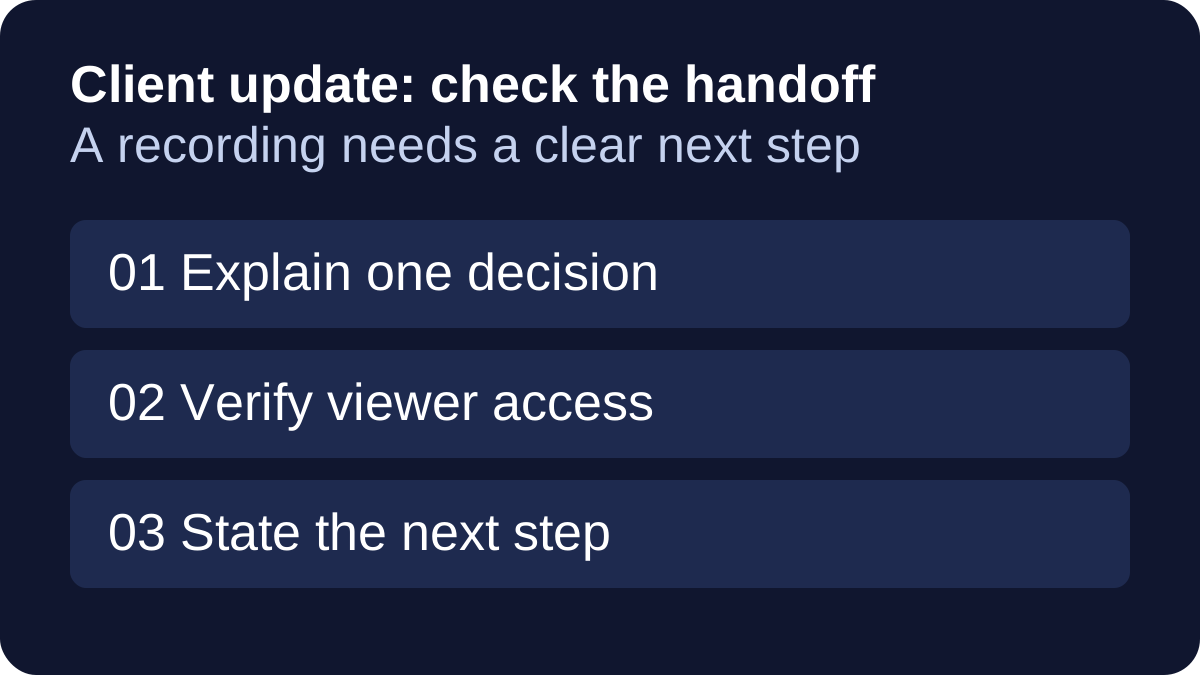
A recorded update is useful when the client needs to see a small sequence: where a draft changed, how a proposed layout works or what needs a decision. It can be a poor fit when the answer is a sentence, the discussion needs immediate back-and-forth or the recipient cannot use the viewing route. A video is also not evidence that the client has approved the work.
For a scheduled conversation, use the separate Zoom vs Google Meet client-meeting comparison. Use that guide when the client needs a conversation at an agreed time.
Compare the usable free limits and the existing account
Loom’s recording-duration guide lists a five-minute limit for Starter recordings and a 25-video limit. Its Starter storage explanation says archived videos count toward that library limit, and new recordings stop when the limit is reached. Treat it as a capacity constraint, not a fresh monthly recording allowance.
Zoom’s Basic and Plus comparison lists Clips Basic for Basic free accounts, with up to five clips per user and a maximum duration of two minutes per clip. It separately lists Clips Plus under Zoom Workplace Pro and higher and certain other eligible account types. Check the current edition and enabled feature in the business’s own account before deciding that another subscription is necessary.
| Decision | Loom route | Zoom Clips route |
|---|---|---|
| A short recorded explanation | Starter has a five-minute recording cap and a 25-video library cap | Basic has a two-minute clip cap and up to five clips per user |
| Existing paid arrangement | Confirm the actual Loom plan and workspace before recording | Confirm whether the account includes Clips Plus and Clips is enabled |
| Growing library | Count archived videos in Starter capacity planning | Check the actual Basic or Plus allowance; do not assume a monthly reset |
| Who should evaluate it first? | An owner whose intended short recordings fit the documented limits | An owner already working in Zoom who can use the relevant Clips entitlement |
These are ongoing free-product limits, separate from a paid-feature trial. A download button does not establish which recording, editing or sharing features your account includes. An upgrade decision should name a real failed requirement, such as required recording length or library capacity. This guide does not compare numeric purchase prices, AI editing quality, video resolution rankings or every business-plan feature.
Check the device you will record from
Loom documents desktop apps, a Chrome extension and mobile compatibility. Choose the intended recording surface before checking its requirements and available controls. Browser capture, a desktop recording and a phone workflow should not be treated as identical.
Zoom’s current Clips setup guide documents desktop and mobile recording routes and says creation can be controlled by the account owner or administrator. It also distinguishes some sharing options by device: downloading a clip as an MP4 is not available on mobile in that guide. If creating or exporting from a phone is essential, inspect that exact route rather than assuming desktop feature parity.
The creator’s recording device and the client’s viewing device can be different. List both before choosing an app. We have not installed either recorder or compared capture quality on a device for this article.
A copied viewing link does not establish client access
Loom’s sharing guide distinguishes link, workspace and specific-person access. It also attaches plan conditions to some controls, including password protection. Check the available controls in the intended account rather than assuming every free recording offers every restriction.
Zoom’s clip-management guide describes sharing modes for anyone with the link, organization members and invited members. That is a reason to check the chosen mode, not evidence that a given client can open a particular clip. Organization-only access can be unsuitable for an external client. Choose the actual audience and verify it using harmless material before sending client work.
Do not widen access to solve a failed test with a real private recording. Start with a nonconfidential sample, record what the recipient would need to do and keep the original client material out of that evaluation. Neither a copied URL nor a view count should be treated as a signed approval.
Use a fictional client-update acceptance card
Imagine an independent designer explaining one change to a fictional shop flyer. The video shows a made-up draft and asks which of two headings the client prefers. This is a proposed evaluation scenario, not a customer case or a recording we made.
| Check | Expected result to write down |
|---|---|
| Purpose | One visible change and one clear question; use text instead if the video adds nothing |
| Recording allowance | The planned duration and current library fit the actual account |
| Screen contents | Only the harmless demonstration is visible; unrelated windows and notifications are excluded |
| Viewing route | The intended recipient can use the chosen access mode without exposing other work |
| Next step | The accompanying message says what feedback is needed and where to reply |
| Retention decision | The owner knows which version remains current and where the approved original is kept |
Record a short harmless sample only if you are evaluating a tool yourself. Check playback and access through the actual intended route, then note any failed requirement before buying or replacing an app. These checks have not been executed for this guide. Keep a written summary available when the recipient needs text or an accessible alternative to the recording.
Keep the accompanying message separate from the recorder
The delivery note can be reusable even when each recording is different. A fictional starting point is: “Here is the update on [project]. The clip covers [change]. Please reply with [decision needed] by [agreed date]. If you cannot open it, let me know and I will send a written summary.” Replace every placeholder and use a date only when it has actually been agreed.
For repeating that kind of wording from iPhone or iPad, Copied’s product description presents reusable text Keys. An optional check is to insert one harmless reviewed Key in a compatible message field, replace the project-specific details and paste the correct current link yourself. Individual apps and secure fields can limit third-party keyboards. Copied does not record, host or edit these videos, change link permissions, verify a viewer or send the message automatically. No Loom or Zoom connector is implied.
For managing the separate link-reuse task, see saving and reusing links on iPhone. For reusable project wording, see freelancer client messages. Keep this tool decision inside the broader small-business app stack rather than adding a recorder without a clear job.
Start with the eligible recording tool you already have when it meets the actual limits, device and access requirements. If recurring delivery wording is a separate phone task, evaluate Copied for iPhone and iPad with one reviewed draft. Choose a different recording tool only when the sample exposes a requirement the current one cannot meet.
References
- Atlassian / Loom, How long can I record? Starter recording duration and library limits. Reviewed October 21, 2026.
- Atlassian / Loom, Loom Starter Free video and screenshot storage limit explained Archived videos count toward the Starter video cap. Reviewed October 21, 2026.
- Atlassian / Loom, Share your recording Sharing choices and plan-specific privacy controls. Reviewed October 21, 2026.
- Atlassian / Loom, Loom device compatibility Documented recording surfaces and compatibility boundaries. Reviewed October 21, 2026.
- Zoom, Comparing features in Zoom Clips Basic and Clips Plus Clips Basic free limits versus eligible Clips Plus account types. Reviewed October 21, 2026.
- Zoom, Getting started with Zoom Clips Desktop/mobile recording, admin enablement and mobile export limitations. Reviewed October 21, 2026.
- Zoom, Accessing and managing Zoom Clips Audience-specific link access in account clip management. Reviewed October 21, 2026.
- Copied, Copied — Customer Replies, Less Repeat Work | iPhone Publisher-declared manually reviewed reusable Keys in compatible iPhone/iPad fields. Reviewed October 21, 2026.