Guides
Send a Job Completion Message from iPhone: Verify What Is Finished
A closeout note should describe the work that actually happened. Check the job record, name any open item and review the attachment before sending.
Published , 5 min read, by Copied Editorial team
Before sending a job completion message from iPhone, check the actual job record against the work promised. If everything in the agreed scope is finished, send a short account of what was done, any approved handoff file and a clear way to ask a question. If an item is still open, say so and give the next confirmed step. A reusable message can help with wording; it cannot establish that the work is complete.
This is an editorial workflow, not a tested customer exchange. We reviewed Jobber, Apple and Copied documentation on November 13, 2026. We did not inspect a business account, perform a service job or send a message. Use your own job record and client agreement as the source of truth.
Decide whether this is a completion note or an open-work update
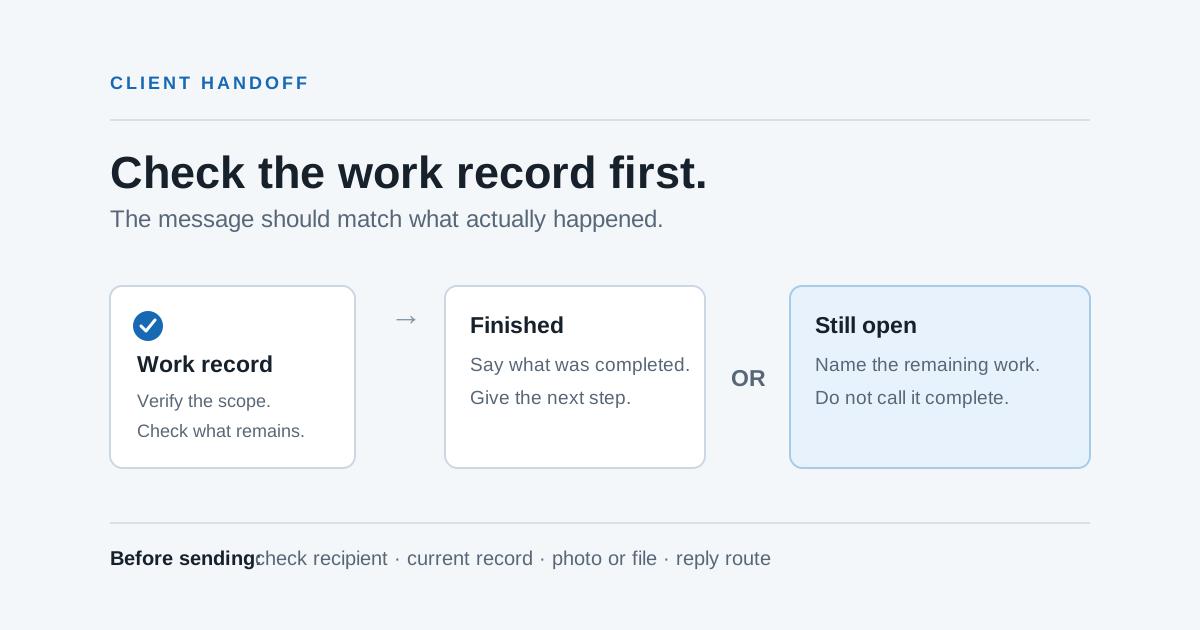
A closed appointment, a finished task and a fully completed customer job are different states. Compare the agreed scope, work notes and any change requests before you use the word ‘complete’. If a return visit, replacement part or approval is outstanding, name it plainly. Do not make a customer infer the exception from an attachment.
| Verified status | What to tell the client | What to avoid |
|---|---|---|
| All agreed work finished | State the completed work and any useful next step | Claiming a result you have not checked |
| Some work still open | Separate finished work from the open item and give a confirmed next step | Calling the entire job complete |
| Status unclear | Check the source record or responsible person before sending a status claim | Guessing from a calendar or a draft message |
If you use a job-management service, its automated follow-up can be a separate communication. Jobber's job follow-up guide describes email follow-ups sent automatically after a job is closed on select plans, as well as a manual email option. Those are Jobber-specific controls. Check whether an automatic message is enabled before you send another note, and do not treat an automated follow-up setting as evidence that your particular work was done.
Make a four-part closeout record before composing
- Confirm the right customer and job. Check the service address or project identifier, agreed scope and any later changes in your own record.
- List the work you can verify as finished. Use concrete nouns instead of a generic ‘all done’ if the scope has several parts.
- List each open item separately. State who owns the next step and the date only if it is confirmed; otherwise promise to confirm the date, not to meet an invented one.
- Choose the one attachment or link that helps this customer: for example, an approved care sheet or a reviewed after-work photo. Check that its contents and recipient are correct.
Keep this record in the system you use for the job. The customer message can be shorter, but it should not contradict the record. If a co-worker owns part of the work, verify their update before presenting it as finished.
Two example messages for different states
Finished job — fictional example: ‘Hi Maya, we completed the kitchen tap replacement today and checked for leaks at the fitting. I’ve attached the care note we discussed. If you notice anything that needs another look, reply here and I’ll review it.’ The named work and check are illustrative; they must be replaced with facts from your own record.
Work still open — fictional example: ‘Hi Maya, the new tap is installed, but the cabinet panel is still waiting for the replacement part. I’ll confirm the return visit after the part arrives. The tap work is complete; the panel work is not. Please reply here if you have a question in the meantime.’ This is a status update, not a completion notice or a delivery claim.
You can thank the customer without mixing in an unverified review request, invoice or warranty promise. Those have their own timing and source records. Our Google review link guide covers the separate decision to invite feedback.
Review the file, photo and recipient on iPhone
Apple's Mail attachment guide documents adding a photo or a Files document to a message on iPhone. Before attaching anything, open the actual file, confirm its version and check whether it contains another customer's information. Mail attachment limits depend on the account and service, so a large file may need a different approved sharing route. Our current PDF sharing guide explains the copy-versus-link choice for changing documents.
Apple's photo-sharing guide notes that shared photos or videos can carry associated details such as location, date and time. Review the image and its sharing options before using a job photo. Do not assume that cropping the visible scene removes every associated detail.
- Read the complete draft with the correct customer name and job identifier.
- Open the attachment from the draft or sharing sheet where possible; verify it is the approved file for this customer.
- Check To, Cc and any group chat participants before manually sending.
- After sending, use the channel's actual sent record for follow-up; a saved draft is not proof of delivery or reading.
Where Copied fits a repeated handoff
Copied's product description describes saved Keys for manual text insertion in compatible iPhone and iPad fields and Files for manual reuse where the receiving app supports it. A solo owner who sends similar closeout notes could save neutral wording such as ‘Here is what was completed’ and a reviewed care sheet, then fill in the job facts each time. Copied does not inspect job status, choose the correct client file, send a message or confirm receipt.
If your existing job system already sends the right follow-up under your plan and controls, use that workflow rather than duplicating it. If you need a manually reviewed note across compatible fields, review Copied for iPhone and iPad and test one saved Key with a non-sensitive draft. For messages before the visit, see the distinct appointment confirmation guide.
References
- Jobber Help Center, Job Follow-ups Manual or automatic email follow-up after job closure on select plans; Jobber-specific. Jobber; updated May 14, 2025; checked Nov13, 2026; no account or delivery test.
- Apple Support, Add email attachments in Mail on iPhone Photos and Files attachments in iPhone Mail; size limit depends on account. Apple; author/update date unstated; directly opened Nov13, 2026; no device test.
- Apple Support, Share photos and videos on iPhone Photo sharing may include location, date/time and other associated metadata. Apple; author/update date unstated; directly opened Nov13, 2026; no device test.
- Copied, product homepage Publisher-declared Keys and Files for manual reuse in compatible iPhone/iPad destinations; no job status, sending or receipt proof. Sharply Labs; checked Nov13, 2026; no native-app test.