Guides
Send Your Google Review Link to Customers from iPhone
Use the review link from your own Business Profile, check that it points to the right location, and invite honest feedback in a message you review before sending.
Published , 5 min read, by Copied Editorial team
To send a Google review request from iPhone, open the Business Profile for the right location, choose Read reviews and then Get more reviews, and copy its review link. Open that link yourself to check the destination, then put it in a short, neutral message to someone who actually used your business. Review the recipient and message before sending. Google currently says a review QR code must be generated in a computer browser; the link is the phone-friendly route.
This is a source-based workflow for a business owner who manages an existing Google Business Profile. Google help and Copied's product description were checked November 5, 2026. We did not sign in to a Business Profile, send a request, test a customer's device, or measure reviews. Account permissions, interface labels and customer sign-in can affect the actual experience.
Copy the review request link for the correct location
Google's Business Profile instructions say to go to your Business Profile and select Read reviews, then Get more reviews. From there you can copy the review link or use a listed sharing option. These are Google's current labels, not a promise that every account or screen looks identical. Use the profile you manage; a public map result by itself is not proof that you have the right owner controls.
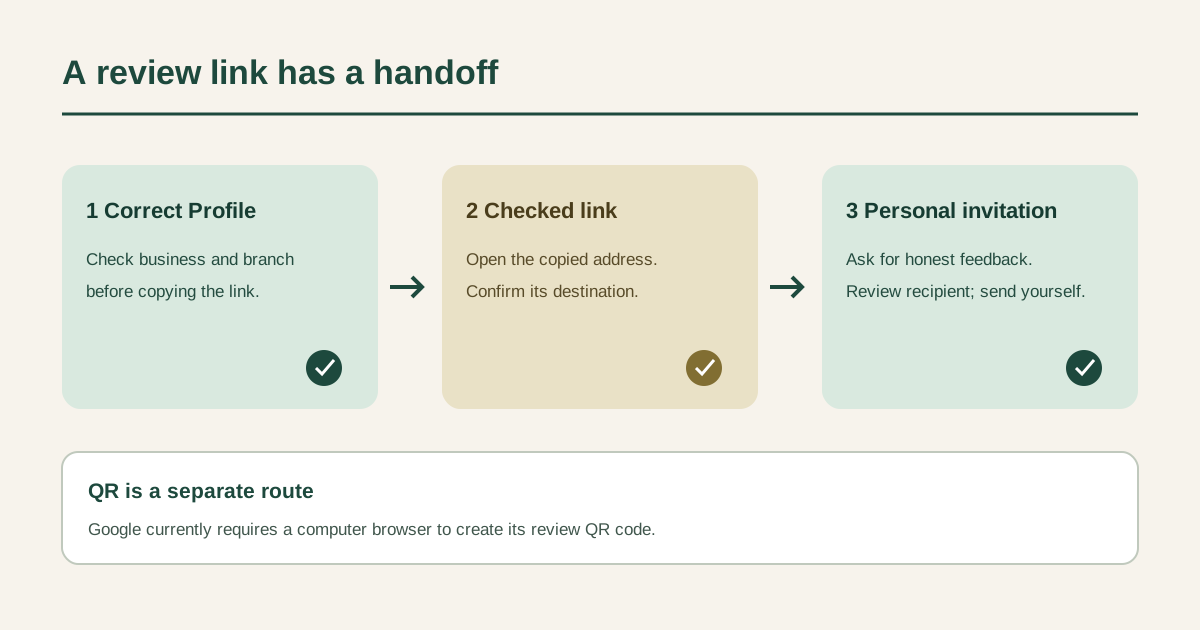
- Confirm the business name and branch before opening its review controls. A business with more than one location needs the link for the branch the customer actually visited.
- Use Read reviews → Get more reviews, then choose Copy for the link. Keep the complete address rather than editing its characters to make it look shorter.
- Open the copied address and inspect the business identity it presents. If it shows a different branch, return to the right Profile before preparing a message.
- Paste the checked link into an individual draft. Review the recipient, context and final URL before you choose Send in your messaging or email app.
This is a request link from the Profile, rather than a generic place-page address copied from a search result. The latter may help someone find your business but can leave them looking for the review control. A test in your own signed-in browser only confirms what you saw; it does not prove that a customer is signed in or will complete a review. Google's review guidance says customers need a Google Account to leave one, and that a non-Gmail address can be used to create an account.
Choose link or QR code by where the customer receives it
| Customer touchpoint | Practical route | Boundary to check |
|---|---|---|
| Personal message or thank-you email | Copy the Profile's review link into a reviewed draft | Correct branch, recipient and complete URL |
| Printed receipt or counter sign | Create the review QR code in a computer browser | Google says QR generation is not currently available on mobile |
| Occasional one-off invitation | Use the Profile's share option or paste the link once | A reusable text library may add no value |
Google lists receipts, thank-you emails, the end of a chat and an in-store QR display as possible placements in its review-link guide. It explicitly says review QR codes can currently be generated only on a computer browser. If you are working only from an iPhone, send the link and leave the QR task until you have a computer. Do not describe a screenshot of a code or a generic map pin as a verified equivalent.
Ask for an honest review without steering the answer
A fictional, neutral note could read: “Thanks for visiting [business and branch] on [date]. If you would like to share your experience, you can leave a Google review here: [checked review link]. Honest feedback is welcome.” Replace every placeholder from the actual interaction, remove anything that feels presumptive, and send only when contacting that customer is appropriate. The example is not a real customer message or a claim that the request produced a review.
Google's Maps contribution policy permits asking for genuine experiences without influencing the rating or review text. It prohibits payment, discounts or free goods in exchange for a review, and says businesses must not selectively ask only for positive reviews or discourage negative ones. Do not ask for a five-star rating, specify what the customer should write, or make the request a condition of service. A reminder should be an invitation, not pressure.
If the customer raises a problem, handle the issue through the right service channel. Do not turn a private complaint into an instruction to change or remove a review. Google's best-practice guidance recommends valuing balanced feedback and responding professionally; it does not promise that sending more requests will improve ratings or search visibility.
Keep a reusable invitation only if the job repeats
For an owner who repeatedly writes the same neutral introduction on iPhone or iPad, Copied's product description supports keeping reviewed wording as a reusable Key and inserting it manually into a compatible text field. You could keep the invitation sentence and, if appropriate, the checked link. Add the customer's name, date and relevant branch in the draft, rather than saving personal details inside a general Key.
Copied is optional here. It does not obtain Google's link, generate the QR code, connect to Business Profile, choose recipients, send messages, detect a completed review or validate that the saved URL remains current. For one request, copying the link directly from Google may be simpler. If you do save the address, review it when the business location, profile or message channel changes. Our iPhone link-reuse guide covers the broader distinction between returning to a page and inserting a public link into text; our saved-replies guide covers organizing repeated wording.
Check the handoff before calling it done
- The Profile and link show the intended business and branch, rather than a similarly named location.
- The customer had a real experience, and the draft welcomes honest feedback without a reward, rating demand or suggested wording.
- The complete link and recipient are correct in the final draft. A copied link is not a sent message, and a sent message is not a posted review.
- If a saved Key contains the link, its owner knows when to review or replace it after a Profile or location change.
If you cannot see the review controls, first check which Profile you manage and whether the account has the right access. Do not create a duplicate listing just to obtain a link. If the link leads to the wrong branch, return to the location selection and copy again. For a customer who cannot post, the Google Account requirement may be relevant; do not imply Copied can resolve account access.
If recurring, manually reviewed invitations fit your work, explore Copied for iPhone and iPad with one approved Key. Test whether you can find and insert that wording in a compatible draft, and keep the final choice to contact someone and send with you.
References
- Google Business Profile Help, Create a Google link or QR code to request reviews Profile route, copy/share options and computer-only QR creation. Publisher Google; individual author/update date unstated. Checked November 5, 2026; no account test.
- Google Business Profile Help, Tips to get more reviews Balanced review requests, replies, and Google Account requirement. Publisher Google; individual author/update date unstated. Checked November 5, 2026; no customer test.
- Google Business Profile Help, Prohibited and restricted content Genuine experiences; no incentives, rating steering or selective positive solicitation. Publisher Google; individual author/update date unstated. Checked November 5, 2026; policy may change.
- Copied, product homepage Publisher-declared reusable Keys on iPhone/iPad; manual insertion in compatible fields. No Google integration, automatic send or review monitoring claimed. Checked November 5, 2026.