Guides
Write an Appointment Confirmation Text on iPhone Without Sending the Wrong Details
A reusable message helps only when its booking status and changing details are right. Use a short draft and check the actual appointment before you send.
Published , 4 min read, by Copied Editorial team
Before sending an appointment confirmation text from iPhone, check whether the slot is actually booked. A proposed time, a confirmed booking and a changed booking need different wording. Keep the reusable sentence short, add the current details from your booking record, then inspect the recipient, date, time, place or link, and way to reply before you send. A saved text tool can help you draft; it cannot verify the appointment for you.
This is an editorial workflow for manually written client messages, not a tested booking system or a claim about reducing no-shows. We checked the official Apple and WhatsApp instructions and Copied's public product description on November 11, 2026. We did not use a live customer account, change a booking or send a test text.
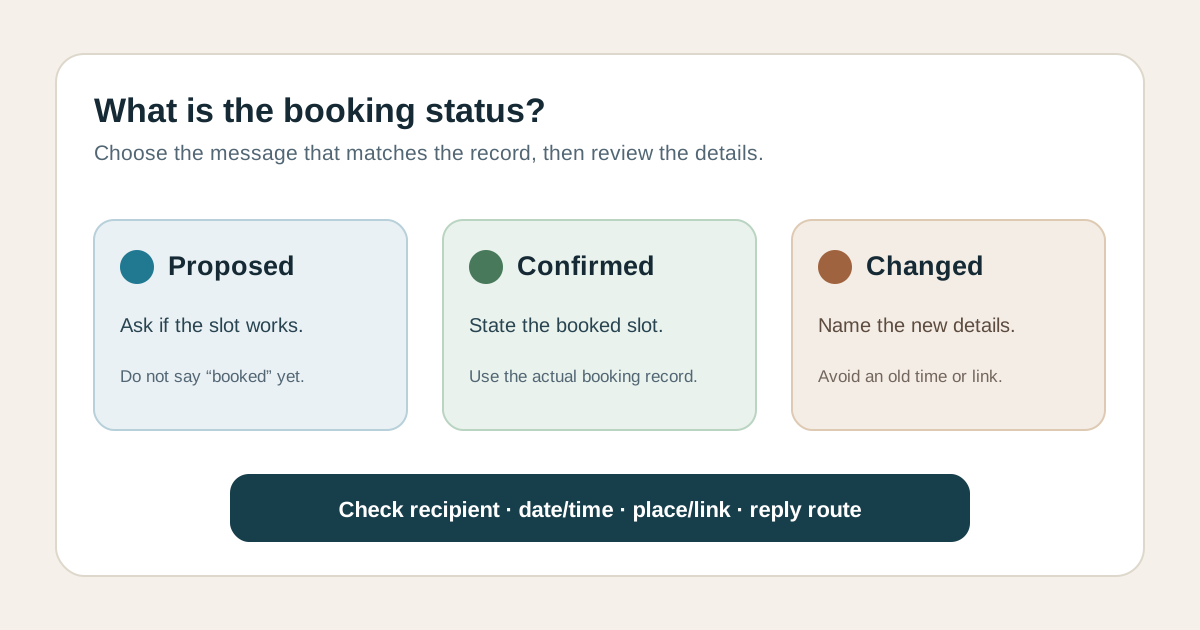
Choose the message by booking status
| What your record says | What the text should say | What to check |
|---|---|---|
| Time proposed, client has not accepted | Ask whether the suggested slot works | Do not call it confirmed |
| Booking is confirmed | State the booked day, date, time and place | Match the message to the current record |
| Booking changed | Name the new details and what changed | Remove the old time or link |
The status is the first fact to retrieve. A polished template that says ‘confirmed’ can be worse than a plain note if the client has only been offered a slot. If the record and conversation disagree, resolve the booking first; do not use a message to guess which version is right.
Three original drafts for a fictional service business
The following examples use a fictional repair service, a made-up client and placeholder details. They are wording patterns to edit, not real bookings or messages we sent.
- Proposed: ‘Hi Sam, this is North Street Repairs. Would Thursday, 19 November at 2:00 pm work for your visit? Reply here and I’ll confirm once the slot is booked.’
- Confirmed: ‘Hi Sam, your visit with North Street Repairs is booked for Thursday, 19 November at 2:00 pm at [verified address]. If you need to change it, reply here.’
- Changed: ‘Hi Sam, your North Street Repairs visit has moved from the earlier slot to Friday, 20 November at 11:00 am at [verified address]. Please reply if that no longer works.’
Replace the names, days, dates, times and place with the actual record. The weekday and date in these fictional examples are illustrative; check them together for a real appointment. If a remote meeting link is required, open the current link before sending it. If your channel cannot receive replies, give an actual contact route rather than writing ‘reply here’.
Run a short pre-send check on iPhone
- Open the current booking record or the conversation where the slot was agreed. Verify whether it is proposed, confirmed or changed.
- Choose the correct draft. Add only the details needed for this client and this visit; do not paste a whole old message with another person's information.
- Compare the recipient, service, weekday, date, time, time zone when relevant, address or meeting link, and change path against that record.
- Read the complete composed message in the sending app, then send it yourself. If the booking changes later, send a fresh, explicit update rather than assuming the earlier text changes.
A confirmation text is not proof that the client received, read or accepted a change. Keep your booking record as the source of truth. For sensitive services, omit unnecessary personal details from an ordinary message and follow your own approved customer communication process.
Save only the stable wording
For one short phrase you use in compatible fields, Apple's Text Replacement guide documents a built-in shortcut-to-phrase option. If your messages stay in WhatsApp Business, its Quick Replies instructions for iPhone document saved messages with shortcuts inside that app. Neither option knows your appointment's actual status or time.
Copied's product description says you can save reusable wording as a Key and manually insert it from the keyboard in compatible iPhone and iPad text fields. That may fit when you reuse the same opening or change instructions across compatible apps and want a browsable library. Keep the customer name and booking details as facts to review in the draft. Copied does not book, confirm, reschedule, send or track appointment messages automatically, and a compatible field is required for keyboard insertion.
If native shortcuts or WhatsApp Quick Replies already cover your few repeated messages, start there. For a larger manual wording library, consider Copied for iPhone and iPad and test one reviewed message in your actual destination. For the broader tool choice, read our saved-replies guide; for online booking rather than text wording, see the appointment scheduling comparison.
References
- Apple Support, Set up shorthand for frequently used text on iPhone A typed shortcut can expand to a saved phrase in a text field; Settings > General > Keyboard > Text Replacement. Apple; named author/update date unstated. Official English iPhone guide opened directly in Chrome Nov11, 2026; web fetch returned 429; no device test.
- WhatsApp Help Center, How to use quick replies on iPhone WhatsApp Business Tools > Quick replies supports saved messages and a shortcut inside the app. WhatsApp/Meta; named author/update date unstated. Official English iOS tab opened directly in Chrome Nov11, 2026; no account test.
- Copied, product homepage Keys are manually inserted in compatible iPhone/iPad fields; user reviews, personalizes and sends each reply. Sharply Labs; checked Nov11, 2026; publisher declaration, no app test.