Files
Send a Price List PDF from iPhone: A Copy or a Current Link?
A PDF copy fixes what this client receives. A maintained link can show a newer general list. Choose the right object and review it before sending.
Published , 5 min read, by Copied Editorial team
Before sharing a price list from iPhone, decide whether the client needs a fixed PDF copy for this exchange or a link to a general list that you maintain. An attachment does not update after you send it. A link is only current if the destination, access settings and underlying file are maintained. In either case, open the exact item and compare its version, audience and recipient before sending.
This is a documentation-based editorial workflow, not a tested customer delivery. We checked Apple, Google Drive and Copied's public instructions on November 12, 2026. We did not create a business account, update a live price list, send a file or test a recipient's access. Use the controls shown in your own installed apps and check the actual result.
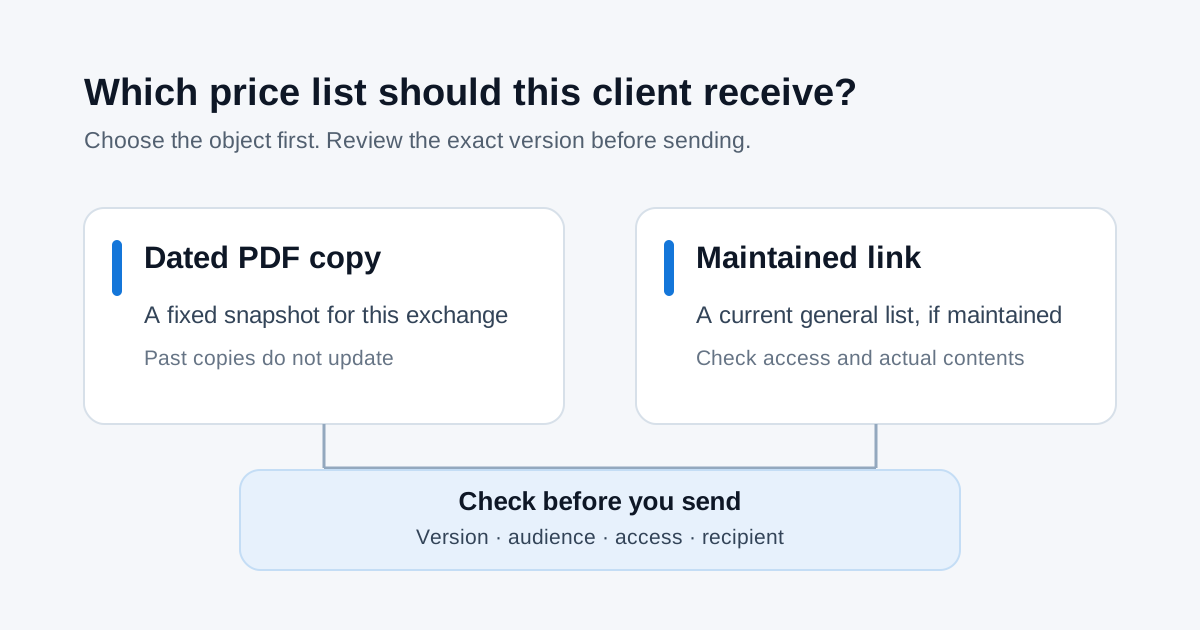
Choose a snapshot or a maintained destination
| Client needs | Starting route | Main check |
|---|---|---|
| A fixed copy attached to this enquiry or quote | A dated, approved PDF copy | The attachment shows the correct version and intended customer terms |
| Your current general list after future changes | A link to a maintained file or page | The link opens for this client and its source is actually updated |
| A private, customer-specific price | Your approved one-to-one quote route | Do not put customer-specific terms in a public general link |
Neither route makes a price accurate by itself. A file name that says ‘current’ can hide an outdated document; a link can point to the wrong list or be inaccessible to the client. The source of truth is the list your business has approved for that audience and date. Decide who owns updates before reusing either object.
If you send a PDF copy, make its version visible
Apple's Files organization guide documents organizing and renaming files on iPhone. Its file-sharing guide describes touching and holding a file, choosing Share, then selecting a sending option such as Mail or Messages. That route sends a copy; an attachment already received by a customer will not become a new copy when you revise your source later.
- Start from your approved source list, not a PDF found in an old conversation. Export or obtain the intended version through the tool your business uses.
- Give the file a recognizable name with a date or version and audience, such as ‘Service-list-Nov-2026-public.pdf’. A useful name is a cue, not proof that its contents are current.
- Open the exact PDF on iPhone. Check the displayed services, effective date, currency and any conditions against the approved source. Remove a previous customer’s details before reusing a general list.
- Attach or share that exact file. Inspect the draft message, recipient and attached filename before you send it manually.
If a price changes tomorrow, send an explicit revised copy to anyone who needs the update and make clear which version supersedes the old one. Do not imply that a previous attachment can be withdrawn or changed on a recipient's phone.
If you send a link, test the client's view
Apple's iCloud Drive sharing guide distinguishes people you choose from anyone with the link and view access from editing. Use a permission scope appropriate to the list. An ‘anyone’ link can be forwarded, so it does not belong on a private, individually priced document. Test the link without relying only on your signed-in owner's view.
A maintained destination needs a replacement process. For example, Google Drive's file-version help documents uploading a new version of a PDF in its desktop workflow. That is an example of a service with file versions, not an iPhone instruction or proof that a newly uploaded file inherits an old link. Confirm the behavior of your chosen service and reopen the recipient-facing address after each update.
If the recipient must keep a fixed record of what was offered, a dated copy may be clearer than a changing general page. If a link is your source of current general information, include enough context in your message that the customer knows what the link contains and when to ask for a specific quote.
A fictional service-list check
Imagine a fictional repair shop that has a general service list and a separate custom estimate for one customer. The general list is revised when the shop changes its standard services; the estimate records terms for that one job. The owner can send a reviewed PDF snapshot with the estimate, or share a maintained general-list link for new enquiries. This example is a planning illustration, not a tested shop, price or customer outcome.
- For the general list, record which file or page is authoritative and who updates it.
- For a fixed estimate, keep the customer-specific terms in the intended one-to-one document and verify the recipient.
- When a revision happens, check saved text, PDFs and public links that still refer to the old list.
Where Copied fits after the list is approved
Copied's product description says Files can keep PDFs on iPhone and iPad for preview and manual sharing from the app. It also describes copying a saved file from the keyboard and pasting it where the receiving app accepts that content. Copied can be useful for a recurring, approved PDF snapshot and a short reusable Key that introduces it. It does not host a live price list, replace a recipient's previous attachment, check prices, synchronize your source file, send automatically or prove delivery. Keep the approved original outside a personal reuse library.
If the current general list must change at one address, maintain it in an appropriate source service and reuse only its reviewed public link. If you repeatedly send a fixed approved PDF, test one manual share path and review the file each time. Our file-sharing guide covers share versus keyboard paste; the saved-link guide covers keeping a stable destination in reusable text. Review Copied for iPhone and iPad only if a personal manual file-and-wording library fits your work.
References
- Apple Support, Send files from the Files app on iPhone Files Share sends a copy; iCloud Drive can invite viewers instead. Apple; named author/update date unstated; checked Nov12, 2026; no device test.
- Apple Support, Organize files and folders in Files on iPhone Files supports organizing and renaming documents. Apple; named author/update date unstated; checked Nov12, 2026; no device test.
- Apple Support, Share files and folders in iCloud Drive on iPhone iCloud Drive link access can be invitees or anyone, view or edit; iOS 26 page. Apple; named author/update date unstated; checked Nov12, 2026; no account test.
- Google Drive Help, Check activity and file versions Google Drive supports PDF file versions and upload-new-version on desktop; not an iPhone workflow. Google; named author/update date unstated; checked Nov12, 2026; no account test.
- Copied, product homepage Publisher-declared Files for iPhone/iPad, preview/share from app and copy/paste where supported; no hosting, automatic versioning or sending. Sharply Labs; checked Nov12, 2026; no app test.