Guides
Follow Up on a Sent Estimate from iPhone: Check the Status First
A pending estimate may need a short check-in. A change request, approval or decline calls for a different response. Check the record before sending.
Published , 4 min read, by Copied Editorial team
Before you follow up on a sent estimate from iPhone, open the estimate record and the latest conversation. If it is still awaiting a decision and the terms are current, a short, specific check-in may help the customer decide. If they asked for a change, approved it or declined it, respond to that state instead. Do not send a generic reminder just because a calendar alert fired.
This is a documentation-based editorial workflow, not a tested customer campaign. We checked current Jobber, QuickBooks Online, Gmail and Copied documentation on November 12, 2026. We did not use a vendor account, send an estimate or test a response rate. Status labels and notification controls vary by product; confirm the actual record and the message in your own workflow.
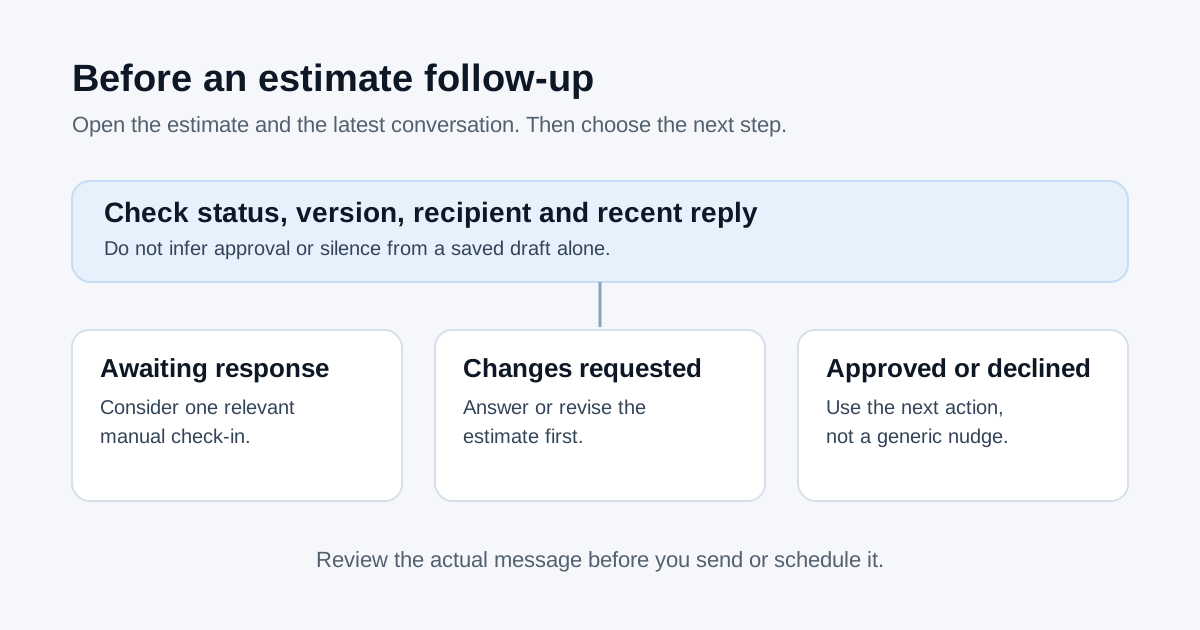
Let the estimate's state decide the next action
Jobber's quote-status guide lists product-specific states including Awaiting response, Changes Requested and Approved. QuickBooks Online's estimate guide uses its own estimate workflow. Those labels are examples, not a universal set of email signals. A sent email alone does not prove a customer has opened, accepted or rejected the estimate.
| What you can verify | Next action | Avoid |
|---|---|---|
| Still awaiting a response; current terms; no newer customer reply | Consider one short manual check-in about the specific estimate | Assuming silence means interest or sending an old version |
| Customer requested a change or asked a question | Answer the question or issue a reviewed revision with a clear version | Sending the original reminder as if nothing changed |
| Estimate approved | Confirm the agreed next operational step through your normal process | Asking whether they want to approve again |
| Estimate declined, closed or replaced | Record the outcome and stop this estimate's reminder | Treating a closed item as pending |
A tool may show a status automatically only within that tool's documented workflow. For example, QuickBooks says an estimate's status can update when the customer accepts or declines from its email; a status can also be changed manually. Read the source record and conversation rather than treating a generic mail ‘sent’ marker as the quote decision.
Check the record before you write on iPhone
- Open the specific estimate in the system where you issued it. Confirm the customer, estimate identifier, date, version, scope and any validity terms you actually set.
- Read the most recent reply across the channel used for this estimate. A question or revision request changes what you should say next.
- Check whether someone else on your business has already replied or changed the record. Use your own approved source for the current terms.
- Decide whether this is a pending decision, a revision, an approval follow-through or a closed item. Record that decision so the same reminder is not sent twice.
An internal task is not itself a customer message. Jobber's quote-approval guide distinguishes automatic follow-ups on select plans from reminders for a person to follow up manually. Its work-settings guide says quote reminders are internal and do not contact a client. In Jobber, these reminders appear on the web schedule rather than in its mobile app, so do not assume you can see them on iPhone. Check your own tool's controls and plan before relying on either behavior.
Write for the verified state, then review the draft
For a still-open estimate, use a short note that identifies the actual estimate without inventing urgency: ‘Hi Maya, I’m checking whether you had any questions about the kitchen repair estimate I sent on Tuesday. If the scope needs adjusting, tell me what to change and I’ll review it.’ This is fictional example copy, not a tested template or a claim that the customer received it.
If the customer asked for a change, respond to the requested change and clearly identify any revised estimate. If the estimate was accepted, discuss the next agreed step. If it was declined, close this follow-up unless a new enquiry gives you a reason to reconnect. Never imply a price, deadline or availability that you have not confirmed.
- Check the recipient address and subject against the correct customer and estimate.
- Check every amount, service description, attachment or link against the current approved version.
- Make the question easy to answer and keep the tone appropriate to the existing conversation.
- Read the complete message immediately before manually sending it.
If you schedule the email, review it again
Gmail's iPhone scheduling guide documents Schedule send and says a scheduled message may go out a few minutes after the chosen time. Canceling it returns the message to Drafts. Scheduling is still a send decision: revisit the estimate and any new reply before the send time, and cancel or edit a stale draft. A schedule does not check quote status for you. Our Gmail scheduling guide covers the app controls in more detail.
Where Copied can help
Copied's product description describes Keys for reusing text through its keyboard in compatible iPhone and iPad fields. You could save neutral opening wording for a manual check-in, then personalize it with the verified customer, estimate and question. Copied does not read estimate status, detect replies, schedule, send or track an email. Test insertion in your own mail field and review the whole draft before sending.
For choosing which email parts are worth saving, see our reusable email guide. If you need to share a current list alongside an estimate, the price-list PDF guide explains the difference between a fixed copy and a maintained link. Review Copied for iPhone and iPad only if manual reuse of approved wording fits your workflow.
References
- Jobber Help Center, Quote Basics Jobber-specific quote states including Awaiting response, Changes Requested and Approved. Jobber; updated October 2026; checked Nov12, 2026; no account test.
- Jobber Help Center, Quote Approvals Automatic quote follow-ups on select plans versus reminders for a person. Jobber; checked Nov12, 2026; no account test.
- Jobber Help Center, Work Settings Internal quote reminders do not contact clients and appear on web schedule, not mobile app. Jobber; updated Oct29, 2026; checked Nov12, 2026; no account test.
- QuickBooks Online, Create and send estimates QuickBooks-specific estimate acceptance/decline from its email may update status; manual changes possible. Intuit; checked Nov12, 2026; no account test.
- Gmail Help, Schedule emails to send on iPhone and iPad Gmail iPhone Schedule send, possible delay, cancellation to Drafts. Google; checked Nov12, 2026; no account test.
- Copied, product homepage Keys for manual insertion in compatible iPhone/iPad fields; no estimate status, scheduling, sending or email tracking. Sharply Labs; checked Nov12, 2026; no app test.