Guides
Email Templates on iPhone: Signatures, Shortcuts or Saved Text?
An email template is more than its body. Separate the automatic signature from reusable wording, then check the sender, subject, recipient and file before sending.
Published , 6 min read, by Copied Editorial team
For email templates on iPhone, choose by the part you want to reuse. Use Mail’s signature for your regular closing details, Text Replacement for a few predictable phrases, or a personal saved-text library for bodies you choose and edit. Google’s built-in Gmail Templates are a computer feature. None of these choices removes the need to check the recipient, subject and attachments before sending.
The common mistake is treating every repeated email as one block. A footer that belongs on every message, a paragraph that fits one situation and a file promised to one client have different owners. Keep them separate and your saved wording is easier to review.
Choose the method by what repeats
| Repeated element | Useful method | What still needs review |
|---|---|---|
| Name, role and contact details at the end | Native Mail signature | Correct sending account and one footer |
| One short phrase you can recall by a shortcut | iPhone Text Replacement | Expansion and fit in this email |
| Different bodies selected by situation | A personal library such as Copied Keys | Recipient details, wording and compatibility |
| Existing Gmail message templates on desktop | Gmail on a computer | Do not assume the same Templates controls exist on iPhone |
This is a selection guide based on current official documentation and Copied’s public product description, not a hands-on test of every email app or account. A method that meets your need without another app is a reasonable choice.
Use a Mail signature for the automatic footer
Apple documents a signature that Mail adds at the bottom of messages. In Mail’s current settings guide, the route is Settings → Apps → Mail → Signature. Edit the text there. If you have several email accounts, Per Account lets you use different signatures. Apple’s guide specifies text signatures.
Keep the signature to details that belong in that account’s messages, such as your name, role and a current contact link. A changing appointment time or a client-specific promise belongs in the body. Do not put your entire appointment confirmation into an automatic footer.
If Mail supplies your closing details, leave those details out of the saved body. Otherwise insertion can produce two names, two contact lines or an outdated footer beside a current one. Check this with a draft before adopting a template. Signature behavior in another email app needs that app’s own instructions.
Use Text Replacement for a few phrases
Apple’s Text Replacement instructions describe touching and holding the keyboard-switch or emoji key in a text field, opening Keyboard Settings → Text Replacement, tapping the add button and entering a phrase and shortcut.
For example, you might save the phrase “Please reply with the best contact number for the appointment.” under a shortcut you do not normally type. That example is editorial advice, not an Apple preset. Check what expands in the email body before sending.
Choose this route when remembering a few shortcuts is manageable. If you need to browse several situation-specific paragraphs instead, consider a saved-text library. The broader Text Replacement versus keyboard library comparison covers that decision without tying it to email.
Gmail Templates on a computer are a different workflow
Google’s current Gmail Templates documentation explicitly limits turning on and using message templates to Gmail on a computer. Desktop instructions involving Advanced settings and Templates should not be presented as a setup path for the Gmail iPhone app.
Decide which workflow you need: continue using a documented Gmail template on your computer, or keep reusable wording that you insert and review on your phone. Copied Keys are reusable text; they are not imported Gmail Templates. This guide does not claim that Copied connects to Gmail, fills a complete email object or sends an email.
Build the email in separate parts
Apple’s Mail composition guide documents composing a message, adding recipients and choosing a sending account when you have more than one. Its attachment guide describes using Mail’s attachment controls and Attach File to select a document in Files. Keep those email controls separate from body insertion.
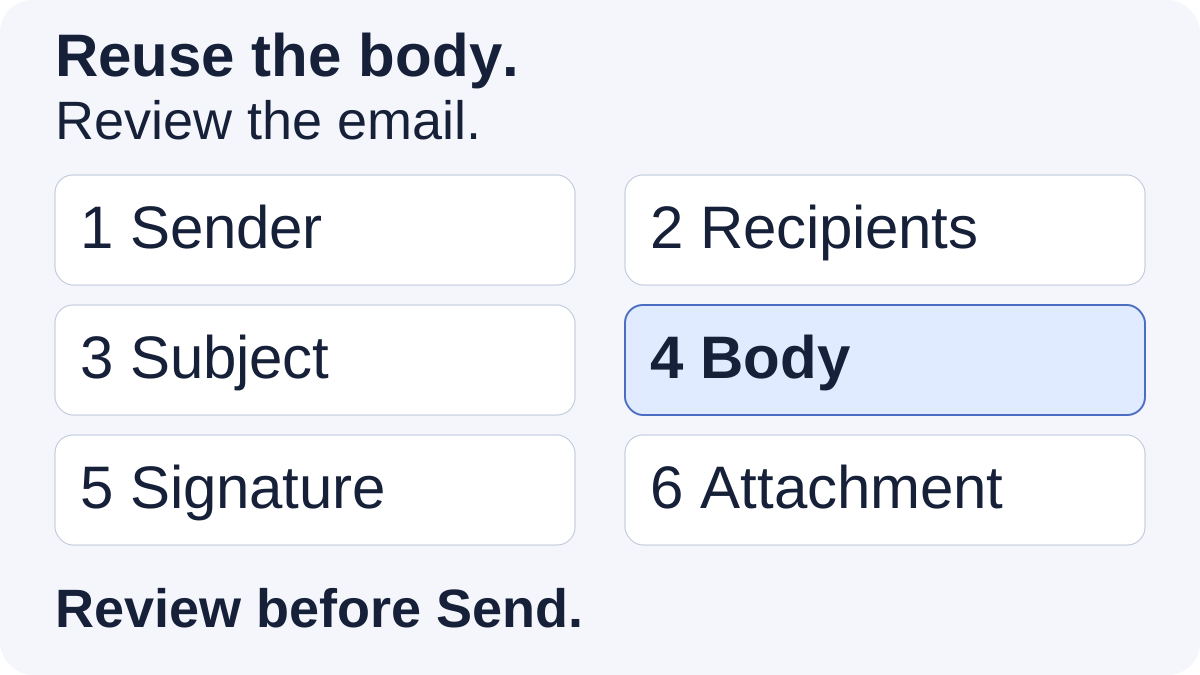
| Component | Reusable? | Check in the current draft |
|---|---|---|
| From | Account setting, not body wording | The business identity you intend to use |
| To / Cc / Bcc | Set for this conversation | Correct addresses and appropriate recipients |
| Subject | Sometimes a useful wording pattern | This email’s topic, project and date |
| Body | Save a reusable version if the job repeats | Name, time, terms and requested next action |
| Signature | Let the selected Mail account provide it | Correct and present once |
| Attachment | Keep the document as a separate file | Current version is actually attached |
A saved sentence that says “I have attached the details” is not an attachment. Likewise, placing “Subject:” in the body does not populate the actual subject field. Review the draft’s fields and files directly.
Worked example: a consultation confirmation
This fictional example illustrates composition, not a customer result. Imagine an independent design consultant confirming a consultation. The saved body could be:
“Hi [name], your consultation is booked for [date] at [time and time zone]. We will discuss [topic]. Please reply with [preparation item] before the appointment. If the time no longer works, let me know so we can arrange another option.”
Use a subject such as “Consultation confirmation — [date]” in the actual subject field. Replace every bracketed detail with confirmed information. Keep the consultant’s contact footer in the native signature rather than in this saved body.
If the email should include a preparation document, choose and attach its current version separately. Add a sentence about that document only after checking it is attached. If no document is needed, do not leave an attachment promise in the reusable text.
For other project wording, see freelancer proposal and project-update messages. Those examples own the general client-message job; this workflow concerns assembling and checking the email itself.
When a Copied Key fits the body
Copied’s product overview and App Store description describe reusable Keys and organized folders. For several recurring email bodies, a personal library can help you choose a named item rather than remember a separate shortcut for each paragraph.
- Create a clean, reusable version of one body, with no previous client’s address, name or confidential details.
- Give it a situation-based name such as “Consultation — confirmation” and keep it with related wording.
- In an email body that accepts the Copied keyboard, select the Key to insert its text manually.
- Edit the draft for this recipient and review the complete email before you choose Send.
This is personal text reuse in compatible fields. Review the inserted text’s formatting in your email app. Email headers and attachments remain separate steps. The library is personal rather than a shared team template. If your email field does not accept the keyboard, use the email app’s supported editing route. The saved-reply organization guide covers maintaining a personal library; the file reuse guide explains separate sharing and receiving-app limits.
Review the whole email before sending
- Check the sender account and every recipient.
- Read the actual subject, not just a subject suggestion inside saved text.
- Replace names, dates, time zones and commitments; remove remaining placeholders.
- Confirm that the signature is current and appears once.
- Open or identify the intended attachment and confirm it is attached.
- Read the resulting body for this conversation, then send deliberately.
Start with the smallest method that solves the repeated job. If the footer is all you need, change your Mail signature. If you regularly choose different email bodies on iPhone, review Copied’s reusable Keys and use this page’s App Store link to evaluate one body in your own email app. Keep the sender, recipient, subject and files under your control.
References
- Change your Mail settings on iPhone Apple Support. Automatic text signature; Settings/Apps/Mail/Signature; Per Account option. Organization; individual author not supplied. Updated: UNKNOWN when absent. Accessed: 2026-10-12. Current primary documentation or public product declaration. Documentation/declaration, not installed-version device test.
- Set up shorthand for frequently used text on iPhone Apple Support. Phrase/shortcut creation via Keyboard Settings; no length or universal-field claims. Organization; individual author not supplied. Updated: UNKNOWN when absent. Accessed: 2026-10-12. Current primary documentation or public product declaration. Documentation/declaration, not installed-version device test.
- Create a template in Gmail Google Gmail Help. Templates can only be enabled/used from Gmail on a computer. Organization; individual author not supplied. Updated: UNKNOWN when absent. Accessed: 2026-10-12. Current primary documentation or public product declaration. Documentation/declaration, not installed-version device test.
- Send email in Mail on iPhone Apple Support. Compose, recipients, manual send and sender account selection. Organization; individual author not supplied. Updated: UNKNOWN when absent. Accessed: 2026-10-12. Current primary documentation or public product declaration. Documentation/declaration, not installed-version device test.
- Add email attachments in Mail on iPhone Apple Support. Native Attach File chooses a document in Files. Organization; individual author not supplied. Updated: UNKNOWN when absent. Accessed: 2026-10-12. Current primary documentation or public product declaration. Documentation/declaration, not installed-version device test.
- Copied product overview Copied. Declared Keys/folders/manual compatible-field reuse; not independent testing. Organization; individual author not supplied. Updated: UNKNOWN when absent. Accessed: 2026-10-12. Current primary documentation or public product declaration. Documentation/declaration, not installed-version device test.
- Copied: Workspace Keyboard App Store / developer declaration. Declared reusable email Keys and folders; no reviews or pricing used. Organization; individual author not supplied. Updated: UNKNOWN when absent. Accessed: 2026-10-12. Current primary documentation or public product declaration. Documentation/declaration, not installed-version device test.