Guides
Schedule a Client Email in Gmail on iPhone: Review, Change or Cancel
A scheduled client email is a queued send, not a reminder to review later. Check the draft and time, then know how to change or cancel it.
Published , 5 min read, by Copied Editorial team
You can compose a client email in Gmail on iPhone, choose More and then Schedule send, and pick a later time. Before you do, review the recipient, current facts, attachments and time zone. A scheduled message is waiting to send; it is not a reminder that asks you to approve the text again at delivery time. Google's iPhone guide also explains how to cancel a queued message back to Drafts when plans change: Schedule emails to send.
This guide is based on Google's iPhone and iPad help and Copied's published product description, checked November 6, 2026. We did not sign in, schedule a real message or test delivery timing. Use a harmless sample in your own account if the exact controls or business settings matter to your workflow.
Decide whether to send later or review later
| What you need | Use | What happens next |
|---|---|---|
| A finished, approved message to leave later | Gmail Schedule send | The email waits in Scheduled for the chosen time; do not expect a second review prompt. |
| A prompt to decide what to write later | A task or reminder | You return to the work, inspect new information and send only after reviewing it. |
| An incoming email back in view later | Gmail Snooze | The received message returns to the inbox at your chosen time; it does not queue an outbound email. |
Google's Snooze help describes temporarily removing an email from the inbox and bringing it back later. That can help with an incoming client request. If the reply itself is not ready, use a reminder or snooze the received message instead of scheduling an uncertain draft. For a separate comparison of mail-to-task routes, see Google Tasks versus Microsoft To Do for client follow-ups.
Run a client-email preflight before Schedule send
Treat this as a final send review, not a rough-draft checkpoint. A fictional independent designer plans to send a Thursday project update to a client on Friday morning. Before queueing it, the designer checks whether the estimate and next meeting time are already agreed, and whether Friday morning means the designer's time zone or the client's. This is an illustration, not a tested customer outcome.
- Confirm the exact recipient and any copied recipients. A saved address or reply thread can point to the wrong person or project.
- Read the entire subject and body as the client will see them. Replace draft placeholders and check names, amounts, deadlines and promises against current work.
- Open every intended attachment and verify the right version. If a file is still changing, wait before you queue the message.
- Choose the delivery date and time deliberately. Google says scheduled mail uses the time zone in which you schedule it; translate the client's intended local time if the zones differ.
- Ask whether the message should leave without another human decision. If approval, payment or a client response might change it, set a review reminder instead.
Google warns that a scheduled email may send a few minutes after the selected time, so do not use this feature as proof of an exact-minute deadline. Its help also says an account may hold up to 100 scheduled emails. Neither point substitutes for checking what your own account shows: Google's scheduling guidance.
Schedule, then verify the queued message
- In Gmail on iPhone or iPad, compose the reviewed email. Tap More in the top right, then Schedule send and choose a time. Google's documented labels are the basis for these steps; controls may vary by app version.
- Open Menu, then Scheduled. Find the specific email by recipient and subject. Confirm that the queued text and selected time match your decision.
- Keep the delivery outcome as a separate check. After the chosen time, inspect the account's sent state and any delivery failure notice before telling a client or teammate that the update was sent.
The Scheduled folder is a useful confirmation that Gmail accepted the queue action. It is not proof that the client has received or read the email. If a meeting or contract depends on receipt, use the communication method and follow-up record appropriate to that relationship.
Change or cancel when the facts move
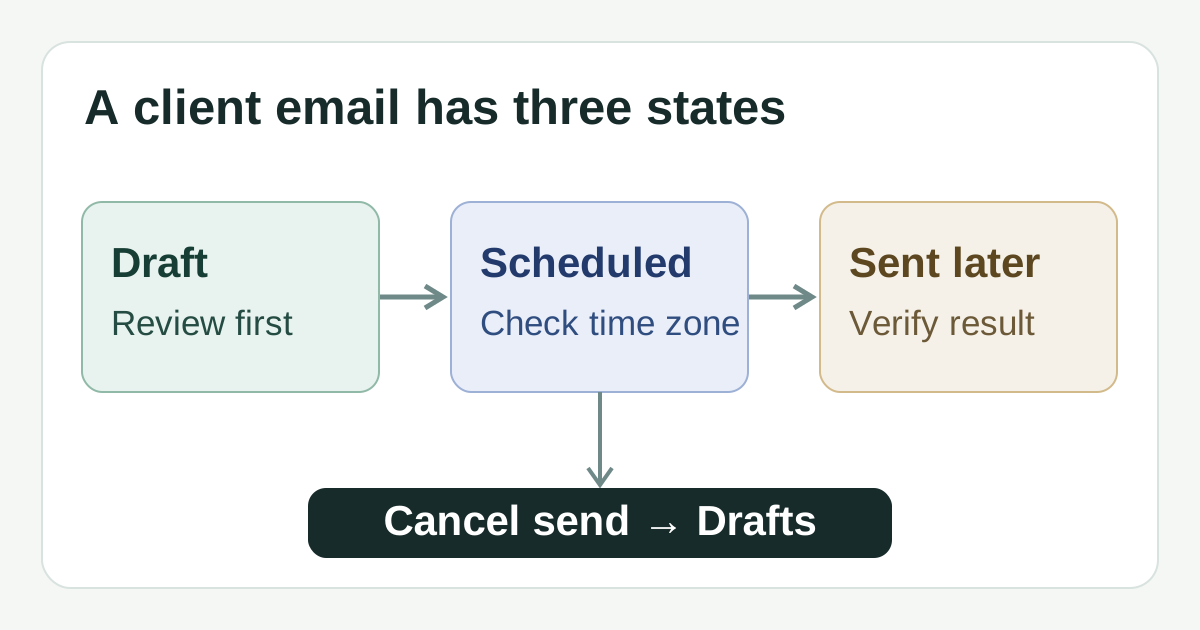
If the scope, recipient, file or time changes before the scheduled send, Google's iPhone instructions say to open Menu → Scheduled, choose the email and tap Cancel send. Gmail turns that scheduled message into a draft. Open it again, make the changes and use More → Schedule send to choose a new time: view or change scheduled emails. Do not assume editing a queued message in place leaves the original schedule intact.
If the message should not leave at all, cancel it and verify it is no longer in Scheduled. Keep or delete the resulting draft deliberately using Gmail's own controls. If the scheduled time has passed, first check the actual account state; this guide does not claim a sent message can be recalled by the earlier Cancel send step.
- Review the recipient, facts, attachment and time zone before queueing.
- Check Scheduled after queueing, and check the sent result later when delivery matters.
- Cancel to Drafts, revise and schedule again if anything material changes.
- Use a reminder or Snooze for unfinished decisions; neither is the same as Schedule send.
Reuse wording only when it is truly recurring
For a one-off client note, Gmail alone is enough. If you repeatedly use the same approved opening or next-step sentence, Copied's product description says you can save it as a Key and insert it manually into compatible iPhone or iPad text fields. In a Gmail draft, personalize the name, project and dates and review the whole email before you schedule it. Copied does not access Gmail, schedule a send, cancel one or confirm delivery. The separate email templates on iPhone guide covers wording reuse rather than control of one queued message.
If repeated wording is part of your work, explore Copied for iPhone and iPad and try one reviewed Key in a compatible draft field. If you only need to schedule an occasional complete message, use Gmail's built-in control and skip the extra app.
References
- Google Gmail Help, Schedule emails to send on iPhone and iPad More, Schedule send, time zone, up to 100, Scheduled folder and Cancel send to Drafts. Publisher Google; individual author/update date unstated. Checked November 6, 2026; no account or send test.
- Google Gmail Help, Snooze emails until later on iPhone and iPad Incoming mail returns to Inbox at chosen time; notifications affect reminders. Publisher Google; individual author/update date unstated. Checked November 6, 2026; no account test.
- Copied, product homepage Publisher-declared reviewed Keys and manual insertion in compatible iPhone/iPad fields. No Gmail scheduling, send or cancel claimed. Checked November 6, 2026; no device test.