WhatsApp Business
Share a WhatsApp Business Short Link from iPhone for Client Enquiries
A business chat link lets a customer start a conversation. Copy the current link, check what they will see and leave the first message in their hands.
Published , 4 min read, by Copied Editorial team
WhatsApp Business gives your account a short link that customers can use to open a chat with you. On iPhone, WhatsApp's current instructions place it under Tools, then Short link. Copy that link when you want a business chat entry point in an email, website or other customer-facing material. Opening the link starts a conversation path; it does not send the customer's message for them. WhatsApp's iPhone short-link instructions.
We checked WhatsApp's English iOS short-link and QR-code Help pages and Copied's public product description on November 10, 2026. We did not create a WhatsApp Business account, open a real business link on a device or send a customer message. Confirm the current controls and destination in your own account before publishing the link widely.
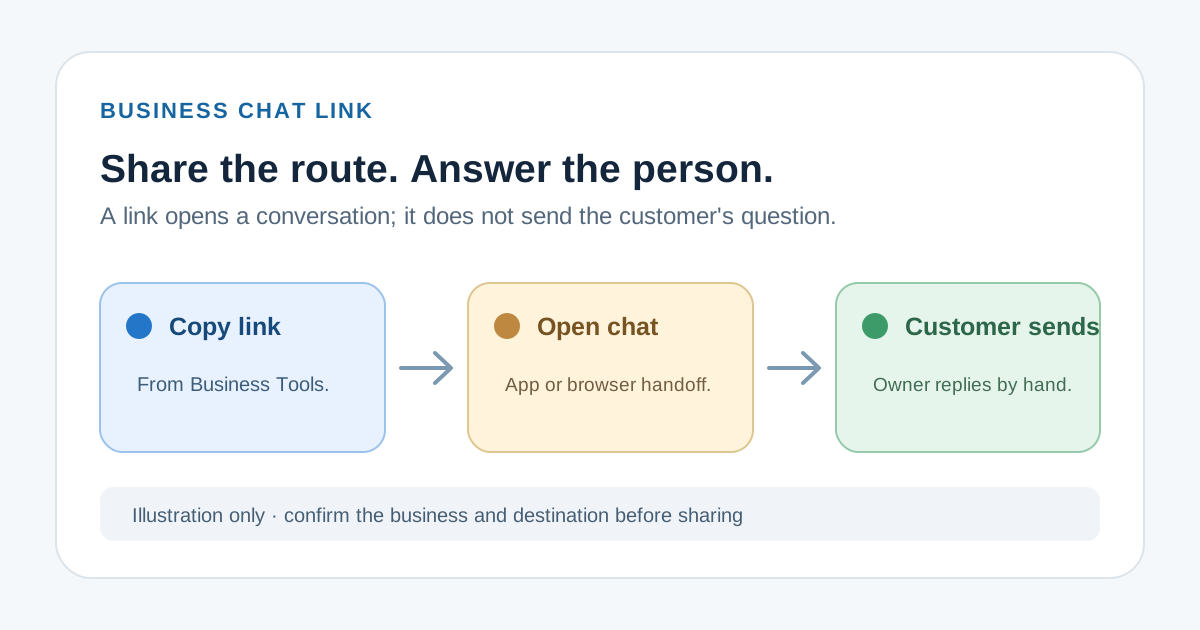
Copy the link from your business account
- Open the standalone WhatsApp Business app on your iPhone and go to the Tools tab.
- Tap Short link. WhatsApp says it generates a business short link when the account is created and displays it under the business name.
- Check the displayed business name and use Copy Link to put the current link on your clipboard. Use Share Link instead when you want the app's direct sharing route.
These controls come from WhatsApp's selected iOS Help tab. If your app shows a different menu, look for the corresponding Short link control in your current account instead of relying on an old screenshot. Do not make up a wa.me address from memory or substitute a catalog-item URL: a business short link opens the business chat, while a catalog item link points to one product or service.
Check the customer handoff before sharing widely
Open the copied link yourself in the context where you plan to share it. Confirm the business identity shown and the chat destination. WhatsApp says that a customer with WhatsApp installed opens a chat; someone arriving through a web browser sees a business-information page and can choose Continue to chat. The exact handoff depends on the customer's device and app state. This is a check to perform, not a result we tested for your account. WhatsApp's handoff description.
- Read the linked business name and any public profile information before you place the URL on a site or printed material.
- Tell customers what they can ask, such as whether a service is available, without suggesting that opening the link places an order or books an appointment.
- If a link no longer opens the intended account, return to Tools > Short link and copy the current one. Replace old placements you control after checking the new destination.
WhatsApp notes that a profile picture shared with everyone in your privacy settings can appear on the browser page. Anyone with access to a shared link can message your business. Review what is public and where you distribute it; this is not a private invitation or an access-controlled client channel. WhatsApp's visibility and access notes.
Let the customer choose whether to send the first message
WhatsApp lets a business set a default message that customers can edit and send after opening the link. The customer still chooses to send it. Keep that suggested question short and useful, for example: ‘Hi, can you tell me whether you have an appointment next week?’ This is an illustrative prompt, not a real customer message or a promise of availability. Avoid asking for sensitive details in a public prefilled prompt. WhatsApp's default-message guidance.
If a customer is already talking with you in WhatsApp, a link back to the same chat adds little. Answer their actual question there. A short link is useful when the conversation starts somewhere else, such as a website contact section or an email signature. For a QR route on printed material, WhatsApp's iOS instructions say Tools > Short link > QR Code > Share Code; they also offer Share Link. A QR code is another way to reach the business chat, not evidence that someone scanned it or sent a message. WhatsApp's QR sharing instructions.
Reuse a reviewed link without losing the human reply
For a one-time placement, Copy Link or Share Link in WhatsApp Business is enough. If you regularly paste the same verified chat link with an introductory sentence into email and other compatible iPhone or iPad text fields, Copied's product description explains how a saved Key can be inserted manually. Keep the stored URL current, check each destination and tailor the surrounding sentence to the person. Copied does not create WhatsApp links, verify business identity, track clicks, open chats or send messages automatically.
A fictional bike-repair owner could save a Key such as ‘For a question about a repair, start a WhatsApp chat with us here: [current business link]. Tell us the bike model and what you noticed.’ They would replace the placeholder with their own verified link and review each use. The example is editorial illustration, not a tested workflow or customer result. If your need is general URL storage rather than this WhatsApp entry point, read how to save links for reuse on iPhone.
When recurring cross-app text entry fits your work, explore Copied for iPhone and iPad. Start with one reviewed business link and a plain introduction, then check the link and wording whenever your contact details or customer process changes.
References
- WhatsApp Help Center, How to create short links on iOS Business app creates link with account; iOS Tools > Short link, Copy Link/Share Link, app/browser handoff, editable customer default message, link access and public profile picture caveat. WhatsApp/Meta; author/update date unstated. Rechecked November 10, 2026; no account/device test.
- WhatsApp Help Center, How to share your WhatsApp Business QR code on iOS iOS Tools > Short link > QR Code > Share Code, with Share Link alternative and optional editable customer message. WhatsApp/Meta; author/update date unstated. Rechecked November 10, 2026; no scan/device test.
- Copied, product homepage Publisher-declared Keys and manual insertion in compatible iPhone/iPad fields. Sharply Labs; rechecked November 10, 2026; no WhatsApp integration or native-app test.