Guides
Share Business Contact Details on iPhone: Card or Text?
A customer asking for your email may not need your whole contact card. Match the format to the task, select work details deliberately and keep reusable wording accurate.
Published , 5 min read, by Copied Editorial team
To share business contact details on iPhone, choose the format first: a contact card when someone wants a record to save, NameDrop for a nearby exchange on compatible devices, or reviewed text when they only need one phone number or email address. Select the work details that fit the request. Receiving a message does not by itself establish that the recipient saved or updated a contact.
This guide is for independent businesses sharing their own approved work contact routes. It uses official documentation reviewed on October 19, 2026. We did not exchange real contact records, test NameDrop or verify a recipient's import. Copied publishes this guide; its optional role is reusing maintained text, separate from Apple's contact-sharing features.
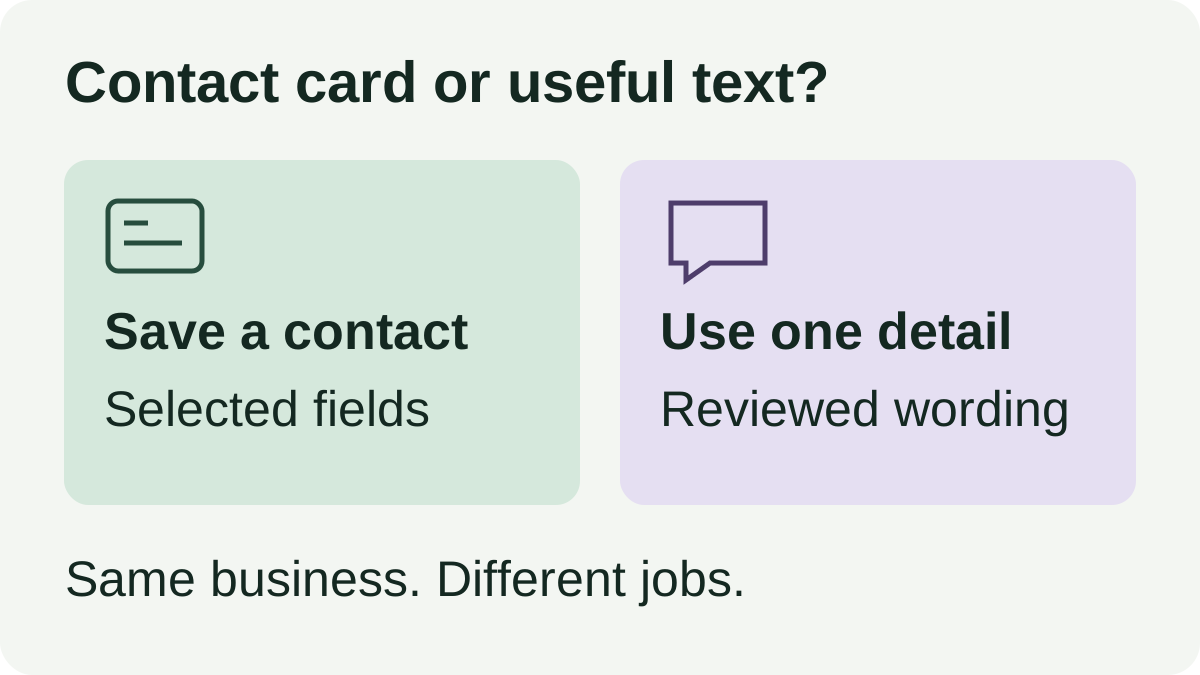
Choose the thing the recipient needs to keep
| Recipient's task | Useful starting format | Review before sending |
|---|---|---|
| Save a business contact | A contact card with selected work fields | Recognizable name and intended work phone/email |
| Exchange new details while together | NameDrop on compatible nearby devices | Selected fields and whether to Share or Receive Only |
| Email or call about this enquiry | The requested detail in a short sentence | Correct route, label and complete address or number |
| Find the premises | Reviewed business address or map link | The destination rather than your personal contact identity |
Ask “Would you like a contact card, or just our email?” when the request is ambiguous. That short choice avoids preparing a whole record for a one-line answer. A location request belongs to a different workflow: see sharing a business location on iPhone.
Send selected fields from Contacts
Apple's Contacts guide describes opening a contact, tapping Share Contact, choosing the fields to include, tapping Done and selecting a sharing option such as Messages or Mail. Start from the intended business record rather than whichever similarly named entry appears first. Follow the controls in your installed version.
Before sharing, compare the selected information with the customer's request. A work email for enquiries and a personal number used only by friends are different routes. Our recommendation is to include the relevant work fields deliberately, then review the outgoing recipient. This guide does not establish the file format or how every receiving app imports it.
Review My Card separately from name and photo sharing
Apple's My Card documentation explains that your own card can contain personal details and provides a separate Name & Photo Sharing control for your name, photo and poster. Reviewing that control is a different decision from choosing the fields in an outgoing business contact card.
Do not assume that a professional-looking poster means the underlying record contains only business information. Inspect the actual details you intend to share. For routine enquiries, use the approved public work route rather than adding personal information simply because it is available.
Use NameDrop for a nearby new-contact exchange
Apple's NameDrop guide describes a nearby exchange with a compatible iPhone or Apple Watch. You can choose Share or Receive Only and select which fields to share. Apple says the same fields are selected by default next time, so review that selection for each context. It also explicitly limits NameDrop to new contact information, rather than updating an existing contact.
That makes it a possible choice when you meet a new business contact in person. For a remote customer asking by email, choose a format you can send through that conversation. If someone already has your old number, do not treat another nearby exchange as proof their existing record was corrected.
A fictional studio's business-field worksheet
Imagine an independent design studio whose owner uses one phone for work and personal life. A prospective customer asks where to send a project enquiry. The following worksheet is an editorial illustration, not a customer record or a tested outcome.
| Field | Proposed business use | Decision for this request |
|---|---|---|
| Display name | Help the recipient identify the studio | Use a recognizable business name |
| Work email | Receive a project enquiry | Include the approved enquiries address |
| Work phone | Discuss a project by phone | Include only if relevant to the requested route |
| Personal number, home address or birthday | Personal contact context | Leave out of this ordinary business enquiry |
The point is to prepare the smallest useful answer, not to prescribe one contact format for every business. If the customer only wants an email address, a sentence can be enough. If they explicitly want a saved record with multiple work routes, a deliberately selected contact card may fit better.
For one repeated detail, use maintained wording
Apple Text Replacement lets you associate a phrase with a shortcut. It can be sufficient for a few short, stable work-contact phrases. Our Text Replacement and keyboard-library comparison explains when a native shortcut already covers the job.
Copied's product overview describes reusable text Keys and folders/pages for browsing them. If you repeatedly retrieve different approved work-contact replies, evaluate a Key for that wording. Insert it manually into a compatible iPhone or iPad text field, review the complete draft and use the receiving app's Send control yourself.
Fictional draft: “For project enquiries, email [work email]. Please address your message to [business name]. If you need to call, use [work phone].”
The brackets are editorial placeholders to replace manually, not Copied variable syntax. Remove the phone sentence when it is unnecessary. A saved text Key is not a generated contact card, a Contacts connection or an automatic address-book update. Do not put private customer records into a general reply merely to make the sentence more reusable.
For organizing the wording, see building a saved-reply library. If your business also shares a website or enquiry link, maintaining reusable links covers checking that separate destination.
Check the received object, then maintain the source
- Confirm the task: saving a contact, calling a number or sending an email.
- Inspect the outgoing name, selected fields and recipient. Use only details approved for that conversation.
- When appropriate and authorized, ask the recipient to check the received card or text in their actual app. This is a proposed acceptance check, not a test result.
- If a work detail changes, review both the source contact record and every saved sentence containing it. Confirm any needed correction with existing contacts separately.
A sent card, a saved text Key and the recipient's own address book are separate copies to account for. This workflow does not claim that editing one propagates to the others. Maintain a simple note of where you reuse each work email or number, so a change prompts a concrete review.
If retrieving several approved work-contact sentences is a recurring task, explore Copied for iPhone and iPad. Start with one non-sensitive draft and evaluate finding, inserting and reviewing it. Use Contacts or NameDrop for their documented contact-sharing jobs; use a text library when the useful output is maintained wording.
References
- Apple, Add and use contact information on iPhone Contact creation and field selection before sharing. Reviewed October 19, 2026.
- Apple, Add or edit your contact info and photo on iPhone My Card details and separate name/photo sharing controls. Reviewed October 19, 2026.
- Apple, Use NameDrop on iPhone to share your contact info Nearby exchange, field choice and the new-contact limitation. Reviewed October 19, 2026.
- Apple, Set up shorthand for frequently used text on iPhone Native phrase and shortcut setup. Reviewed October 19, 2026.
- Copied, Copied product overview Reviewed Keys reuse in compatible iPhone and iPad fields. Reviewed October 19, 2026.