Guides
Share a Business Location on iPhone: Address, Map Link or Live Location?
The place a customer needs to reach may be different from where your phone is now. Choose the right map object and keep approved arrival wording ready for reuse.
Published , 6 min read, by Copied Editorial team
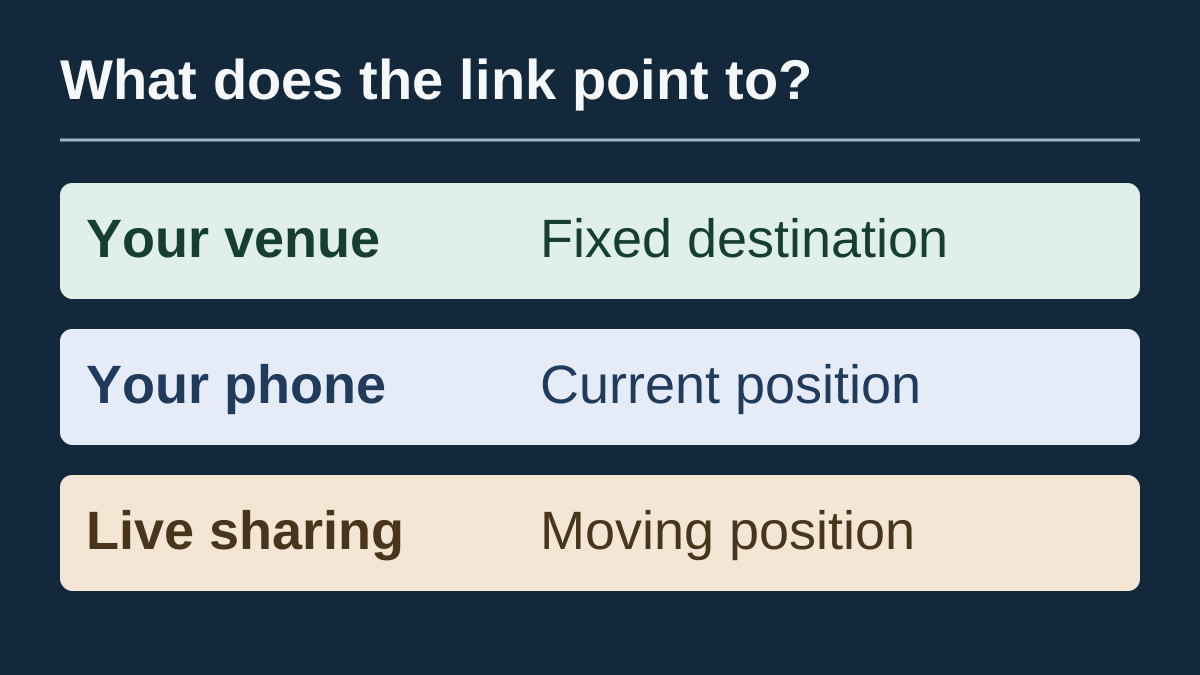
To share a business location from iPhone, open the intended place in your map app and use its sharing option. Include the readable business address and any verified entrance instructions in your message. Choose the business destination deliberately: your phone's current position may be somewhere else, and ongoing live location sharing serves a different purpose.
This guide is for service providers, sellers and independent businesses repeatedly answering arrival questions. It draws on current Apple and Google documentation reviewed on October 16, 2026. We did not send a location, change account permissions or test a customer's navigation. Copied publishes the guide; its relevant role is manually reusing approved wording, not providing maps or tracking.
First decide what the customer needs to receive
| What you mean | What to prepare | What to check |
|---|---|---|
| Our business is here | The intended business place or a deliberately chosen entrance pin | Business name, full address and the destination the link opens |
| I am here right now | A one-time current-position share, if that is actually the information needed | Whether the sender's position is relevant to this conversation |
| Follow my movement | A deliberate ongoing location-sharing session | The people, information and duration you choose to share |
| Take this particular route | A route prepared in the map app | Its start, destination and suitability for the recipient |
For routine directions to a fixed venue, start with its place rather than a shortcut for sending your own current location. An address in readable text also lets the recipient see what you mean before opening a map. Our recommendation is about message clarity; it is not a claim that any map pin establishes a particular entrance or navigable route.
Share the place you intend, using Apple Maps or Google Maps
Apple's Maps place-sharing guide describes selecting a place on the map or a search result, opening the place card's Share control and choosing a sharing option. Use the result for the correct business and branch. The same guide describes a separate current-location shortcut; that shortcut should not stand in for a venue merely because it is convenient.
If the ordinary place marker does not express the intended meeting point, Apple's pin guide explains dropping a pin, refining its position and sharing it. Our suggested review is to compare the pin with the actual entrance information you maintain. Moving a marker is not proof that a road, gate or pedestrian entrance is accessible.
In Google's iPhone and iPad sharing guide, a place-sharing route begins by searching for a place or dropping a pin, opening its name or address, and using Share. Sharing directions is separate: you choose the route and use its sharing option. “Send to phone” in that guide concerns your own devices; do not confuse it with preparing a customer-facing place message.
Use the map app you already maintain successfully; this is not a ranking of navigation products. Follow the controls available in your installed version. Before sending, open the resulting destination and review the business name, address and intended point. Your own successful opening does not establish what every recipient will see, so confirm the format in the actual conversation when needed.
Keep a venue separate from a moving person's location
Apple distinguishes a one-time location snapshot from ongoing Live Location. A snapshot of where your phone is now does not let the recipient follow later movement; ongoing sharing can. Apple also explains that sharing an ETA while navigating includes live movement. These are different decisions from giving someone a business place to visit.
Google's account guidance likewise describes real-time Location Sharing as device- and account-specific. It can include more than a point, such as identity and battery information. Do not treat enabling that feature as a required step for sending a public venue link. If you intentionally need ongoing sharing, review the vendor's current controls and the intended recipients rather than storing the session as general customer wording.
A useful diagnostic question is: should this message still point to the same destination when I leave the premises? For ordinary customer arrival instructions, the answer is usually yes. That points to maintained venue information rather than the sender's position. A mobile service visit may have a different need; prepare that particular message deliberately instead of reusing the fixed-venue reply.
A fictional entrance problem: right address, wrong meeting point
Imagine a workshop with one postal address and a customer entrance on a side street. The owner is working elsewhere when a customer asks where to arrive. Sending the owner's current position would answer the wrong question. Sharing only the building's main marker might also leave an entrance question unresolved. This is an editorial illustration, not a customer result.
A clear draft can contain three pieces: the readable address, the reviewed destination link, and a short entrance explanation. For example:
“We're at [full business address]. Map: [reviewed place or entrance link]. Please use [verified entrance description]. [Any detail specific to this appointment].”
The brackets are placeholders to replace, not live links or Copied variable syntax. Keep the public venue and entrance wording reusable only while accurate. Add the appointment-specific detail in the individual conversation. Avoid including private access information in a reply intended for general enquiries.
Before saving this draft, decide whether the link is meant to show the building or a specific meeting point. Make its surrounding sentence say the same thing. For example, call an entrance pin an entrance rather than presenting it as the business's entire address. The map and the words should help the recipient identify one consistent destination.
Use a native shortcut or a browsable Key for stable wording
Apple Text Replacement can expand a shortcut into a phrase. It may be sufficient for a short, unchanging address. If you only occasionally send a location, the map app's ordinary sharing route and a fresh sentence may already cover the job. Our Text Replacement versus keyboard-library comparison explains that choice.
If you repeatedly browse different approved arrival replies, Copied's product description and official App Store listing describe Keys for reusable text, including addresses and links. Evaluate one Key containing the stable recipient-facing wording. Insert it manually in a compatible text field and inspect the complete draft before using the destination's Send control.
That Key does not look up your position, verify a map marker, update a business listing or start live tracking. It is a personal text copy you maintain. For finding and organizing a library, see saving replies on iPhone; for storing different kinds of URLs, see saving and reusing links.
Review the destination when something changes
| What changes or goes wrong | What to review |
|---|---|
| A link opens the wrong branch | The selected place, actual destination and wording naming that branch |
| The address is right but the entrance is unclear | The intended meeting point and the verified entrance description |
| The business moves or changes its arrival arrangement | Every reusable address, link and entrance sentence that contains the old details |
| The message contains personal or appointment-only information | Keep it in that conversation; remove it from general reusable wording |
Copied is not claimed to monitor those changes or update sent messages. Open and inspect the intended link when reviewing the reply, and keep the final sending decision with you. If approved address and map-link wording is something you repeatedly retrieve, explore Copied for iPhone and iPad. Start with one harmless draft and decide whether a personal reusable Key improves that specific retrieval task.
References
- Share places in Maps on iPhone Apple explains sharing a selected place from its Maps place card. Official source checked October 16, 2026.
- Mark places with pins in Maps on iPhone Apple documents dropping, refining and sharing a map pin. Official source checked October 16, 2026.
- Share, send, or print directions from Google Maps — iPhone & iPad Google distinguishes sharing a place from sharing a route on iPhone or iPad. Official source checked October 16, 2026.
- Share your location with iPhone Apple explains one-time location snapshots, ongoing sharing and ETA sharing. Official source checked October 16, 2026.
- Manage your Location Sharing settings Google explains the account and device context of real-time Location Sharing. Official source checked October 16, 2026.
- Set up shorthand for frequently used text on iPhone Apple describes native shortcuts for frequently used phrases. Official source checked October 16, 2026.
- Copied — Saved Replies, Clipboard & Files for iPhone Copied describes saving reusable address and link wording as Keys. Official source checked October 16, 2026.
- Copied: Workspace Keyboard — App Store The official listing describes Copied's reusable text and iPhone/iPad scope. Official source checked October 16, 2026.