Guides
Payment Received? Send the Receipt Before a Separate Note
A payment receipt and a personal thank-you do different jobs. Check what your payment system has already sent before writing another message.
Published , 5 min read, by Copied Editorial team
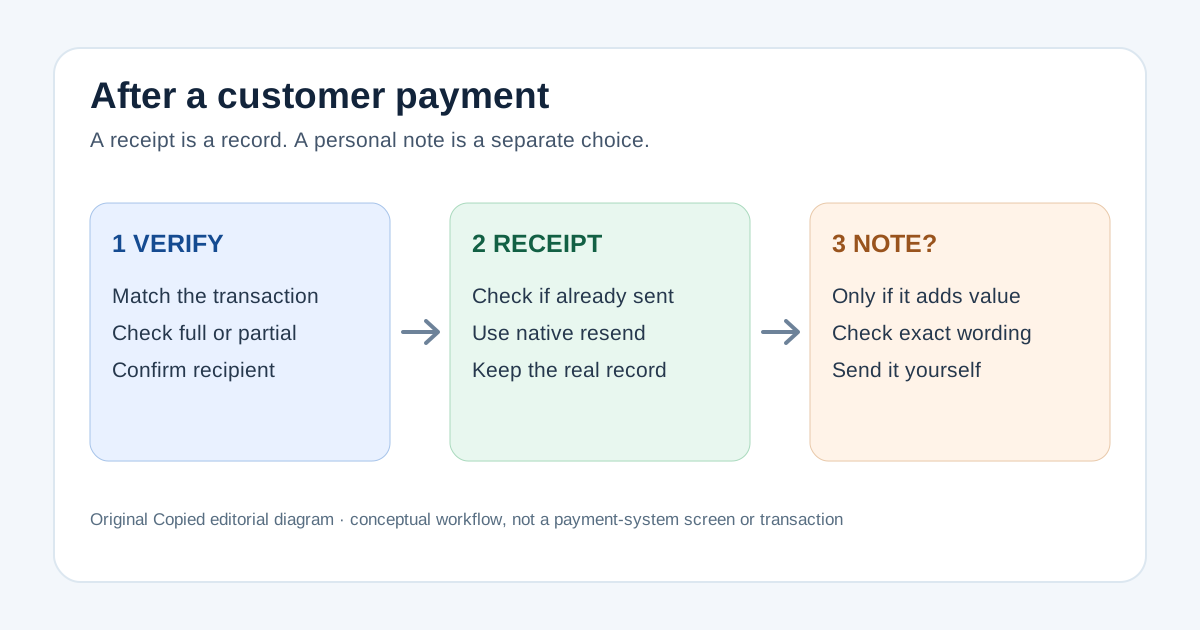
A customer has paid and you are working from your iPhone. First match the successful payment to the right customer and transaction. Then check whether your payment or invoice system has already sent a receipt or thank-you. If the customer needs the transaction record, send or resend it from that system. Write a separate personal note only when it conveys something the system message does not, and never call a partial payment full settlement.
This is a documentation-based workflow for a US independent service business. We checked official Square, Zoho Invoice and Copied pages on November 15, 2026. We did not process a payment, test a vendor account, or deliver a customer message. The real transaction record and your own agreement control what you say.
Choose the record before the wording
| What you find | Best next action | What a separate note should avoid |
|---|---|---|
| Payment has not been confirmed | Verify the transaction and recipient before saying it was received | A premature paid-in-full claim |
| Payment confirmed; no receipt sent | Use the system's receipt flow for that exact transaction | Typing a lookalike receipt in a chat |
| Receipt already sent; customer requests it again | Resend the existing system record if your provider supports it | Creating a second inconsistent record |
| Receipt and automatic thank-you already sent | Usually stop, unless you have a distinct personal next step | Repeating the same confirmation |
| Only part of an invoice paid | Acknowledge the received portion using the actual invoice state | Saying the invoice is fully settled |
A receipt documents a transaction in the system that took or recorded the payment. A personal message can confirm a handoff, appointment, or next step, but it is not a replacement for the provider's transaction record. Before using either path, compare the customer, transaction or invoice reference, date, paid amount, and remaining balance where applicable. If those do not agree, reconcile your records first.
For a Square point-of-sale sale, use its receipt path
Square's US receipt help documents digital email or text receipts after a point-of-sale payment is authorized or another tender is recorded. A customer may already have automatic receipts enabled. In Square's point-of-sale app, open Transactions, select the payment, and tap New Receipt to resend; Dashboard Transactions also offers Send Receipt. Check the exact transaction and recipient before sending. These are point-of-sale receipt instructions; they do not establish the receipt controls for a Square Invoice payment or every device and account.
If you used Square Invoices instead of a point-of-sale sale, open that invoice and its payment activity. Use the invoice product's actual receipt or payment-confirmation path for the matched transaction. Do not assume that a POS menu applies to an invoice merely because the provider has the same name. If the account's available controls differ from the help page, follow the current transaction screen or contact the provider before improvising a receipt.
For a Zoho Invoice payment, check its automatic messages
Zoho Invoice's invoice preferences describe an option to include a payment receipt with a thank-you email and another option to automate a thank-you after online invoice payment. Those are account settings, not proof they are enabled in your account. Review the actual invoice activity and current preferences before sending a second acknowledgement. The cited preference screen is a web workflow; this guide does not claim its settings can be changed from iPhone.
Zoho's payment-recording guide describes recording an offline payment against an invoice on mobile and optionally sending a thank-you email as the payment is recorded. It distinguishes a fully paid invoice from a partially paid one. If you received a bank transfer or cash payment outside the integrated gateway, check the money received, record it through your normal process, and look at the resulting invoice state before writing to the customer. The optional email may already cover the acknowledgement.
- Open the payment or invoice in the system of record and match the customer and transaction. Check whether the amount is full or partial.
- Review the receipt and message history. Confirm what was sent and to which address or number before choosing a resend.
- If the customer needs proof of payment, send or resend the system receipt for that transaction using the supported control.
- Only if a distinct next step remains, write a separate note and verify every transaction-specific statement before sending it yourself.
Write a human note only for the remaining job
A personal message is most useful when it tells the customer what happens next, such as when to expect a service follow-up. For a fictional completed payment, a draft might be: ‘Hi Maya, I can see your payment for invoice 1042 in our records. Thank you. I will send the project handoff tomorrow. Your receipt comes from our invoice system.’ The name, invoice number and next step are illustrative, not a real payment or tested delivery. Replace them from the actual record; omit the handoff sentence if no such commitment exists.
For a partial payment, change the wording: ‘Hi Maya, thank you for the payment recorded against invoice 1042. I am checking the remaining balance and will follow up with the updated invoice details.’ Do not claim the balance is zero unless your system and records confirm it. If the payment is disputed, pending, reversed, or applied to a different invoice, resolve that first; a reusable phrase is not an accounting control.
- Keep the receipt and its transaction details in the payment system rather than manually recreating them.
- Check whether an automatic receipt or thank-you has already reached the customer.
- Use a separate note only for a verified, useful next step and a channel the customer expects.
- Review the final name, reference, status and promise before pressing send.
Where Copied can help with a repeated note
Copied's product page describes Keys for storing reusable text and inserting it manually through the Copied keyboard in compatible iPhone and iPad text fields. If you repeatedly send a neutral post-payment opening, a Key can hold that stable wording while you fill in the actual customer, status and next step each time. Copied does not verify payments, issue receipts, integrate with Square or Zoho, automate this workflow, or send the message. Some receiving apps and secure fields may not accept a third-party keyboard; confirm the field works and review the draft yourself.
If payment has not yet arrived, use our invoice-reminder status guide rather than a receipt message. If you are choosing invoicing software, the Zoho Invoice and Invoice Ninja comparison owns that earlier decision. When a manual note remains useful after the system receipt, review Copied for iPhone and iPad as a way to reuse reviewed wording, not as a payment tool.
References
- Square Support, Print and send receipts US point-of-sale digital receipt, automatic receipt possibility and resend from POS Transactions or Dashboard. Square; checked Nov15, 2026; no invoice or account test.
- Zoho Invoice Help, Invoice Preferences Optional payment receipt with thank-you email and automatic online-payment thank-you. Zoho; checked Nov15, 2026; web settings, no account test.
- Zoho Invoice Help, Online and Offline Payments Mobile offline payment recording, optional thank-you and full/partial invoice status. Zoho; checked Nov15, 2026; no transaction or delivery test.
- Copied, product homepage Publisher-declared manual Keys insertion in compatible iPhone/iPad fields; no receipt or payment integration. Checked Nov15, 2026; no native app test.