Guides
Before Sending an Invoice Reminder from iPhone, Check the Payment State
An overdue label alone is not enough: verify the balance and pending payment, then check whether the invoicing app is already sending a reminder.
Published , 5 min read, by Copied Editorial team
Before sending an invoice payment reminder from iPhone, open the actual invoice. Confirm that it was sent, which balance remains, whether a payment is in progress or was received outside the app, and whether a native reminder is already due to go out. Only then choose a channel and write a note that matches the current record. A copied full-balance request can be wrong after a partial payment.
This is a documentation-based workflow for a US independent service business, not a test of a Square or Zoho account, a payment, or a customer message. We reviewed official Square, Zoho Invoice and Copied pages on November 15, 2026. Your agreement and payment records are the source for the real amount, due date and recipient.
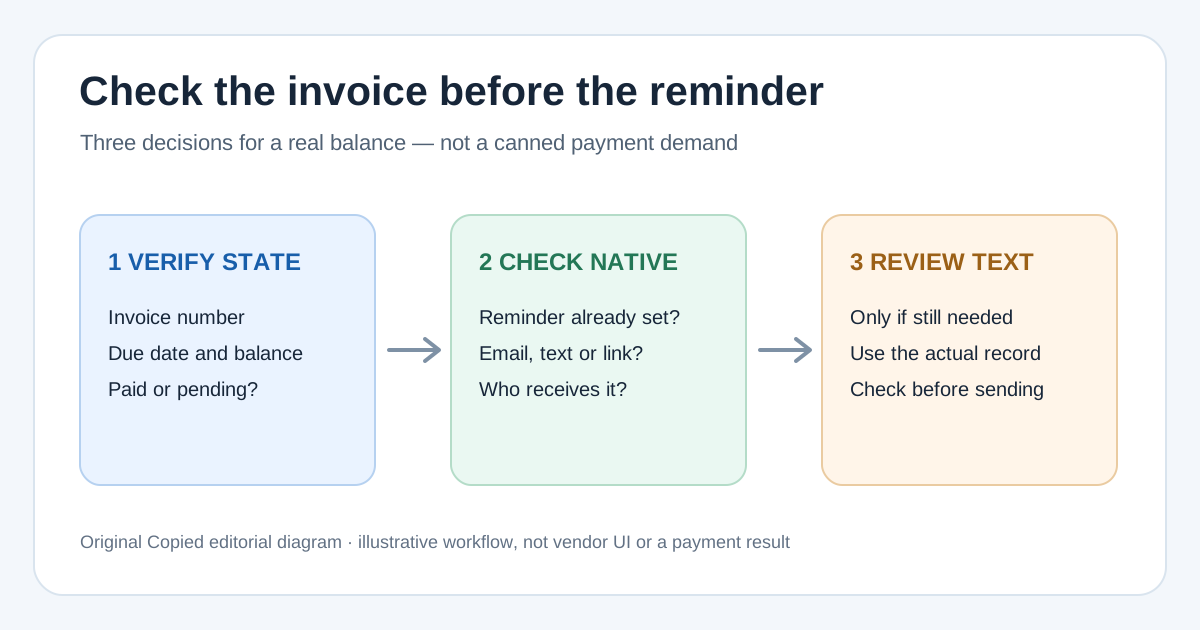
Use three gates before contacting the customer
| Gate | Check on the actual invoice | Decision |
|---|---|---|
| 1. Payment state | Sent invoice, balance, due date, partial payment, initiated payment and any outside payment | Pause if paid, payment is in progress, or the balance needs reconciling |
| 2. Existing reminder | The app's manual or automatic reminder settings and recent activity | Avoid a second message when the native reminder already fits |
| 3. Manual note | Recipient, channel, invoice link and the exact current balance | Send only a reviewed note when the native path does not cover the needed explanation |
A status in the app reflects what that system has recorded. If a customer says they paid by bank transfer or another offline method, check your payment records before saying the invoice is unpaid. If the amount is disputed or the service agreement changed, resolve that issue before using a stock reminder. This guide does not set a collection schedule or legal terms.
Check the invoice state on your phone
Zoho Invoice's mobile filter guide distinguishes Overdue, Partially Paid, Payment Initiated and Paid. Paid means the full payment is recorded in Zoho; Payment Initiated means a payment process has started, not that you should demand the full amount again. In its mobile invoice list, Unpaid and Paid are top tabs; the other states are under More Filters. Open the specific invoice after filtering, rather than sending from a list label alone.
Zoho's payment-recording guide says a recorded partial payment changes the invoice to Partially Paid and a recorded full payment changes it to Paid. It also documents recording an offline payment in the mobile app. If the customer made a payment that has not been entered, the visible state may lag your real books. Confirm the transaction and record it through your normal process before deciding whether any balance reminder is appropriate.
- Open the invoice you actually sent. Match the customer and invoice number to the conversation you are about to use.
- Read the due date, balance and recorded payments. Check a claimed external or pending payment before assuming nonpayment.
- Review the invoice activity and any message already sent by you or your team. Confirm whether a native reminder is enabled or already went out.
- Choose one appropriate next action: no reminder, reconcile payment, use the invoice app's reminder, or write a specific manual note.
Prefer the invoice app's reminder when it covers the job
Zoho Invoice's reminder guide documents manual reminders for Sent and Overdue invoices and automatic reminders based on due or expected payment dates. Staff roles cannot edit reminder settings. Check the configured recipient, timing and content in your own account before adding another manual follow-up; the existence of a feature does not mean it is turned on for your invoice.
Square's US invoice guide describes email, text and share-link delivery from Dashboard or a supported point-of-sale device. It permits automatic reminders with email delivery, but says automatic reminders and additional recipients are not supported when Text message is chosen as the invoice delivery method. Square also says to confirm the customer requested text delivery and has a valid mobile number. Do not treat an invoice text as an automated SMS reminder. Review your actual delivery method, settings and customer preference before choosing a separate message.
Write one manual note for the remaining gap
A manual follow-up can be useful when the native reminder does not explain a specific question, corrected balance or next step. For example, after confirming that a fictional invoice has a recorded partial payment and a remaining balance, the owner might draft: ‘Hi Maya, thanks for the payment on invoice 1042. My current record shows a balance remaining. If you have already sent the rest, please let me know so I can check it. Here is the original invoice: [verified link].’ The name and invoice number are illustrative, not an actual account or tested message. Replace every field from the live record and never send the example as-is.
- Confirm the invoice number, recipient, remaining balance and link from the current invoice.
- Check whether the payment is pending or was received through another channel.
- Use a channel the customer expects and that your invoice workflow permits.
- Read the final message for accuracy and tone before you send it yourself.
Where Copied fits, and where it stops
Copied's product page describes reusable Keys that you can insert manually through its keyboard in compatible iPhone and iPad text fields. If you often write the same neutral opening or ‘please tell me if you already paid’ line, you could save that stable wording and fill in the verified invoice details each time. Copied does not read an invoice, detect a payment, integrate with Square or Zoho, trigger a reminder, collect money or send the message. Confirm that the receiving app accepts the keyboard and review the complete draft before manually sending.
If you are still choosing an invoice tool, our Zoho Invoice and Invoice Ninja comparison owns that decision. If you have sent an estimate but not an invoice, use the sent-estimate follow-up guide instead. Review Copied for iPhone and iPad only when manual reuse of reviewed wording remains useful after your invoice app's own controls.
References
- Square Support, Create and send invoices US invoice email/text/link delivery and text-delivery automatic-reminder limits. Square; checked Nov15, 2026; no account or message test.
- Zoho Invoice Help, Reminders Manual reminders for sent/overdue, automatic reminders based on due or expected date, Staff settings restriction. Zoho; checked Nov15, 2026; no account test.
- Zoho Invoice Help, Filtering Invoices Mobile default filters for overdue, partially paid, payment initiated, paid and other states. Zoho; checked Nov15, 2026; no device test.
- Zoho Invoice Help, Receiving Payments Recorded partial/full payments change status; mobile offline record payment path. Zoho; checked Nov15, 2026; no account/payment test.
- Copied, product homepage Publisher-declared Keys manual insertion in compatible iPhone/iPad fields; no invoice integration/payment detection. Checked Nov15, 2026; no native app test.