Guides
How to Send a First Invoice Link to a Customer from iPhone
The first invoice handoff starts in the invoice record. Check the final details, use a supported delivery route, and verify what actually happened after sending.
Published , 5 min read, by Copied Editorial team
To send a first invoice link from your iPhone, begin with the reviewed invoice in your billing system. Confirm the customer, amount, due date and current invoice version. Then use the system's supported email, text or share-link route that fits the customer's expected channel. After sending, check the invoice activity and the actual conversation. Copying a link, tapping Send or seeing a sent bubble does not prove the customer received, opened or paid the invoice.
This guide is for an independent US service business making its initial invoice handoff. We reviewed official Square, Xero, Apple and Copied instructions on November 17, 2026. We did not operate a billing account, send a message or test a payment. Your own invoice record and customer agreement control the real details.
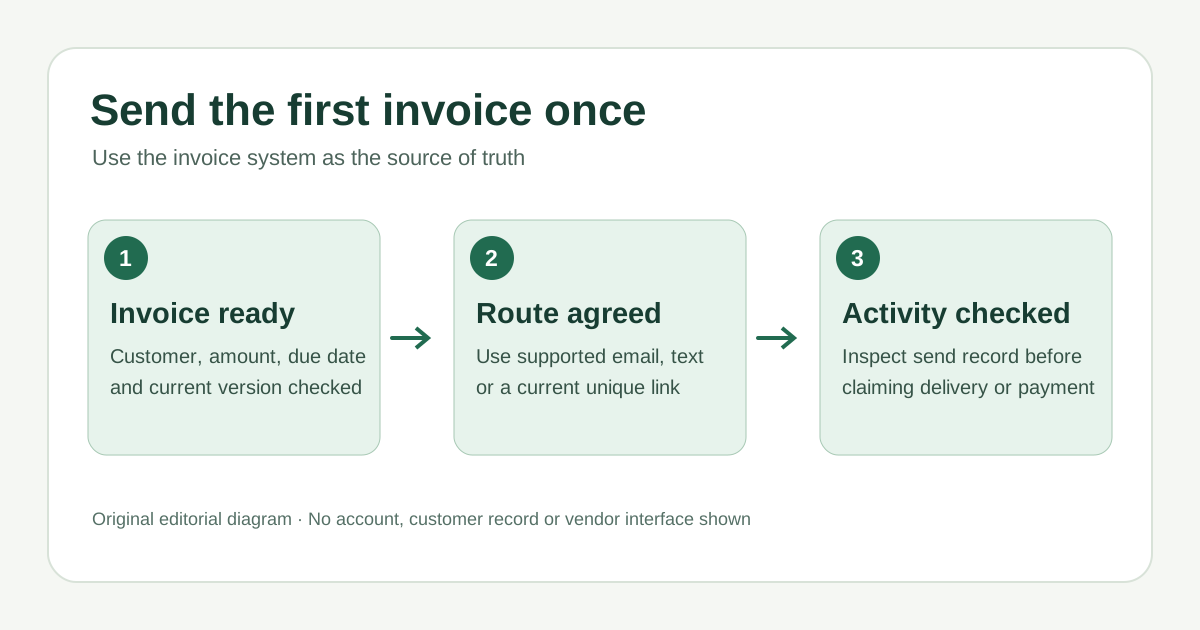
Use the ready → route → activity check
| Check | What to verify | Decision |
|---|---|---|
| Invoice ready | Final customer, invoice number, amount, due date and payment options in the billing record | Pause if the invoice is a draft, disputed or awaiting a correction |
| Route agreed | The provider's available delivery method and the customer's expected contact route | Prefer native delivery when it covers the job; use a manual share link only when appropriate |
| Activity checked | The provider's send activity and the real customer thread | Record only the status you can actually see; follow up separately if needed |
The three checks prevent a common mismatch: a polished text with an outdated invoice URL. A link is tied to a particular invoice or version. Obtain it from the current record at send time rather than keeping a customer-specific payment URL in a reusable template. If the customer disputes the amount or you revise the scope, resolve and recheck the invoice before sending another link.
Start in the invoice system
- Open the specific invoice and match the customer and invoice number to the work you completed.
- Review the amount, due date, service description and payment options that the invoice actually shows. If something changed, correct it through your normal billing process first.
- Check whether the invoice has already been sent by you or someone else. A second first-invoice message can look like a duplicate bill.
- Choose the supported delivery method, review the recipient and final text, then send once.
Square's US invoice instructions describe email, text and share-link delivery from supported Square invoice surfaces. For text delivery, Square says to confirm that the customer requested text and has a valid mobile number. Its share-link route does not itself email the invoice or attachments. These are Square's documented options; your account, region and device may show a different path. Check the controls in the invoice you are using.
Xero's invoice instructions describe sharing an invoice link from the iOS Xero Accounting app through SMS or another available app. That is a different handoff from having the billing system send its own email. Before using a share option, verify the invoice is final, the current link is for the right customer, and your account supports that route. Do not assume the same steps exist in every invoicing product.
When a manual link is the right route
Use a manual message only if the invoice provider offers a shareable link and that channel fits the customer relationship. Copy the current link from the invoice, open the established conversation, check the recipient and paste the link into a short note. Apple's Messages sharing guide covers pasting a link into a Messages field and sending it. It does not verify delivery, reading, consent or payment.
Fictional example, after the invoice has been reviewed: ‘Hi Maya, here is the invoice for the completed visit: [current invoice link]. Please let me know if any detail needs checking.’ Maya and the link are placeholders. Add a real name only after confirming the recipient; obtain the current link from the invoice. Let the invoice page present the actual amount and due date rather than copying sensitive payment details into a reusable sentence.
- If the provider can send the correct invoice directly by email or text, use that native path instead of reconstructing its message by hand.
- If text was not requested or the number is uncertain, confirm the contact route before sending sensitive billing material.
- If the invoice was corrected or disputed, stop the send and reconcile the current version with the customer.
Check what happened, then choose the next step
Return to the invoice activity after sending. Note whether the provider records a send action, a delivery-related event or no event for a manually copied link. Check the actual conversation for an error or customer reply. These signals have different meanings: a sent record is not proof of a read, an opened invoice is not a payment, and a manual link pasted into Messages may leave no native invoice-send entry. Do not mark the invoice paid or accepted because the message appears in your thread.
If the due date later passes with a balance still recorded, use our invoice reminder check to verify payment state before any follow-up. If a payment is recorded, the separate receipt guide covers the post-payment handoff. Neither step belongs in the first-send message.
Where Copied can help
Copied's product page describes reusable text Keys inserted manually in compatible iPhone and iPad fields. If you repeatedly write a neutral invoice handoff sentence, a Key can hold that wording. Insert it only where the keyboard works, add the unique current link from the invoice, review the recipient and send yourself. Copied does not create or approve invoices, generate a payment URL, connect to Square or Xero, send automatically, or know whether a customer opened or paid. Some apps and secure fields do not allow a third-party keyboard.
If repetitive wording is the remaining friction, review Copied for iPhone and iPad and test one carefully edited Key in a compatible field. Keep the invoice, payment state and delivery record in the billing system that owns them.
References
- Square Support, Create and send invoices US invoice email, text and share-link routes; text requires customer request and valid mobile number; share link does not itself email invoice. Square; checked Nov17, 2026; no account or delivery test.
- Xero Central, Approve and send a customer invoice Official Xero guidance for sharing an invoice link through iOS app options. Checked Nov17, 2026; no account, entitlement or delivery test.
- Apple Support, Share content in Messages on iPhone Pasting a link in Messages and sending; Apple; checked Nov17, 2026; no device or delivery test.
- Copied, product homepage Publisher-declared manual Keys insertion in compatible iPhone/iPad text fields; no invoice integration, payment-state detection or automatic sending. Checked Nov17, 2026; no native app test.