Guides
Reschedule an Appointment from iPhone: Check the New Slot Before You Message
A changed appointment needs a message that matches the booking record. Check the new slot, old reminders and reply route before sending.
Published , 5 min read, by Copied Editorial team
To reschedule a client appointment from iPhone, first check the current booking record. A time you have offered is not yet the new appointment; a time already changed in the record is. Tell the client which state applies, name the old time only when it prevents confusion, and give one clear way to confirm or ask a question. Review any scheduling-system notification before sending a separate manual message.
This is a manual communication checklist, not a tested customer booking. We checked current Apple, Jobber, Square and Copied guidance on November 13, 2026. We did not change a real appointment, use a vendor account or send a customer text. Your own record and policy decide the facts.
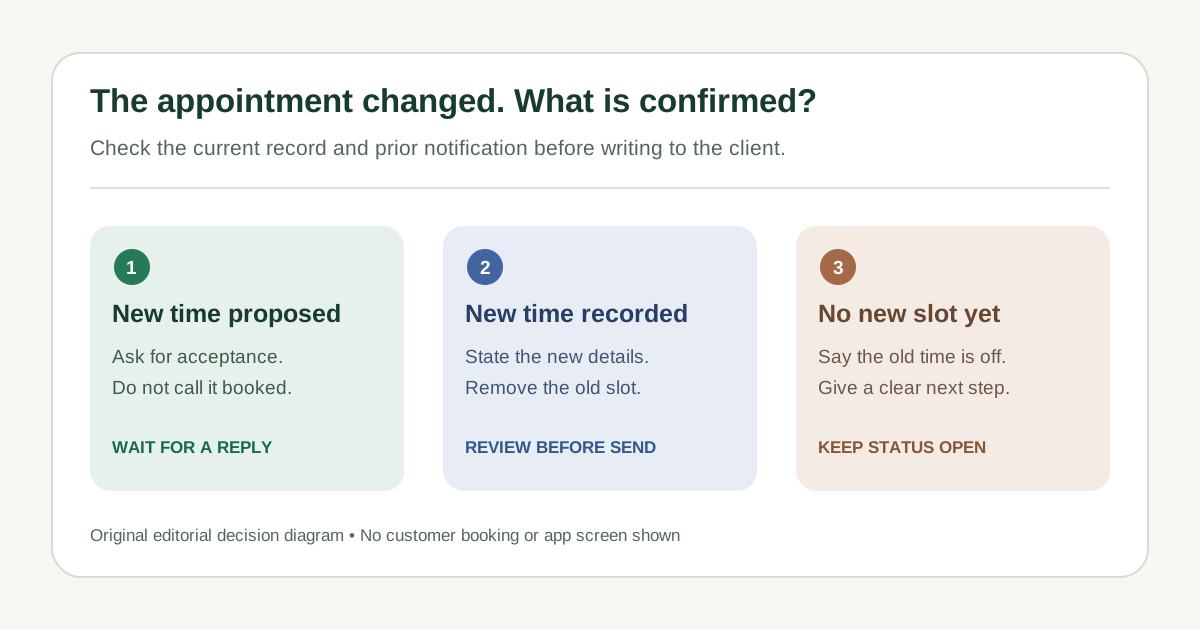
Choose the message from the actual booking state
Open the appointment or visit record and the latest customer conversation. If the customer asked for a change, check whether you have an available replacement, whether they accepted it, and whether the record reflects that agreement. If those disagree, resolve the booking before calling the new time confirmed. A message cannot make an unbooked slot available.
| What you have verified | What the message should do | What to avoid |
|---|---|---|
| An alternate time is only proposed | Ask whether it works and say you will confirm the booking after agreement | Calling the proposed time booked |
| A new time is agreed and recorded | State the new date, time, place or link and identify the superseded slot if useful | Leaving the old time or link in the draft |
| The old booking is off, with no new time | Say that the old slot no longer applies and give a real next contact step | Inventing a replacement appointment |
A cancellation request can also be subject to the business's own published policy and booking settings. Square's appointments policy guide describes seller-configured online rescheduling and cancellation cutoffs for eligible Square accounts. That is a Square-specific option, not a universal right to change a booking or charge a fee. Check the actual policy and account state before discussing any consequence with a client.
Check the calendar and any automatic notice
- Read the current booking entry and the most recent client reply. Confirm which appointment, service and recipient the change concerns.
- Check the newly agreed day, calendar date, start time, time zone when relevant, address or meeting link, and whether the old slot is still active.
- Update the booking in the system that owns it. If you use iPhone Calendar, Apple's Calendar guide documents changing an event's time and details; changing a calendar entry alone does not prove this client received or accepted a message.
- Check whether your booking tool will send a notice or has already sent one. Compare the wording and destination before composing a second manual message.
For example, Jobber's Visits guide says moving an individual visit can prompt a reviewed rescheduling notification by text or email, or allow the sender to skip it. It also says reminders tied to the previous visit time are canceled; the notification feature does not cover assessments or bulk reassignments. Those rules describe Jobber's supported workflow, not every calendar or plan. Do not assume a prompt was shown for your booking without checking the actual record.
If the system already sent an accurate change notice, a second message may be redundant. If you need to add context, reference the new recorded time and avoid sending a contradictory old reminder. If the system did not notify the client, write a manual update through the channel you normally use, provided that channel can receive a reply or you supply another contact route.
Three fictional drafts for three different states
These are original illustrations for a fictional repair business. Names, dates and times are placeholders, not customer messages we sent. Replace every variable with the verified record and check that the weekday matches the date.
- Proposed change: ‘Hi Alex, we can offer a new repair visit on [day, date] at [time]. Does that work for you? Please reply here; I will confirm the booking after we agree on the slot.’
- Confirmed change: ‘Hi Alex, your repair visit is now booked for [new day, date] at [new time] at [verified address]. The earlier [old time] slot no longer applies. Please reply here if any detail looks wrong.’
- No replacement yet: ‘Hi Alex, the [old day, date] repair visit will not go ahead. We have not set a new time. Please reply here with times that work for you, and I will confirm a new booking once one is available.’
Do not send the third version if the old appointment is still active. If a client has merely asked whether a change is possible, acknowledge the request without canceling the current slot until your own process and agreement say to do so. A sent text is not proof the client read it or accepted a proposed time.
Run a final iPhone send check
| Check | Question to answer |
|---|---|
| Recipient | Is this the right client and conversation, with no unrelated group participants? |
| Status | Does the draft say offered, confirmed or not yet rebooked accurately? |
| Details | Are the new date, time zone, place and link current, with stale details removed? |
| Notifications | Will this duplicate or contradict a native booking notice or reminder? |
| Reply path | Can the client actually respond in this channel, or is another contact method needed? |
Read the full composed message in the sending app before you press Send. Keep the booking system as the source of truth afterward. If the customer proposes yet another time, review availability and update the record again rather than editing a saved sentence and treating that as a confirmed change.
Use reusable wording only for the stable part
For a short phrase in compatible fields, Apple's Text Replacement guide documents a built-in shortcut. A booking product's own rescheduling notice may be the better choice when it already has the correct appointment data and sends through the intended channel. Choose the native path when it covers the job.
Copied's product description says Keys hold reusable text for manual insertion from its keyboard in compatible iPhone and iPad fields. That can help a solo owner keep a neutral opening or change instruction ready across compatible apps. Fill the client name, booking state, new time and location from the current record each time. Copied does not inspect the calendar, reschedule an appointment, apply a policy, send a notice or prove delivery.
If you regularly write reviewed change messages across compatible fields, review Copied for iPhone and iPad and try one non-sensitive draft before saving a reusable Key. For a first-time booking, use our separate appointment confirmation guide; for choosing a booking system, see the appointment scheduling comparison.
References
- Apple Support, Create and edit events in Calendar on iPhone iPhone Calendar event time and details can be edited; no client notification or acceptance proven. Apple; author/update date unstated; checked Nov13, 2026; no device test.
- Jobber Help Center, Visits Individual visit rescheduling can prompt reviewable email/text notice or skip; prior reminders canceled; excludes assessments and bulk reassignments. Jobber; checked Nov13, 2026; no account test.
- Square Support, Manage booking cancellations and prepayment policies Online rescheduling/cancellation depends on seller settings, eligibility and cutoff; no generalized fee or legal claim. Square; checked Nov13, 2026; no account test.
- Apple Support, Set up shorthand for frequently used text on iPhone A typed shortcut can expand to a saved phrase in a text field; Settings > General > Keyboard > Text Replacement. Apple; named author/update date unstated. Official English iPhone guide opened directly in Chrome Nov11, 2026; web fetch returned 429; no device test.
- Copied, product homepage Publisher-declared Keys for manual reuse in compatible iPhone/iPad fields; no scheduling, automatic notice or delivery proof. Sharply Labs; checked Nov13, 2026; no app test.