Guides
Ask for Job Photos Before a Service Visit, Then Confirm They Arrived
A short, specific photo request can prepare a service visit, but an unreceived attachment is not part of the job record. Use a four-step check.
Published , 5 min read, by Copied Editorial team
After arranging a service visit, ask for photos only if a particular view would help you prepare. Name what you need, offer a reply route the customer can actually use, and confirm the files arrived for the right job. If no photo comes through, keep the agreed visit process moving or ask once through your usual channel; do not plan around an attachment you have not seen.
This is a documentation-based guide for an independent US service business working from iPhone. We checked Apple, Dropbox and Copied's public instructions on November 16, 2026. We did not send a customer request, receive an attachment, operate a Dropbox account, or inspect a real job. Your own appointment and record remain the source of truth.
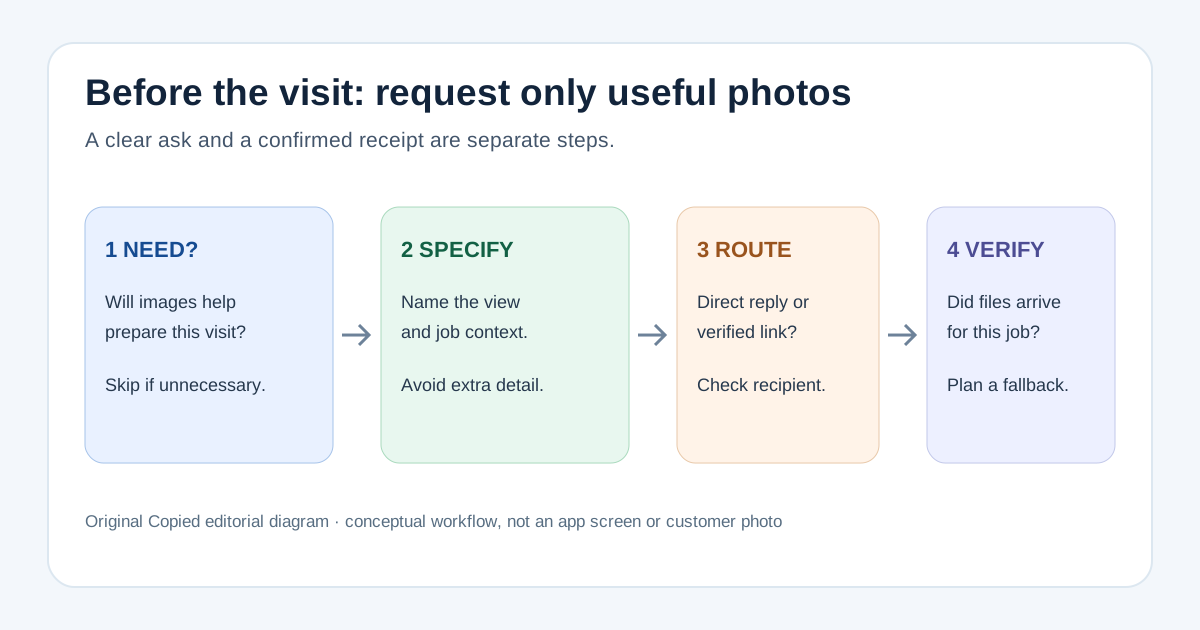
1. Decide whether a photo is useful
| Situation | Reasonable next step | Limit |
|---|---|---|
| A visible fixture, access point or damaged area could affect preparation | Ask for one or two named views | A photo cannot confirm the full condition or replace an on-site check |
| The job is already clear and the image would not change preparation | Skip the request | Avoid extra work for the customer |
| The customer cannot or does not want to share images | Ask a short question through the expected channel and continue the agreed process | Do not make the visit silently depend on an upload |
Write down the preparation question first: for example, whether the appliance model label is readable or whether the access path is clear. If you cannot say what decision the image would inform, you probably do not need it. Even a clear image is context, not a remote diagnosis, a quote, or a promise about the work required.
2. Ask for a specific, minimal view
A useful request says what to photograph and why: ‘Could you send one wide photo of the cabinet area and one close photo of the model label, if easy? That will help me bring the relevant information to our visit.’ Replace those details for the actual job. Do not ask for personal documents, people in the background, addresses on paperwork, or unrelated rooms. If the customer has a concern about sharing, take a description instead and discuss the rest during the visit.
Apple's iPhone photo-sharing guide describes sharing photos through options such as Mail and Messages and notes that a shared photo may carry metadata including date, time, location and device information. The customer may use another device or channel, and the metadata that travels can vary. A cropped image alone does not establish that private details are gone; ask for only the scene you need and use the customer's expected communication route.
3. Choose a route the customer can use
For a couple of ordinary images, a reply in the existing email or message thread may be the simplest request. If the job needs several files and you already use a file collection system, check that its current request link works and tell the customer where to upload. Do not paste a generic or untested link into a saved reply.
Dropbox's file-request instructions say a requester can collect files from someone without a Dropbox account and can share a request link by email or message. The uploaded files use the requester's Dropbox storage, account limits vary, and a team administrator may disable requests. Dropbox documents creating the request on dropbox.com; this guide does not claim that creation works in its iPhone app. If you have not verified a request link and available storage, prefer your ordinary reply route or check the service before offering it.
The choice of file-request provider is a separate decision. Our Dropbox versus OneDrive file-request comparison covers that tool choice. This guide is about the wording and receipt check after a visit is arranged.
4. Confirm receipt before using the image
- Check the existing thread or request folder for an actual file, rather than treating the customer's ‘sent’ message as delivery proof.
- Open the file and confirm it belongs to the right customer, property and requested view. If it does not, ask for clarification without diagnosing from a mismatch.
- Record only the job-relevant observation in your normal job record and handle the file according to your usual retention and access practices.
- If nothing arrived, acknowledge that plainly and offer one fallback: resend through the known channel, describe the issue, or show the area during the visit.
If the customer replied by email, Apple's Mail attachment guide describes saving a received image to Photos or another attachment to Files on iPhone. That is a device control, not proof that a particular email was delivered or that its attachment is safe or complete. Open and match the actual file before using it in preparation.
A request you can personalize
Fictional example, for an already arranged visit: ‘Hi Maya, before Tuesday's visit, could you reply here with one photo showing the whole sink cabinet and one of the visible leak area, if convenient? Please leave out personal papers and people. If photos are difficult, a brief description is fine; we can also look together on Tuesday.’ The name, day, scene and reason are illustrative. Check the real appointment and recipient before sending. Do not imply that the customer must upload in order to keep the visit unless that is an actual agreed condition.
If a link is needed, write a separate sentence only after testing the exact link: ‘You can upload the two views here: [verified job-specific link].’ Never store a live customer link in a generic reusable Key. After the files arrive, a plain acknowledgement can say, ‘I received the two photos for Tuesday's visit. I will review them before I arrive.’ Use that only after you have checked the files; receipt does not mean the job has been diagnosed.
- Ask for a photo only when it informs a named preparation decision.
- Name the view, allow a no-photo response, and avoid unrelated personal detail.
- Use an expected reply route or a link you verified for this job.
- Confirm the actual file and job match before acknowledging receipt or planning around it.
Where Copied fits, and where it does not
Copied's product page describes reusable text Keys inserted manually from its keyboard in compatible iPhone and iPad text fields. If you repeatedly ask for the same kind of job view, one reviewed Key can hold the neutral request and a separate receipt acknowledgement. Personalize the customer, appointment, view and route each time, then send yourself. Copied does not collect uploads, verify images, connect to Dropbox or Apple, schedule visits, or send messages automatically. Some apps and secure fields do not allow a third-party keyboard.
For the earlier appointment state, see our appointment confirmation guide. For an image after work, the job completion guide owns that different message. If repeat wording is your actual problem, review Copied for iPhone and iPad and try one carefully edited Key in a compatible field; keep the real job record and file exchange in your existing tools.
References
- Apple Support, Share photos and videos on iPhone iPhone sharing options and possible photo metadata; Apple; checked Nov16, 2026; no sender device or channel test.
- Dropbox Help, Create and manage file requests Account-free submitter, shareable request link, storage and plan/admin limits, web creation; Dropbox updated May15, 2025, checked Nov16, 2026; no account or upload test.
- Apple Support, Download email attachments in Mail on iPhone Save received image to Photos or attachment to Files; Apple; checked Nov16, 2026; no delivery test.
- Copied, product homepage Publisher-declared manual Keys insertion in compatible iPhone/iPad fields; no photo-collection integration or native app test. Checked Nov16, 2026.