Guides
How to Reply to a Customer Shipping Address Change Request from iPhone
Acknowledge the request, verify the order update, and check whether the new destination reached the party shipping the parcel before confirming.
Published , 4 min read, by Copied Editorial team
A customer writes from a different address and asks you to send an order somewhere else. Receiving that message is only the first state. Saving a new shipping address on the merchant order is another. The fulfillment service or carrier may already have the old destination. Before you say the change is complete, check which of those states you can actually confirm.
This guide is for a small online-store owner handling a post-order request from an iPhone. We reviewed official Shopify and Copied guidance on November 20, 2026. We did not use a merchant account, edit a real order, contact a carrier, send a customer message or test an iPhone. Your provider's order record and fulfillment rules determine what is possible for a particular shipment.
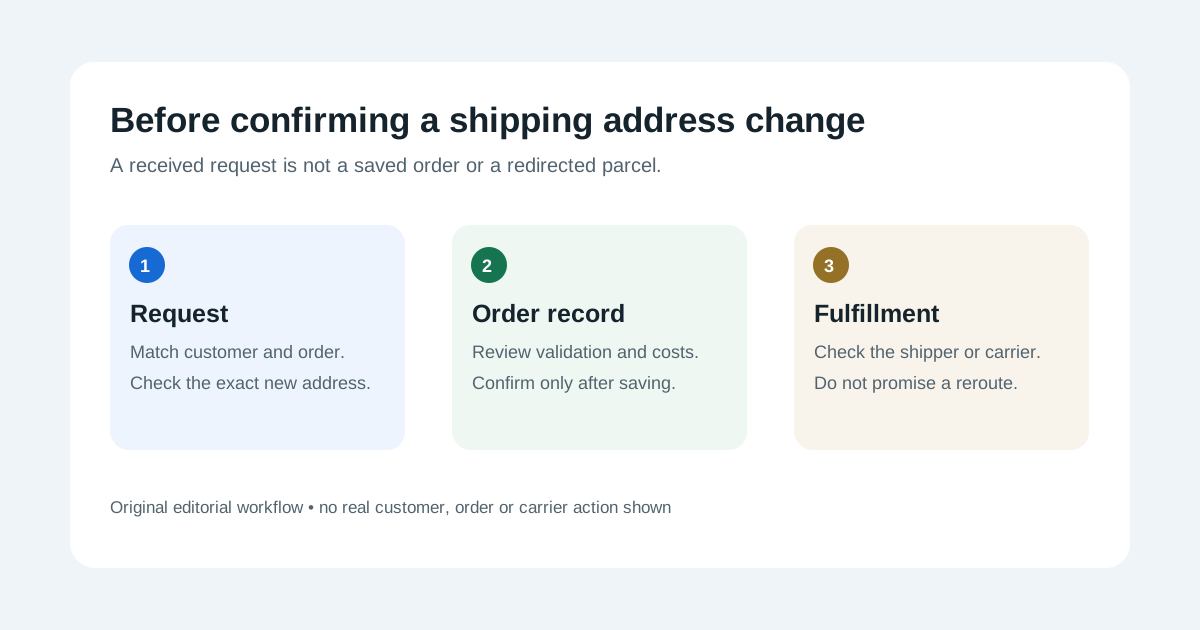
Separate the three states
| State | What it proves | What it does not prove |
|---|---|---|
| Customer request received | You have a request to review against the correct order | Identity, a saved address or a changed shipment |
| Merchant order updated | The new shipping address appears in the order record after saving | That an existing label, fulfillment service or carrier uses it |
| Fulfillment handoff checked | You have checked the supported shipping path and its recorded outcome | Delivery to the new address unless the responsible provider confirms it |
Shopify's order customer-details guide documents a mobile route to edit an order's shipping address after placement. Its order-editing considerations describe restrictions and warn that a fulfillment service may not recognize an edit automatically. The steps below apply to Shopify where the described controls are available; do not assume a different store or carrier behaves the same way.
Check the order before promising a change
- Match the message with the correct customer and order using your store's supported verification process. A sender name or forwarded screenshot alone may not establish who can change the destination. Keep the new address in the live order workflow, not in a reusable reply template.
- Open the order and inspect its fulfillment status, label or handoff, current shipping address and any existing customer communication. If someone else owns fulfillment, coordinate before replying with a final outcome.
- For an editable Shopify order, use the documented mobile Orders view, open the order, choose the customer menu, select Edit shipping address, review the fields and Save. Staff permissions and order restrictions may block the edit; use the merchant admin or authorized colleague when needed.
- Review any address-validation warning and any changed tax or order total shown by the platform. If the address is uncertain, confirm it with the customer through a supported contact route. Do not provide tax advice or promise a particular charge from a generic article.
- Reopen the order to verify the saved destination. Then separately check whether a fulfillment partner, shipping label or carrier already has the original address. Follow that provider's supported correction route where applicable, and record what they actually confirm.
Shopify's edit guide describes permissions, mobile saving and possible tax differences. Its address-validation guide explains warnings and a native option to email the customer when an address is uncertain; availability varies by location and order. Shopify's order-details guide describes order information and customer contact options. None of these pages shows that changing the merchant record redirects a parcel already with a carrier.
Reply according to the verified outcome
If you have only received the request, acknowledge it and say that you are checking whether the order can be changed. If the order is still editable and you saved the new address, say that the order record was updated, then explain any remaining fulfillment check. If a shipping service or carrier has accepted a correction, report only the exact confirmation you have. If the parcel has already shipped or the edit is blocked, explain the limit and the next supported action without promising a reroute, delivery date or refund.
Fictional acknowledgment while the outcome is pending: ‘Hi Alex, I received your request to change the shipping address for order [reference]. I am checking the order and its shipping status before confirming whether the change can be made. I will follow up through our usual order contact channel with the outcome.’ Replace the placeholder and verify the recipient. This wording deliberately does not say that the destination changed.
- Do not quote a full customer address in an unsecured channel or another customer's order thread. Use the store's supported verification and contact process.
- If a native platform message already accurately confirms the change and the customer has the next step, avoid a conflicting second message.
- For a parcel already moving and a question about status rather than a destination change, use the separate order-tracking update guide.
Where Copied fits
Copied's product page describes saved text Keys inserted manually in compatible iPhone and iPad text fields for review, personalization and sending. A Key can hold stable acknowledgment wording while you check a shipping-address request. Enter the order reference, decision and next step yourself for each case. Never put customer names, postal addresses, account links or carrier details in a reusable Key. Copied does not connect to Shopify or a carrier, edit orders, check shipment status or send customer messages automatically. Some apps and secure fields do not accept third-party keyboards.
Use your store's native order and contact tools for the real change. If repeated personal follow-ups need a reviewed starting draft, see whether Copied fits your iPhone or iPad workflow. For a separate customer return request, see the return-request reply guide.
References
- Shopify Help Center, Editing customer details on an order Mobile order shipping address edit, permissions, validation and possible tax difference. Official Shopify; checked Nov20, 2026; no account or order test.
- Shopify Help Center, Validating addresses in your Shopify admin Address warnings and native customer email option; coverage varies. Official Shopify; checked Nov20, 2026; no validation test.
- Shopify Help Center, Viewing and managing order details Order review and customer contact paths. Official Shopify; checked Nov20, 2026; no merchant app test.
- Shopify Help Center, Considerations for editing orders Order and fulfillment restrictions; external service may not recognize edit. Official Shopify; checked Nov20, 2026; no carrier test.
- Copied, product homepage Publisher-declared manual saved text Keys in compatible iPhone/iPad fields; no store or carrier integration. Checked Nov20, 2026; no app test.