Guides
How to Send an Order Tracking Update from iPhone
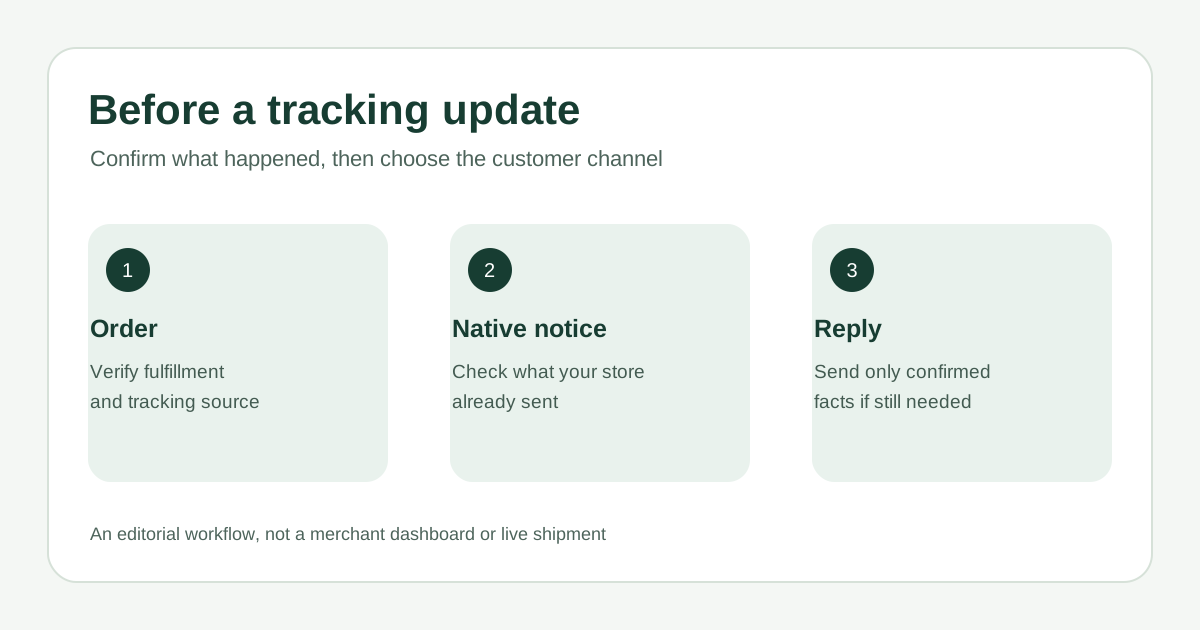
A customer asks where an order is. Verify fulfillment and tracking, see what your store already sent, then share only confirmed details if a personal reply is still useful.
Published , 4 min read, by Copied Editorial team
A tracking number in an order is a starting point, not proof of delivery or even a carrier scan. When a customer asks for an update from your iPhone, open the correct order, compare its fulfillment details with the carrier or customer-facing tracking page, and check whether your store already sent a shipping notice. If a separate reply is needed, share the verified status and link with the right customer. Do not promise an arrival date from a label alone.
This guide is for a small online-store owner. We reviewed official Shopify and Copied documentation on November 19, 2026. We did not access a merchant account, shipment, customer notification or iPhone. Your fulfillment provider and carrier are the sources for a particular order's current state.
Separate the order record from the carrier event
| What you can verify | Safe wording | Next check |
|---|---|---|
| Label or tracking number created; no carrier scan confirmed | A tracking link is available; carrier movement is not yet confirmed | Open the carrier or customer-facing page before implying transit |
| Order fulfilled and carrier page shows an in-transit event | The carrier currently shows the shipment in transit | Share the verified link and latest visible status |
| Carrier page shows delivered | The carrier page shows delivered | If the customer cannot find it, follow your store and carrier's missing-delivery process |
Match the customer's name and order against the store record before copying any link. A shipping label may populate a tracking number automatically, while a manual or third-party fulfillment may require different steps. A number can have the wrong carrier, no recognized carrier or a link that opens a generic tracking page. Shopify's order-tracking guide documents these variations and says customers can usually follow a fulfilled order with tracking through the order-status page, shipping emails or the Shop app. Those are Shopify behaviors, not universal rules for every store or carrier.
Check the notice before composing another one
- Open the exact order and fulfillment in your store system. Verify the tracking number, carrier and customer-facing link. Do not use an internal admin URL or another customer's order-status link.
- Review the actual order status and the latest available carrier event. If the order is still being prepared, say so rather than calling it shipped.
- Check the notification history or settings for this order. A configured template is not proof that a particular message was delivered or read.
- If the native notice already gives the customer a clear link and answer, avoid a duplicate. If they asked a follow-up or the notice was absent or unclear, send one reviewed personal reply through the expected channel.
Shopify's order-status email guidance says default order and shipping email templates include an order-status link; customized templates may need different setup. Shopify's notification guidance says shipping confirmation and update notices are tied to fulfillment or tracking changes and some can be turned off during the action. Check your actual store configuration; do not reset a customized template or assume every notice reached the customer.
Shopify's mobile-app guide says merchants can manage orders and create fulfillments from its iPhone app. It does not establish the exact controls or notification state in your account. If you cannot verify a detail on the phone, use your store's supported admin route or ask the fulfillment provider before sending an answer.
Send only the status you can support
A useful reply identifies the store and order without exposing unnecessary personal details, says what has actually happened, and points the intended customer to a verified customer-facing order-status or carrier page. Use a link from that exact order, inspect where it goes, and follow your store's privacy and customer-contact practices. If customer access requires sign-in or verification, explain that instead of assuming an open link will reveal the shipment.
Fictional example when carrier movement is verified: ‘Hi Alex, I checked your order [reference]. The carrier currently shows it in transit. You can see the latest carrier update here: [verified customer-facing link].’ Replace every placeholder from the real order and current page. If only a label exists, say that a tracking link is available and the carrier has not yet shown a scan; do not reuse the in-transit sentence.
- Avoid an invented delivery date. If a provider shows an estimate, identify it as that provider's current estimate, not a promised arrival time.
- If tracking is missing or the link is wrong, resolve the fulfillment record or contact the provider. A polished message cannot repair incorrect tracking data.
- Do not send a generic short link merely for appearance; for link-selection tradeoffs, see the separate business-link guide.
Where Copied fits
Copied's product page describes saved text Keys that a person inserts in compatible iPhone and iPad text fields, reviews and sends. If you repeatedly answer shipment questions, a Key can hold stable opening and explanation wording. Insert the current order reference, verified status and link yourself. Keep customer-specific links, addresses and order details out of the reusable Key. Copied does not connect to Shopify or a carrier, inspect orders, generate tracking, detect delivery or send messages automatically. Some apps and secure fields do not accept third-party keyboards.
If your store's own shipping notice answers the customer's question, use that and skip another tool. If you still send frequent reviewed follow-ups, see whether Copied fits your iPhone or iPad reply workflow. For a broader message-reuse workflow, see our customer-reply guide.
References
- Shopify Help Center, Order tracking at Shopify Tracking on fulfilled orders, status page/email/Shop app, and carrier or fulfillment variations. Official Shopify; checked Nov19, 2026; author/update date unstated; no merchant or shipment test.
- Shopify Help Center, Setting up order status updates Default email templates include status links; custom templates may differ. Official Shopify; checked Nov19, 2026; no account/notification test.
- Shopify Help Center, Setting up customer notifications Shipping notices and optional per-action deactivation. Official Shopify; checked Nov19, 2026; no delivery test.
- Shopify Help Center, Shopify app Merchant order and fulfillment management on iPhone. Official Shopify; checked Nov19, 2026; no device test.
- Copied, product homepage Publisher-declared manual Keys insertion in compatible iPhone/iPad fields; no carrier or Shopify integration. Checked Nov19, 2026; no app test.