Guides
Set a Business Email Signature on iPhone in Apple Mail and Gmail
Your automatic footer belongs to the app and sending account. Find the right setting, keep the details concise and inspect a draft before sending.
Published , 4 min read, by Copied Editorial team
To set a business email signature on iPhone, start with the app you actually use to compose the message. Apple Mail has a Signature setting in iPhone Settings; the Gmail app has its own Mobile Signature setting. Set the footer for each sending account that needs it, then open a draft from that account and check what appears. A fixed closing line needs the email app's built-in setting, not a saved reply tool. Apple's Mail settings guide Google's Gmail iOS instructions.
We reviewed Apple's official English Mail instructions, Google's iPhone and iPad Gmail Help, and Copied's public description on November 10, 2026. We did not change a real account or send a test email. Menu names and account policies can vary, so confirm the controls in your installed app.
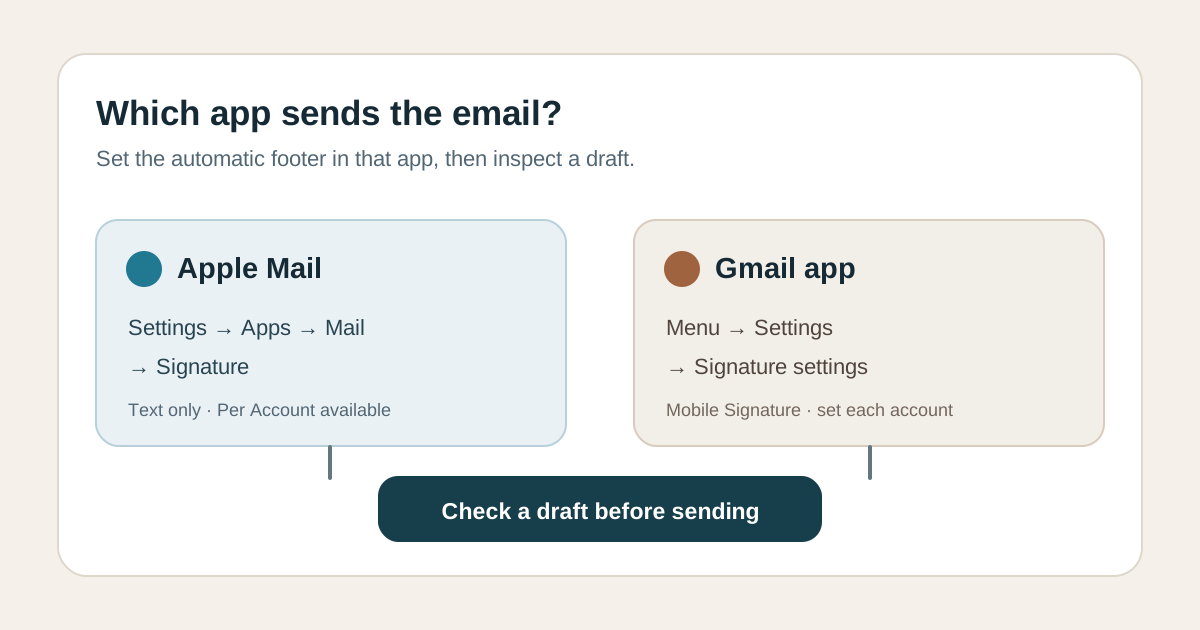
Choose the setting by the app that sends the message
| Where you compose | Automatic footer setting | Account check |
|---|---|---|
| Apple Mail | iPhone Settings → Apps → Mail → Signature | Use Per Account if different senders need different details |
| Gmail app | Gmail Menu → Settings → Signature settings | Set Mobile Signature for each account in the app |
The account name alone does not tell you which signature screen to use. For example, if you compose from a Gmail address inside Apple Mail, start with Mail's setting; if you compose in Google's Gmail app, start with the Gmail app's setting. This is an inference from each vendor's app-specific instructions, not a test of your account or a claim that the settings synchronize. Check a draft in the actual sending app.
Set a text signature in Apple Mail
- Open the iPhone Settings app, tap Apps, then Mail.
- Under Composing, tap Signature and edit the text field.
- If you use more than one sending account and need different details, choose Per Account and review each entry.
- Open Mail, start a draft from the intended From address and check the footer before you send.
Apple says the signature appears automatically at the bottom of messages sent from Mail and that its iPhone signatures can contain text only. Keep a business logo or complex HTML layout out of this setup plan. If the Signature control is elsewhere in your version, follow the current Mail settings rather than an old screenshot. Apple's signature and Per Account instructions.
Set a mobile signature in the Gmail app
- Open Gmail on iPhone and tap Menu, then Settings.
- Under Compose and Reply, tap Signature settings.
- Turn on Mobile Signature, enter or edit your footer, then tap Back to save.
- Repeat for each account in the Gmail app that needs a different footer; inspect a draft from each account.
Google says this mobile signature is for emails sent from the Gmail app and that the setting needs changing separately for multiple accounts in the app. Google also says new messages use the signature set on a computer if you have not created a signature in the Gmail app. That is a reason to check the draft rather than assume an empty mobile setting means no footer. Google's mobile-signature guidance.
Write a footer a customer can use
A short text example for a fictional repair service is: ‘Avery Chen | North Street Repairs | 555-0100 | northstreet.example’. These details are illustrative placeholders, not a real business or a verified contact route. Replace them with your own approved name, role or business, and one useful way to reply or book. If you include a website or chat link, open it yourself and check that it reaches the intended destination.
- Use the identity that matches the From address; do not put a personal number or home address in a widely sent business footer unless you intend to share it.
- Keep account-specific details in the right account rather than making one generic signature promise the wrong hours, address or service.
- Use a draft to check line breaks, duplicated signatures and whether the current link is readable and working. Delete the draft if it was only a check.
The footer is an identity and contact aid, not a place for a client-specific quote, appointment time or payment instruction. Those belong in the individual message and need their own review.
Keep repeated email bodies separate from the signature
If the same opening or next-step paragraph recurs, read our iPhone email-template guide for choosing a reusable body method. Copied's product description says a Key can hold text for manual insertion in compatible iPhone and iPad fields. You still choose the wording, edit the draft and send it yourself. Copied does not set the Apple Mail or Gmail signature, connect the accounts, add a footer automatically or confirm delivery. A fixed signature alone needs no extra app.
If you regularly reuse a separate body paragraph across compatible apps, explore Copied for iPhone and iPad. Start with one reviewed paragraph, keep account and recipient facts in the draft, and let the email app own the automatic footer. For the separate choice of mailbox or client, see our Gmail versus Outlook guide.
References
- Apple Support, Change your Mail settings on iPhone Settings > Apps > Mail > Signature, text only, Per Account option. Apple; author/update date unstated. Official English indexed result rechecked Nov10, 2026; direct page fetch returned 429; no device test.
- Gmail Help, Create a Gmail signature on iPhone and iPad Gmail app Menu > Settings > Compose and Reply > Signature settings > Mobile Signature, each account; desktop signature on new messages if none in app. Google; author/update date unstated. Directly checked Nov10, 2026; no account test.
- Copied, product homepage Keys for manual reusable text in compatible iPhone/iPad fields; no automatic Mail/Gmail signature integration. Sharply Labs; rechecked Nov10, 2026; no app test.