Guides
How to Correct a Sent Invoice and Explain the Change from iPhone
A customer spotted an error after you sent an invoice. Check its payment state, correct it in the billing system if allowed, then send the revised version with a clear explanation.
Published , 5 min read, by Copied Editorial team
If a customer finds an error after an invoice was sent, first open the invoice in the billing system and check whether any payment has been recorded. Correct an unpaid invoice only when that provider and your business process allow an edit. Review the revised total and due date, send the updated invoice through the provider's supported route, then tell the customer what changed. Do not assume that editing a record automatically delivers the new version or cancels an older link.
This is a communication workflow for an independent US service business, not accounting or tax advice. We reviewed current official Square, Zoho Invoice and Copied pages on November 17, 2026. We did not operate either billing account, test a payment or issue an invoice. If money was received, the tax treatment matters, or your records require a credit note, void or replacement invoice, follow your provider's instructions and ask your accountant before changing the record.
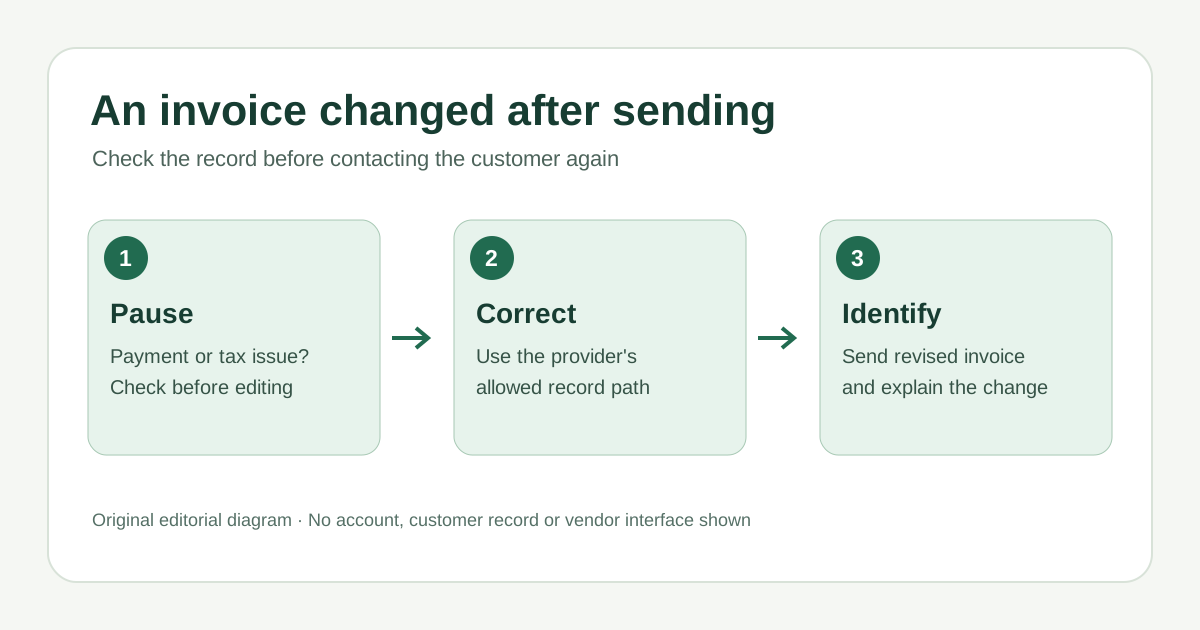
Separate the invoice correction from the customer note
| State you find | Billing-system action | Customer handoff |
|---|---|---|
| Unpaid and editable | Review the original, make the permitted change, verify the revised version | Send the updated invoice, then identify the change without inventing a payment status |
| Partly or fully paid | Pause and check provider and accounting rules for adjustment, credit or replacement | Acknowledge the issue and say when a verified correction will follow |
| Edit unavailable or tax-sensitive | Do not work around controls by changing a saved PDF | Explain that the billing record is being checked before sending another document |
A new message is not a corrected invoice. The billing record owns the number, line items, tax, balance and payment status; your conversation explains which record the customer should review. Keep a note of the original error and your resolution in the system or business records that normally hold invoice history. Avoid storing customer-specific payment links or account data in a reusable reply.
Check the provider before editing
- Open the exact sent invoice and match its customer, number and disputed line item. Confirm whether it is unpaid, partly paid or paid in the provider's current record.
- If the record is unpaid, look for the provider's edit control and confirm your account permits changes to sent invoices. If it does not, stop and use the provider's documented correction process.
- Change only the verified detail. Recheck amount, tax, due date, recipient and any payment link or attachment shown by the revised record.
- Use the provider's supported send or share action for the revised invoice. Verify the actual recipient and current version before telling the customer to use it.
Square's US invoice guidance says a seller can edit an unpaid sent invoice. Its Square Invoices and supported Point of Sale app path is Invoices, the relevant invoice, then the More menu and Edit. This is a Square-specific path, not a rule for every service or every invoice status. Square's delivery options include email, text and share link; a copied link by itself does not email the invoice.
Zoho Invoice's preferences guide makes editing a sent invoice an optional setting. Its invoice editing guide says the updated version should be sent again; on the documented mobile path, Save and Send emails the edited invoice. These instructions do not establish that every account has the setting enabled or that a customer already received the revision. Check your actual edition, account controls and activity.
Write a correction note the customer can act on
State the mistake plainly, identify the revised invoice by its verified number or description, say what changed, and point to the current provider-sent copy or current link. If the amount or due date changed, describe the actual new value only after checking the revised record. Ask the customer to use the revised invoice and to flag any discrepancy. Do not imply the old invoice was voided, a payment was reversed, or a refund was issued unless the billing system confirms it.
Fictional example for an eligible unpaid correction: ‘Hi Maya, I corrected the service date on invoice [number]. The revised invoice has been sent through [billing provider]. Please use that updated copy and let me know if anything still looks wrong.’ The name, invoice number and provider are placeholders. For an amount change, add the verified new amount and due date if the customer needs them; do not reuse a stale payment URL.
- When the customer has already paid or made a partial payment, acknowledge the report and pause the proposed correction until the provider/accountant confirms the right record action.
- When a revised invoice is still being prepared, give a realistic follow-up plan without calling an unsent draft final.
- When the provider sends its own updated email, a separate manual note can explain the change, but first check whether another message would create confusion or a duplicate request.
Confirm the revised handoff
Return to the provider's invoice activity and check what it actually records. A Save action may update the record without sending an email; Zoho explicitly tells users to send an edited sent invoice again. Check the customer conversation for the right recipient and version. A sent or shared event does not establish that the customer opened the invoice, agreed to the change, or paid it. If the customer cannot find the revision, use the provider's supported resend route after checking the current record rather than pasting an old link.
If this is the first invoice handoff instead, start with our first invoice link guide. If the corrected invoice later becomes overdue, use the separate payment reminder check to confirm the balance before following up. Neither guide replaces a provider's correction or accounting process.
Where Copied fits
Copied's product page describes reusable text Keys inserted manually in compatible iPhone and iPad fields. If you often explain small corrections, a Key can hold neutral wording such as ‘I updated invoice [number] to correct [detail].’ Insert it where the keyboard works, replace every placeholder from the current billing record, review the recipient and send yourself. Copied does not edit invoices, connect to Square or Zoho, create credit notes, know payment status, resend provider email, or determine whether a correction is legally sufficient. Some apps and secure fields do not permit third-party keyboards.
If repeated correction wording is your remaining friction, review Copied for iPhone and iPad and try one carefully checked Key in a compatible field. Keep the actual correction and delivery evidence in the billing system.
References
- Square Support, Create and send invoices US Square sent unpaid invoice editing and supported app path; email, text, share-link delivery. Square; checked Nov17, 2026; no account or send test.
- Zoho Invoice Help, Invoice Preferences Editing a sent invoice depends on an optional preference. Zoho; checked Nov17, 2026; no account or iOS settings test.
- Zoho Invoice Help, Creating Invoices Edited sent invoice should be sent again; documented mobile Save and Send action. Zoho; checked Nov17, 2026; no account or delivery test.
- Copied, product homepage Publisher-declared manual Keys insertion in compatible iPhone/iPad fields; no invoice or payment integration. Checked Nov17, 2026; no native app test.