Guides
How to Confirm a Client Appointment Cancellation from iPhone
A client asked to cancel. Match the booking, complete or verify the cancellation in the scheduling system, check its notice, then acknowledge the result without promising a refund or new slot.
Published , 4 min read, by Copied Editorial team
A client's message asking to cancel is a request, not proof the appointment has been canceled. Open the original booking, check the customer and slot, complete or verify the cancellation in the scheduling system, and see whether that system sent a notice. Only then send a separate acknowledgment if it helps the client. If the record is still pending, say you received the request and will confirm the outcome; do not call it canceled yet.
This guide is for an independent service business replying from an iPhone. We reviewed current official Square and Copied guidance on November 18, 2026. We did not access a Square account, cancel a real booking, test an iPhone control or verify delivery of a notification. Your booking terms, account permissions and payment arrangements govern any fee, deposit or refund decision.
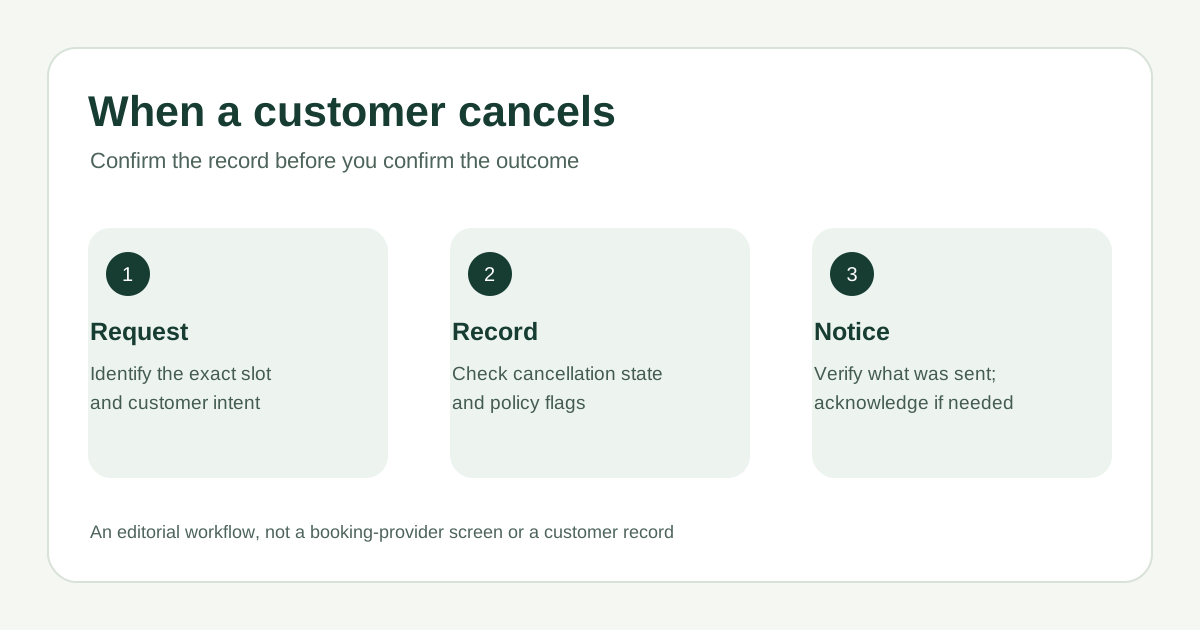
Use the booking record as the source of truth
| What you can verify | What you can say | What to do next |
|---|---|---|
| Request received; booking still active or pending | I received your cancellation request | Check the correct booking and complete the provider action before confirming |
| Booking shows canceled; provider notice status unclear | Your appointment for the verified slot has been canceled | Check the provider notification and whether another message is useful |
| Booking canceled and a suitable native notice was sent | Usually no duplicate message is needed | Keep the cancellation record; reply only if the client asks or needs clarification |
Match the client's name, service, date, time and location against the original appointment. If there are two similar bookings or someone else manages the calendar, resolve which record the request refers to first. A calendar event removed from your phone, a drafted text, or a client's own message may not update the business booking record. Save the request and final status in the system your business uses for appointments, rather than treating a reply template as the record.
Complete or verify the cancellation
- Open the exact appointment in your scheduling provider and check its current status. If the client already canceled through a supported self-service route, verify that state before taking another action.
- Check the actual cancellation terms and any deposit or prepayment attached to that booking. If a charge or refund is disputed or unclear, pause the financial promise and use your provider's policy controls or appropriate advice.
- If you are authorized to cancel it, use the provider's cancellation action and choose the customer-notification option appropriate for this booking. Reopen the record and verify the final state.
- Check what notification the provider says it sent and to whom. A setting, a send event or a queued notice does not prove the client received or read it.
Square's US appointment-settings guide documents a Dashboard path from Appointment Details to More, then Cancel Appointment, followed by a client-notification choice and confirmation. It also offers Mark As No-Show as a different action. This is a Square Dashboard example, not a claimed iPhone app path or a universal scheduling rule; your permissions and account configuration may differ.
Square's booking-notification guide describes configurable appointment-cancellation notices in Dashboard Communications. Availability and delivery route depend on settings, subscription and client preferences; these notices are transactional, not a place for marketing copy. Check the actual booking and communication activity before assuming a notice went out.
Write an acknowledgment that matches the state
Once the appointment record shows canceled, identify the original slot clearly and give only the next step you can support. A new booking link is optional and should point to a current, approved route. Do not imply a waived fee, a refund, a credit or automatic rebooking unless the relevant record and policy confirm it. Keep payment details and customer-specific links out of a reusable message.
Fictional example after a verified cancellation: ‘Hi Maya, your appointment for [service] on [date] at [time] is canceled. If you want another time, please use [current booking route] or reply here.’ The name, service, slot and route are placeholders. Remove the rebooking sentence if no route is available or the client does not want one.
If the cancellation has not been completed, use a different message: ‘Hi Maya, I received your request to cancel [service] on [date]. I am checking the booking and will confirm its status through [expected channel].’ Replace the placeholders from the real record. This acknowledges the request without creating a false final status or promising an unverified deadline.
- If the scheduling provider already sent a clear cancellation notice, avoid sending the same confirmation again just because a saved template exists.
- If the client asks about a deposit or fee, answer only from the applicable booking agreement and provider record; do not infer a refund from cancellation alone.
- If the client actually wants a new time instead, follow the separate rescheduling workflow so the original and new slots stay clear.
Where Copied can help, and where it cannot
Copied's product page describes reusable text Keys inserted manually in compatible iPhone and iPad fields. If you regularly acknowledge verified cancellations, a Key can hold neutral wording and placeholders for the service and original slot. Fill those from the current booking, review the recipient, and send the message yourself. Copied does not read a booking's status, cancel it, connect to Square, issue a refund, send a notification automatically or prove delivery. Some apps and secure fields do not accept third-party keyboards.
For the earlier step of confirming a new booking, see our appointment-confirmation guide. If you repeatedly need reviewed acknowledgment wording after the actual booking work is done, review Copied for iPhone and iPad and test one Key in a compatible field. Keep the booking outcome in your scheduling system.
References
- Square Support, Adjust your appointment settings Dashboard appointment cancellation action, customer notification choice and separate no-show action. Square US; checked Nov18, 2026; author/update date unstated; no account or device test.
- Square Support, Manage appointment booking notifications and reminders Configurable transactional cancellation notices, with settings, subscription and client-preference limits. Square US; checked Nov18, 2026; author/update date unstated; no account or delivery test.
- Copied, product homepage Publisher-declared manual Key insertion in compatible iPhone/iPad fields; no booking integration or automatic send. Checked Nov18, 2026; no app test.