App Reviews
Apple Notes vs Google Keep for Small Business Notes on iPhone
Choose where a working note belongs, who can edit it and which organization stays personal. Then keep customer-facing wording separate from the shared record.
Published , 7 min read, by Copied Editorial team
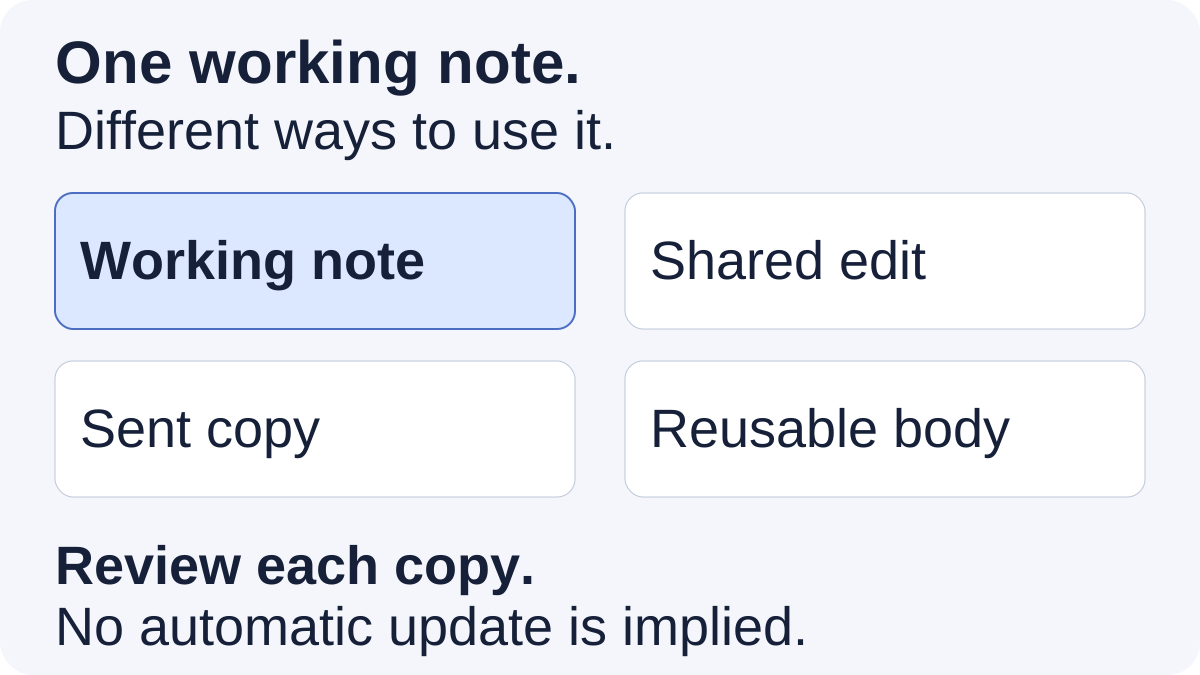
For small business notes on iPhone, choose Apple Notes when folders and structured notes fit the material you maintain; choose Google Keep when brief notes, personal labels and pins fit how you retrieve information. Before using either with colleagues, check the account requirements and whether you need shared editing or a sent copy. A reusable customer message is a separate object from that working note.
This comparison serves independent service providers, freelancers and very small teams choosing everyday notes, not a regulated record system or a complete project-management suite. We reviewed official documentation on October 13, 2026. This is a documentation-based comparison, not a hands-on benchmark. Copied publishes this guide; its optional role is reusing reviewed wording, rather than replacing either notes app.
Compare the job and the sharing model
| Decision | Apple Notes | Google Keep |
|---|---|---|
| Organize your working material | Folders, subfolders, tags and filtered Smart Folders | Labels, colors and pins; up to 50 labels |
| Keep structured content | Listing describes checklists, tables and attachments | Listing describes notes, lists, photos and audio |
| Work with others | iCloud note or folder collaboration; check participants and permissions | Note collaborators can edit; your labels, colors and pins stay personal |
| Send information without shared editing | Send a copy through the documented sharing route | Google directs you to send with another app |
| Free status to investigate | Free App Store listing; iCloud capacity is a separate limit | Free App Store listing; not proof of business administration or unlimited usage |
Use the details below to choose, rather than interpreting a blank space in this table as a missing feature. This is a focused shortlist for organizing and sharing notes. It does not score speed, offline behavior, security, transcription quality or every attachment type.
Apple Notes: organize a working document
Apple’s Notes listing describes checklists, tables, attachments and folders. A service provider could evaluate it for a maintained preparation note containing a checklist and supporting material, rather than scattering parts of that job across unrelated messages.
Apple’s tags and Smart Folders guide explains categorizing notes with tags and filtering them into Smart Folders without moving them from their original folders. For example, “Preparation” could be a folder while a tag marks a type of work. These are suggested conventions, not built-in business templates.
Use a structure you can understand after the job is finished. Name the note by its purpose and include its relevant date in the content. A filtered view is useful for finding material, but your naming convention should still make the individual note recognizable.
There is a material boundary: Apple’s tag guide says you cannot add a tag to a locked note or lock a tagged note. Choose your organization around the content’s needs; do not remove protections from existing confidential material merely to adopt a tagging scheme.
Google Keep: find brief notes by personal labels
Google’s Keep listing describes notes, lists, photos and audio. Its computer guide also documents using keep.google.com in a browser. Evaluate the actual phone and computer you use rather than assuming every control behaves identically.
The iPhone organization guide documents labels, colors and pins, with a maximum of 50 labels. When a note is shared, those organization choices are visible only to you. A label such as “Ready” on your phone does not tell another collaborator that the job is ready.
This makes labels useful for a personal retrieval system. For a shared status, our recommendation is to put the relevant information in the note’s shared content, or use your existing task system if status tracking is its job. Do not rely on a personal color as a team process.
Decide between shared editing and sending a copy
Apple’s current sharing guide separates collaboration on an iCloud note or folder from sending a copy. It describes participants using their Apple Accounts with Notes enabled in iCloud, and access and editing choices. The collaboration troubleshooting guide has different instructions for different system versions. Check everyone’s current device, account and software requirements before adopting it.
Apple also states that locked notes, or folders containing locked notes, cannot be used for collaboration. If a note contains information unsuitable for sharing, prepare a separate harmless note or a reviewed excerpt; this comparison is not an instruction to unlock private material.
Google’s Keep sharing instructions describe collaborators editing the note. For content you want to send without letting recipients edit the shared note, Google points to sending through another app. The same guide says deleting a shared note you own deletes it for everyone, so owner responsibility matters.
| What the other person needs | Use this relationship | Important review |
|---|---|---|
| Help maintain the same working note | Shared editing | Participants, permissions, ownership and current content |
| Receive today’s instructions | Reviewed sent copy | Content is correct now; do not assume later source edits reach the copy |
| Read a short customer message | Reviewed wording in a draft | Recipient-specific details and the message you actually send |
A copy sent outside the shared note is a separate piece of information. This is a workflow distinction, not a claim that the apps automatically keep copied paragraphs, exported content or Copied Keys synchronized.
What the free listings establish
Both the Apple Notes and Google Keep App Store listings reviewed for this guide are marked Free. These are free listings, not trial claims. They do not establish that every account, cloud capacity requirement or business administration need is free. Apple lists 5 GB of free iCloud storage, with paid iCloud+ upgrades for more capacity.
For this decision, start with ordinary notes and the account you intend to use. Check available cloud capacity and sharing eligibility there. We do not invent a Keep note quota or infer a managed business plan from its free app listing, and we do not quote regional purchase prices.
If you need several categories of software rather than a notes app decision, the broader small-business app stack guide owns that job. There is no need to install another notes app merely to complete a list.
A fictional preparation note and a separate customer message
Imagine an independent workshop organizer keeping a note called “Thursday room preparation.” This is a fictional editorial example. The maintained note lists equipment to check, the room arrangement and any unresolved questions. A colleague needs to edit the preparation checklist, while attendees only need the confirmed arrival instructions.
Choose one notes app as the home of that preparation note. If using Keep, write a shared status in the note rather than relying on a personal “Ready” label. If using Notes, check the collaborators’ requirements and sharing choices first. In either case, do not send the entire working note to attendees when it contains internal discussion.
Prepare a separate, verified arrival sentence: “Please arrive at [confirmed location] at [time and time zone]. Bring [required item].” Replace every placeholder in the draft. The note remains the working record; the sentence is wording for the attendee.
Copied’s optional role: reuse the reviewed wording
Copied’s published product overview describes reusable Keys, saved Clipboard content and Files. If you repeatedly find and insert the same generic arrival wording on iPhone or iPad, a named personal Key can hold the reviewed version. Insert it manually into a compatible draft field and edit it for that message.
This is not a Notes or Keep integration. A Key is a personal working copy, not a live shared note, automatic update, task assignment or message sender. When source instructions change, review and update the reusable wording yourself. Keep internal notes and previous recipients’ details out of the generic version.
The current Copied App Store description declares an entry allowance of up to four Keys; that does not establish every Clipboard or Files feature is free. Check the installed offer and your actual field’s keyboard support. The business reply-library guide covers ownership and review, and the email-template guide separates body wording from email fields and attachments.
Try three harmless notes before moving real work
- Create one brief note, one preparation checklist and one structured reference note in the candidate you are considering.
- Find each note again using the organization method you plan to keep. Check whether another person can interpret the note without seeing your personal labels.
- If collaboration is needed, use nonconfidential sample content and an appropriate willing participant to check the documented sharing route and permissions.
- Send a reviewed sample copy through the supported route. Confirm which object the recipient received and which content remains shared.
- Keep your existing records in place while deciding. This guide does not verify bulk migration, format preservation or backup recovery.
Choose the notes app that lets you maintain and retrieve the working record with understandable sharing. If notes alone solve your problem, keep that workflow. If repeatedly inserting approved customer wording is the remaining gap, review Copied’s reusable Keys and evaluate one harmless message through this page’s App Store destination. Review the recipient and current facts before sending.
References
- Notes — App Store Apple’s current listing describes note content and organization. Reviewed October 13, 2026.
- Use Tags and Smart Folders in Notes Apple’s guide to tags and filtered Smart Folders, including locked-note limits. Reviewed October 13, 2026.
- Share notes and collaborate on iPhone Apple’s current sharing guide distinguishes an iCloud collaboration from sending a copy. Menu names depend on system version. Reviewed October 13, 2026.
- If you can’t collaborate in the Notes app Check the current device, account and system-version requirements before choosing collaboration. Reviewed October 13, 2026.
- iCloud+ plans and pricing Apple lists 5 GB of free iCloud storage and paid capacity upgrades. No regional purchase prices are quoted here. Reviewed October 13, 2026.
- Google Keep — Notes and lists Google’s current iPhone and iPad listing is Free. This does not establish a managed business-account plan or unlimited usage. Reviewed October 13, 2026.
- Organize your notes — iPhone & iPad Google documents personal labels, colors and pins, including the 50-label limit. Reviewed October 13, 2026.
- Share notes, lists & drawings — iPhone & iPad Google distinguishes shared editing from sending note content to another app and explains owner-deletion behavior. Reviewed October 13, 2026.
- How to use Google Keep — Computer Google’s documented computer workflow uses keep.google.com. Reviewed October 13, 2026.
- Copied product overview Copied’s declared Keys, Clipboard and Files workflows; this comparison does not claim an integration with Notes or Keep. Reviewed October 13, 2026.
- Copied: Workspace Keyboard Developer description of reusable Keys and the limited entry offer. Installed regional offers and keyboard compatibility require checking. Reviewed October 13, 2026.