Guides
Change Temporary Business Hours on Google Maps and Apple Maps
A one-day early close needs two separate listing edits if customers find you on both maps. Set the dated exception, then check what each place card actually shows.
Published , 6 min read, by Copied Editorial team
For a short change to a location's opening hours, write down the exact date and customer-facing time first. In Google Business Profile, use Special hours for the correct location. In Apple Business, edit that location's temporary hours. Save each change separately, then check the customer-visible Google and Apple listings. An edit in one service does not update the other, and a saved edit is not proof that either place card already displays the new hours.
This checklist is for a small business owner managing a customer-facing location, not for a permanently changed weekly schedule. It is based on Google, Apple and Copied publisher guidance checked November 4, 2026. We did not sign in to a business account, edit a live location, test review timing or measure whether customers saw an update. Controls can differ by account, permissions and product version.
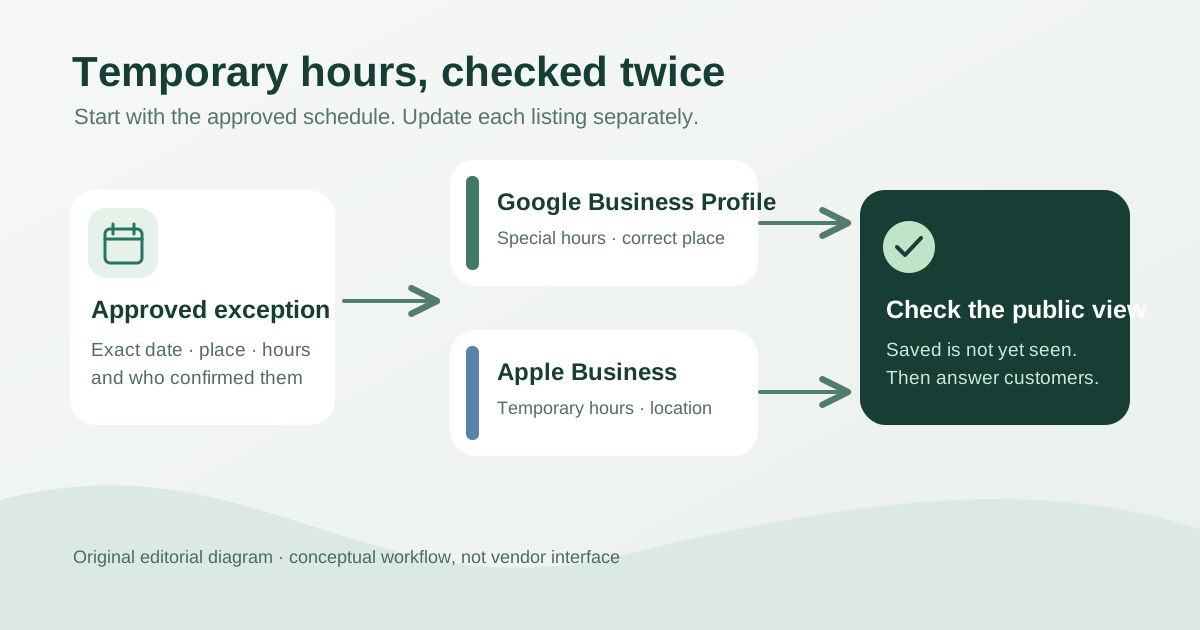
Make one dated schedule before touching either listing
Imagine a fictional repair shop that normally closes at 6 p.m. on Fridays but will close at 3 p.m. on one particular Friday for staff training. The owner should record the full date, local time zone, whether the shop opens at its usual time, the early closing time and who approved the change. This is an editorial example, not a real business result. A date without a year, or a time copied from another branch, is easy to reuse incorrectly.
Check the business's own website, booking page, door notice and any other channel customers actually use. If those channels disagree, resolve the schedule with the person responsible before publishing a map edit or sending a reply. Keep the usual weekly hours as the baseline when the exception is brief; change regular hours when the recurring schedule itself has changed.
| Situation | Google Business Profile | Apple Business |
|---|---|---|
| One exceptional date or short run | Special hours for the affected date | Temporary hours for the selected location |
| A service has different hours | More hours, where available for that service | Service hours for the relevant service |
| The usual weekly schedule changes | Main business hours | Normal hours |
| A prolonged or indefinite closure | Review Google's Temporarily closed guidance | Review the location's status and current Apple guidance |
The table is a routing aid, not a claim that the two companies use identical labels or automatically reconcile your data. Google's business-hours guide distinguishes main, Special and More hours. Apple's location-attributes guide distinguishes normal, service and temporary hours. For a long or uncertain closure, follow Google's current closure guidance rather than assuming a short-hours exception is enough.
Set Google's Special hours for the right Business Profile
Open the Business Profile that represents the actual customer-facing location, then follow Google's Special hours steps: Edit profile, Hours, Special hours, and the affected date. Set the changed opening and closing interval, or mark that date closed if the shop will not open. Review the date and interval before selecting Save. Google says Special hours preserve regular hours; it also says main hours should be set for Special hours to appear.
For the fictional early close, the owner would keep the shop's normal Friday schedule and enter a dated Special hours interval ending at 3 p.m. They would not shorten every Friday or create a duplicate Business Profile. If the business has split opening periods or an overnight interval, use Google's current instructions for those cases instead of squeezing them into a single guessed range.
A saved Google edit may still need review. Google's edit-status guidance distinguishes Accepted, Pending and Not approved; it says review can sometimes take longer than the usual short interval. Record the status you actually see. If the edit is pending or rejected, do not tell a customer that the Google place card has been corrected. Recheck the public result and use a direct, accurate notice through an appropriate business channel while the listing is unresolved.
Set Apple's temporary hours for the same location
Apple Business is the current name for the service formerly called Apple Business Connect, as Apple's rebrand notice confirms. In an account with location-management permission, find the correct place under Brands and Locations, select it and review the existing hours. Apple's location-editing guide says to update the location's Special hours for holidays, events or extended hours and save the selected location. Its hours definitions describe temporary hours as a dated opening or closure exception, separate from service hours.
Enter the same approved date and local interval used for Google. Review the place-card preview, which Apple says shows how entered hours appear, but then check the public Apple Maps place card as a separate step. The public card may still differ from the preview. If your account cannot edit the location, check the organization's location permissions or claim process instead of making a second listing to work around access.
Verify the two public listings and keep a short record
- Search for the exact business name and branch on Google Maps or Search. Open its public profile and compare the affected date and hours with the approved schedule.
- Find the same branch in Apple Maps. Open its public place card and compare the same date and hours. Do not mistake another nearby branch for the one you edited.
- Record the edit time, account status or review notice, and the public result for each service. If one card is stale, note the discrepancy and revisit it; do not mark the two-listing job complete.
- After the exceptional date passes, check that the ordinary schedule is still correct and remove any separately maintained message that has become stale.
The public checks are deliberately separate. A manager screen, saved confirmation or Apple preview can answer what was submitted, while a customer's place card answers what is currently visible. Search results may vary with location and timing, so use the exact branch and date, and treat an unresolved discrepancy as unresolved rather than claiming instant propagation.
Reply to customers with the verified date, not a stale template
When someone asks about the exception, a useful reply names the branch, full date and verified closing time: “Our [branch] closes at [time and time zone] on [full date]. Our regular hours resume [date], subject to our current listing.” Replace every bracket with approved facts and inspect the whole message before sending. If the map cards are still pending, say so plainly and give the confirmed business schedule without pretending the listing is updated.
If the owner often retrieves approved customer replies on iPhone or iPad, Copied can hold this wording as a Key for manual insertion in a compatible text field. That is optional: a fresh message may be simpler for a one-off change. Copied does not edit Google or Apple listings, synchronize their hours, check live place cards or send the reply. Update or retire the Key when the date passes; never reuse an old exception merely because it is easy to insert.
This task is different from sending a customer a map destination. Our business-location sharing guide helps choose an address, place link or entrance pin. Our saved-replies guide covers organizing reusable wording. For the hours exception itself, the useful finish line is two checked public listings and an accurate answer to anyone who asks.
References
- Google Business Profile Help, Edit your business hours Main, Special and More hours for Maps and Search. Publisher Google; no individual author/date stated. Checked November 4, 2026; no account test.
- Google Business Profile Help, How to set Special hours Dated exceptions preserve regular hours; steps and main-hours prerequisite. Publisher Google; no individual author/date stated. Checked November 4, 2026; no account test.
- Google Business Profile Help, Mark your business as closed Guidance for prolonged or indefinite temporary closure. Publisher Google; no individual author/date stated. Checked November 4, 2026; exact threshold omitted due to differing help phrasing.
- Google Business Profile Help, Understand what happens to edits Accepted, Pending and Not approved states; review can take time. Publisher Google; no individual author/date stated. Checked November 4, 2026; no edit performed.
- Apple Support, Configure location attributes in Apple Business Normal, service and temporary hours and place-card preview. Publisher Apple; no individual author/date stated. Checked November 4, 2026; no account test.
- Apple Support, Edit or remove a location in Apple Business Permissioned location selection and hours edits. Publisher Apple; no individual author/date stated. Checked November 4, 2026; no account test.
- Apple Support, Apple Business Connect is now Apple Business Current service name. Publisher Apple; no individual author/date stated. Checked November 4, 2026.
- Copied, product homepage Optional reusable Keys for manual insertion in compatible iPhone/iPad fields. Publisher Sharply Labs; no individual author/date stated. Checked November 4, 2026; no map listing integration or automatic send claimed.