Guides
Personalize Saved Replies on iPhone with Clipboard Variables
A reusable reply needs more than fixed wording. Decide which details should change, rehearse with harmless values, and check the expanded draft before sending.
Updated , published , 4 min read, by Copied Editorial team
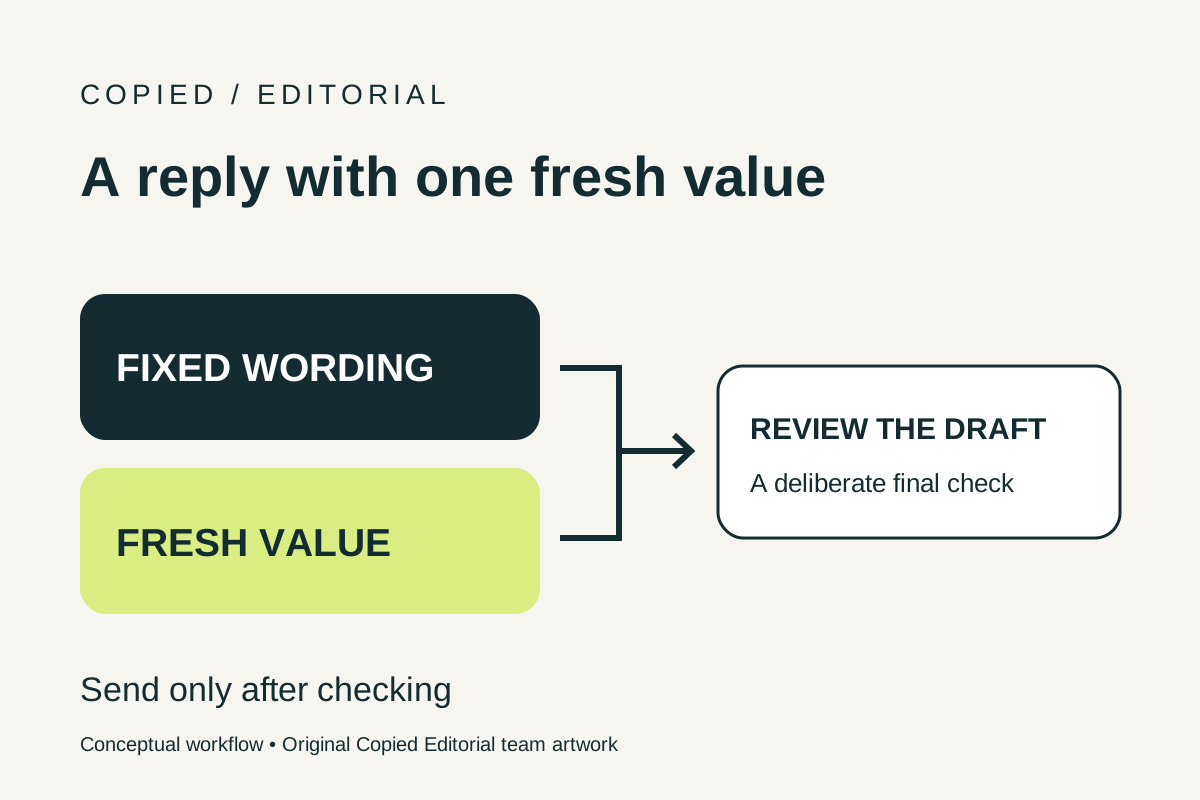
A saved reply can keep the wording you repeat while leaving room for details that change. Copied's published product description says Keys support clipboard, date and time, and cursor position variables. Treat these as ways to assemble a draft: they do not look up the right customer, confirm an appointment or send the message for you.
The useful question is not simply whether a reply can be dynamic. It is which value belongs in this particular conversation, and how you will check it before sending.
Design a reply in three parts
Before using variables, split the message into stable wording, changing information and a review step. For example, the sentence introducing a booking page might stay the same, but the page link could change between services. A confirmation date is different again: it needs the date of the actual appointment, not whatever day it is when you insert the reply.
| Part | Example | Your decision |
|---|---|---|
| Fixed wording | An introduction to the next step | Save text that remains accurate across the intended conversations. |
| Fresh value | A link you just copied for this conversation | Decide where it comes from and check that it belongs to this recipient. |
| Review | Recipient, value and intended meaning | Read the inserted draft before using the messaging app's Send control. |
This is a reply-design framework, not Copied variable syntax. Labels such as “fresh link” in this guide are explanations, not tokens to paste into the app. For building your first library, start with saving and organizing replies on iPhone.
Choose the variable for the information you need
Clipboard: use it for a short value you deliberately copy immediately before composing the message, such as a public information link. Apple documents the system pasteboard as a way to exchange copied data between apps. That current copied content is not a customer database. If you copy something else between selecting the value and inserting the reply, inspect the result again.
Date or time: use a current-date or current-time value only when the message actually means now. A message about a future appointment, delivery window or deadline needs its real event value. Replacing “Tuesday's visit” with today's date changes the meaning even if the text looks polished.
Cursor position: consider it for a detail you prefer to type yourself. Manual entry can be clearer than a clipboard value when a reply needs several independently changing facts. Check the field you are editing rather than assuming a variable supplies recipient information.
Keep an unchanged address or public help link as fixed text if it genuinely stays the same. Making every field dynamic adds review work without necessarily improving the reply.
Rehearse with two harmless values
The following is a fictional exercise, not a customer result or a hands-on product benchmark. Imagine an independent instructor replying to questions about two classes. Both messages introduce a class page, but each must contain the correct public link.
- Choose two non-sensitive sample text values, “class A link” and “class B link,” for a draft-only rehearsal. They are labels, not working URLs.
- Set up the reusable wording using the variable controls available in your installed Copied version. Do not substitute these example labels for the app's actual variable controls.
- Copy the first sample and insert the Key into a disposable draft in a text field that supports Copied's keyboard. Read the whole result; do not send it.
- Copy the second sample and repeat. Confirm the changed value is visible where you expect it, without disturbing the fixed wording.
- Before using a real link, repeat the recipient-and-value check. Confirm the link's destination separately and inspect the final draft.
If that exercise does not behave as expected, use fixed text with manual editing until the specific issue is understood. A polished template is not a reason to send an unverified value.
Diagnose the draft before changing the template
| What you notice | What to check | Practical next action |
|---|---|---|
| A different link or name appears | What was copied most recently | Recopy the intended value, insert into a fresh draft and review it. |
| The changing part is empty or unsuitable | Whether the copied item contains the text you intended | Try a harmless plain-text value; avoid assuming an image or file will become reply text. |
| The date is wrong for the appointment | Whether you used a current-date value for a future event | Enter the verified event date manually. |
| Several customer details need changing | Whether one copied value can express the whole intended change | Use a simpler reply and edit the independent details explicitly. |
| The keyboard is unavailable in this field | Whether the receiving field supports third-party keyboards | Follow the keyboard setup and access guide, or use the app's supported copy-and-paste path. |
For the distinction between what is copied now and what has been saved for later, see iPhone clipboard history and saved items. Never use a saved old value merely because it is easy to find.
When a simpler method fits
Apple's Text Replacement feature expands a shortcut into a saved phrase. For a few unchanging phrases, that native option may be enough. If each reply needs different judgment, typing or editing the details yourself can be the better choice. Our Text Replacement versus keyboard library comparison covers that method decision.
Copied is worth considering when you repeatedly browse saved wording and need a controlled way to add a fresh value. Its keyboard inserts text manually into compatible fields, consistent with Apple's custom keyboard support boundary. A variable does not bypass a receiving app's restrictions or turn Copied into an automated sender.
Start with one low-risk reply and one changing value. Explore Copied for iPhone and iPad, then evaluate the draft-only rehearsal in the app and text fields you actually use. Keep the final review step even when the template feels familiar.
References
- Copied, Saved Replies, Clipboard & Files for iPhone Publisher-declared personal Keys, Clipboard and Files workflows and capture limits. Not a device test. Checked 2026-10-09.
- Apple Developer, UIPasteboard Apple’s reference for the system pasteboard that apps read from and write to.
- Apple Support, Use shorthand for frequently used text on iPhone Apple’s guide to Text Replacement: a phrase, an optional shortcut, and iCloud sync of the personal dictionary.
- Apple Developer, Creating a custom keyboard Apple’s current documentation for custom keyboard extensions.